
There are a few instances while using Tuva where you’ll need to allow pop-ups to appear:
- While importing or refreshing data from Google Drive or One Drive
- While importing a Google Classroom or updating your student list from Google Classroom
The steps for both are similar, and we’ve highlighted the data refresh process below.
In this support article we’re going to go through four different web browsers and show you how to unblock pop-ups: Chrome, Safari, Firefox, and Edge.
Chrome
Section titled “Chrome”After choosing to refresh your data, you’ll see the following screen if you have not allowed pop-ups. Notice the “Pop-up blocked” text near the top of the web browser.
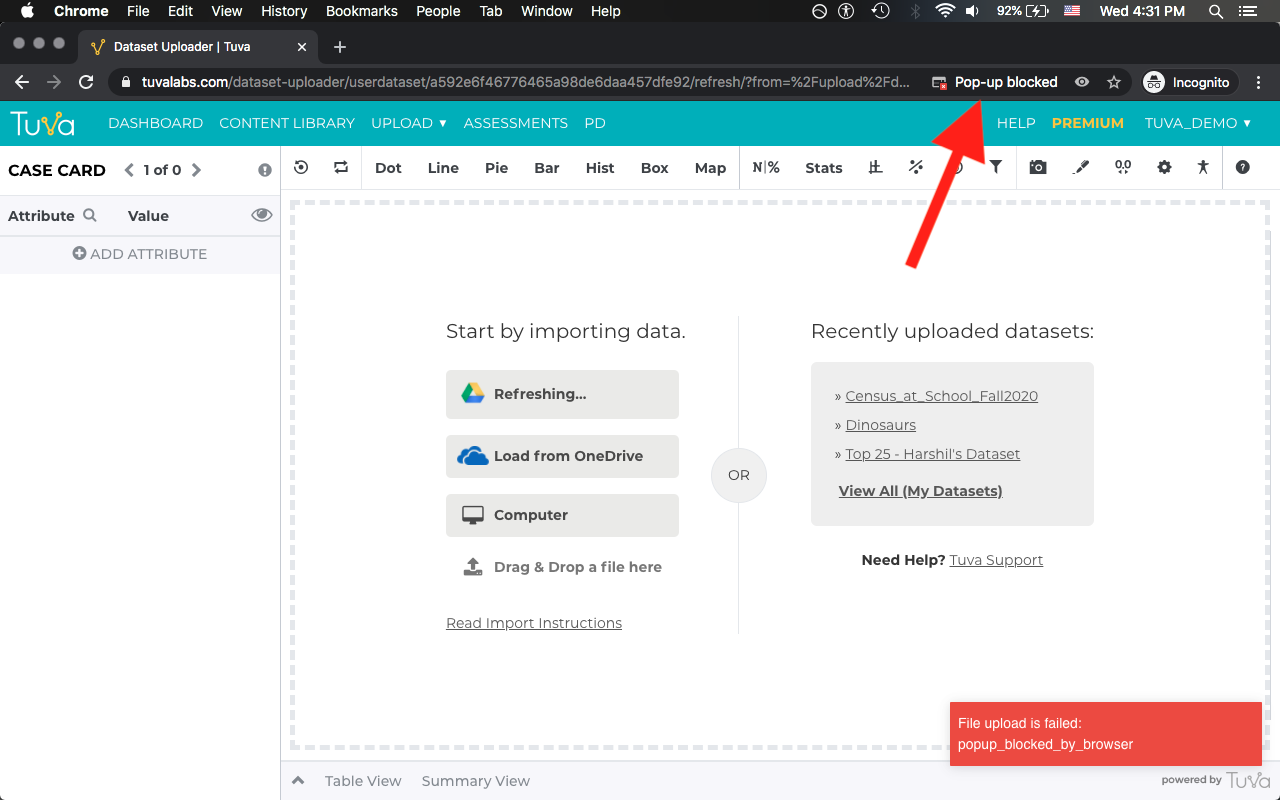
You will need to click the pop-up blocked button that has appeared. Once you click on it, you will see the following menu appear.
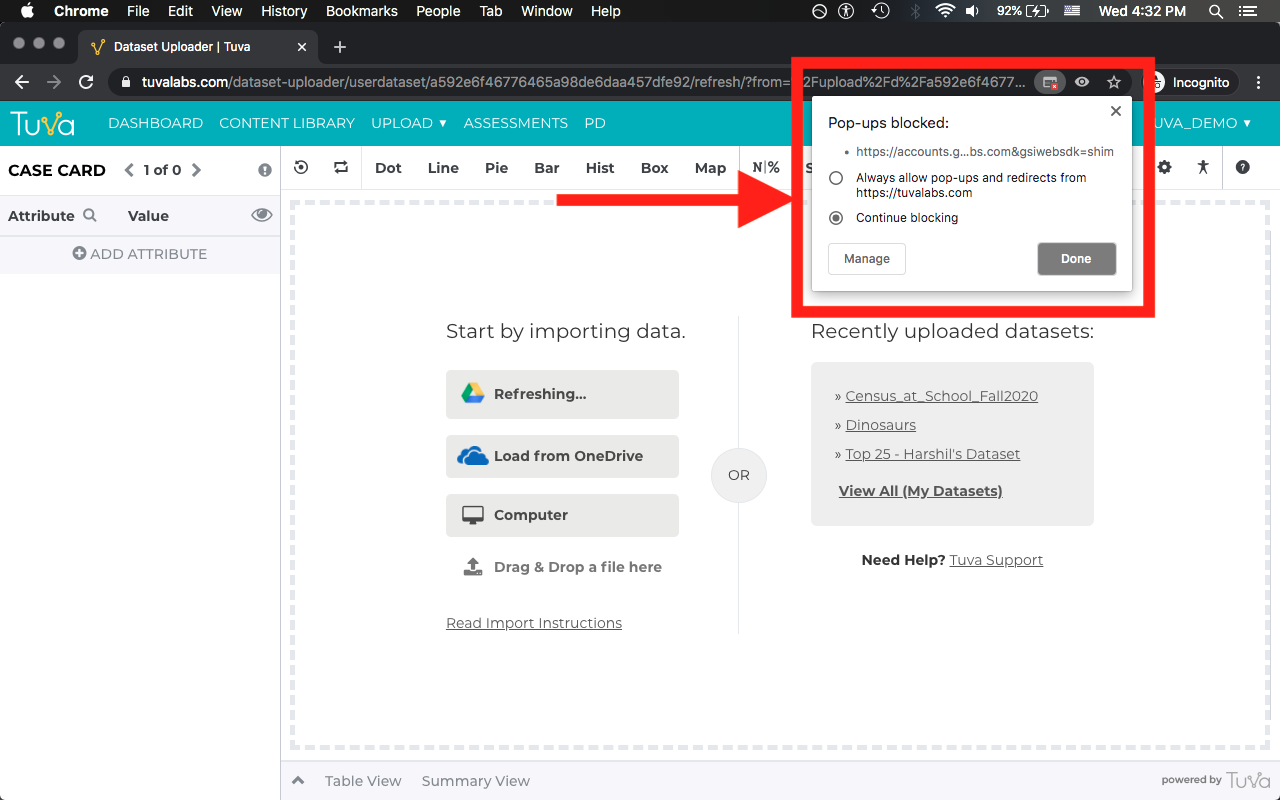
From the menu shown in the screenshot above, you will need to click to always allow pop-ups and redirects from tuvalabs.com, then click done.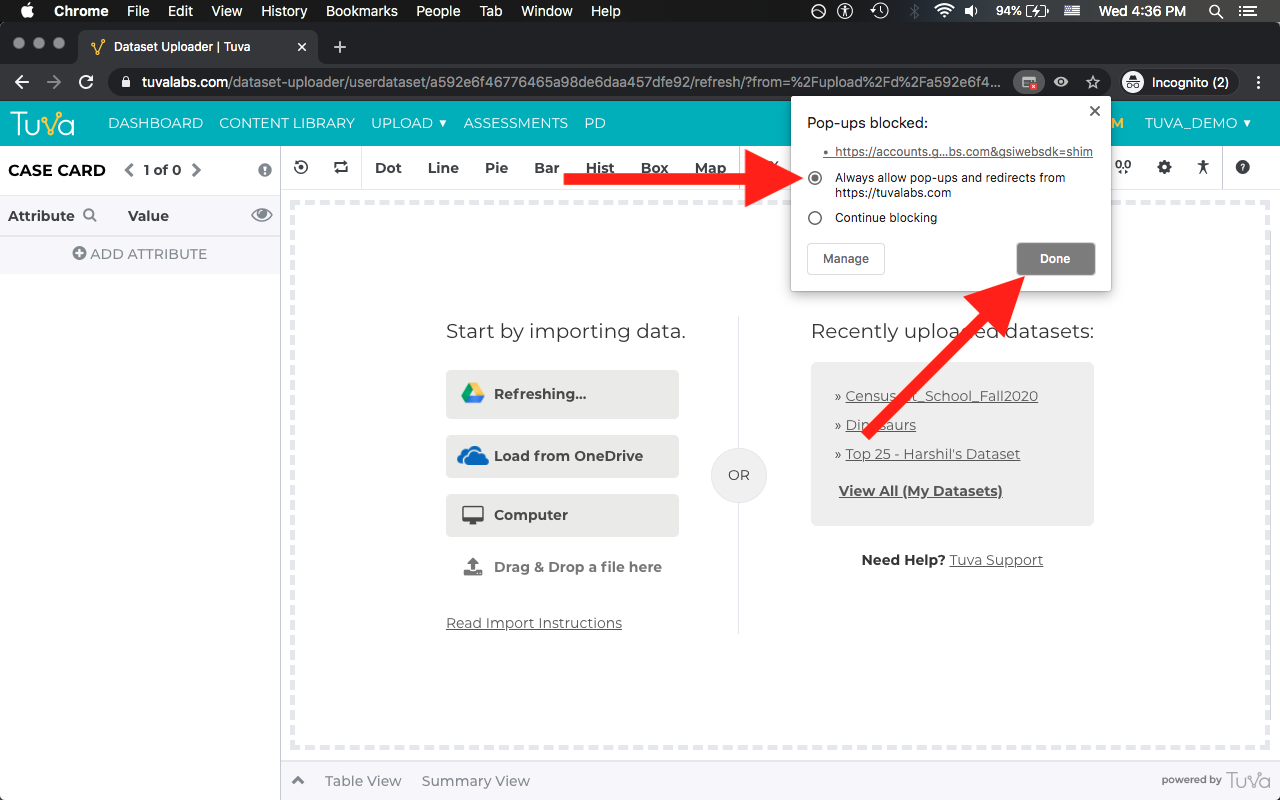
Once you click done, you will need to go back to My Datasets page and click refresh once more to allow Tuva to update your dataset.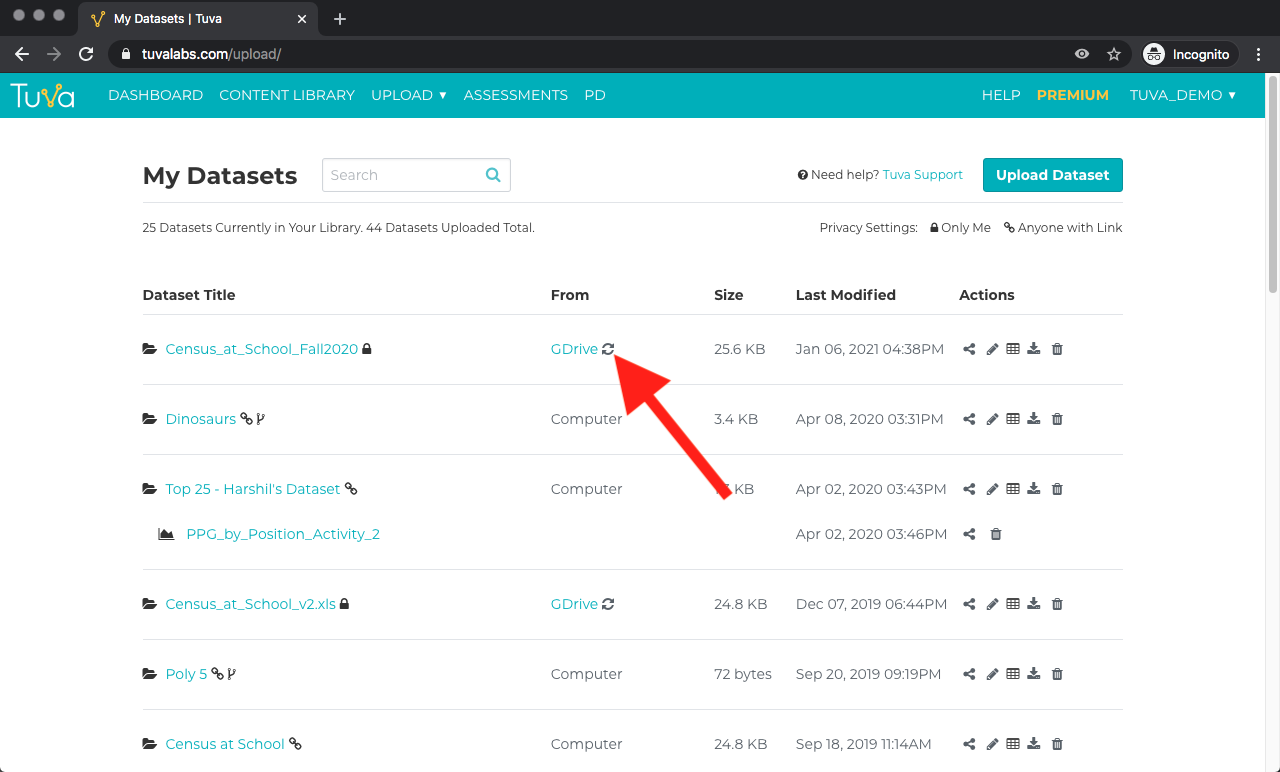
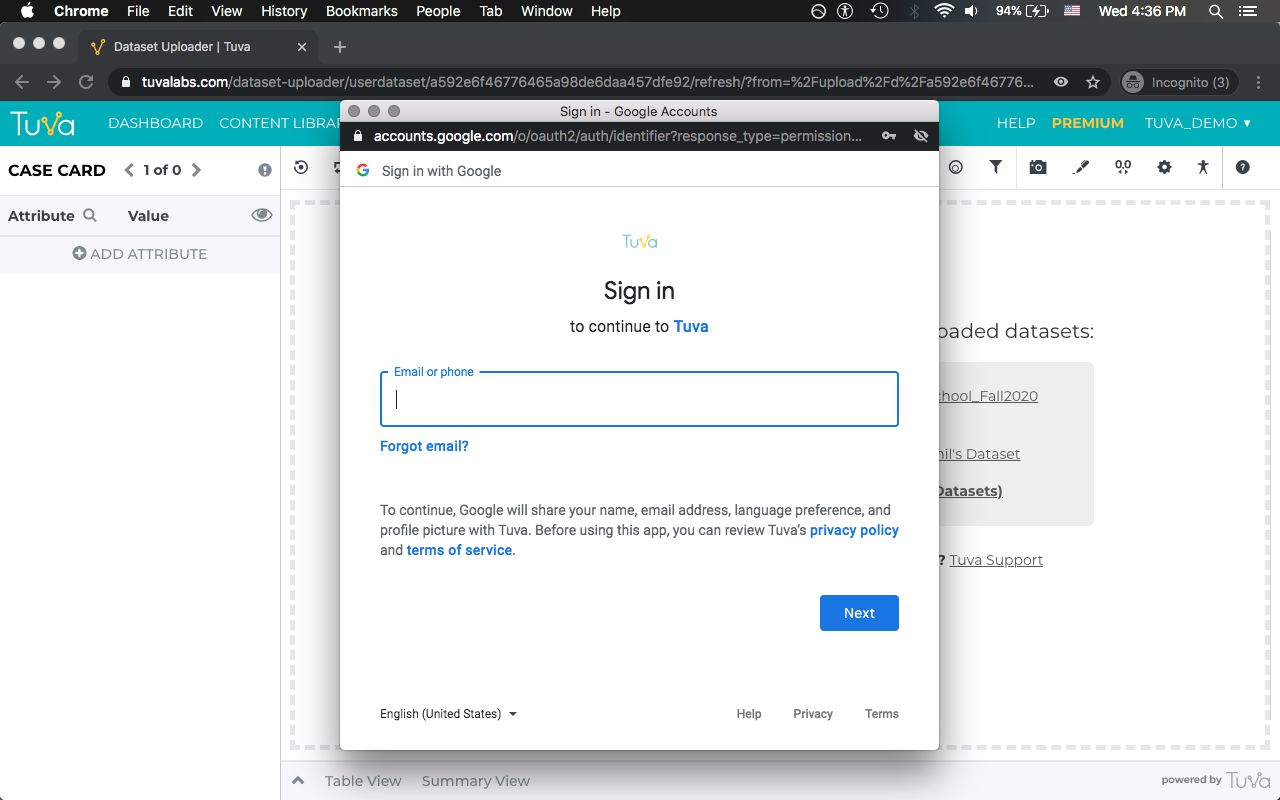
This time around when you click refresh, you will see a pop-up like the following asking you to authenticate. This means pop-ups are being allowed and once you authenticate, Tuva will be able to update your dataset.
Safari
Section titled “Safari”After choosing to refresh your data, you’ll see the following screen if you have not allowed pop-ups. Notice the “Pop-up Window Blocked” text near the top of the web browser.
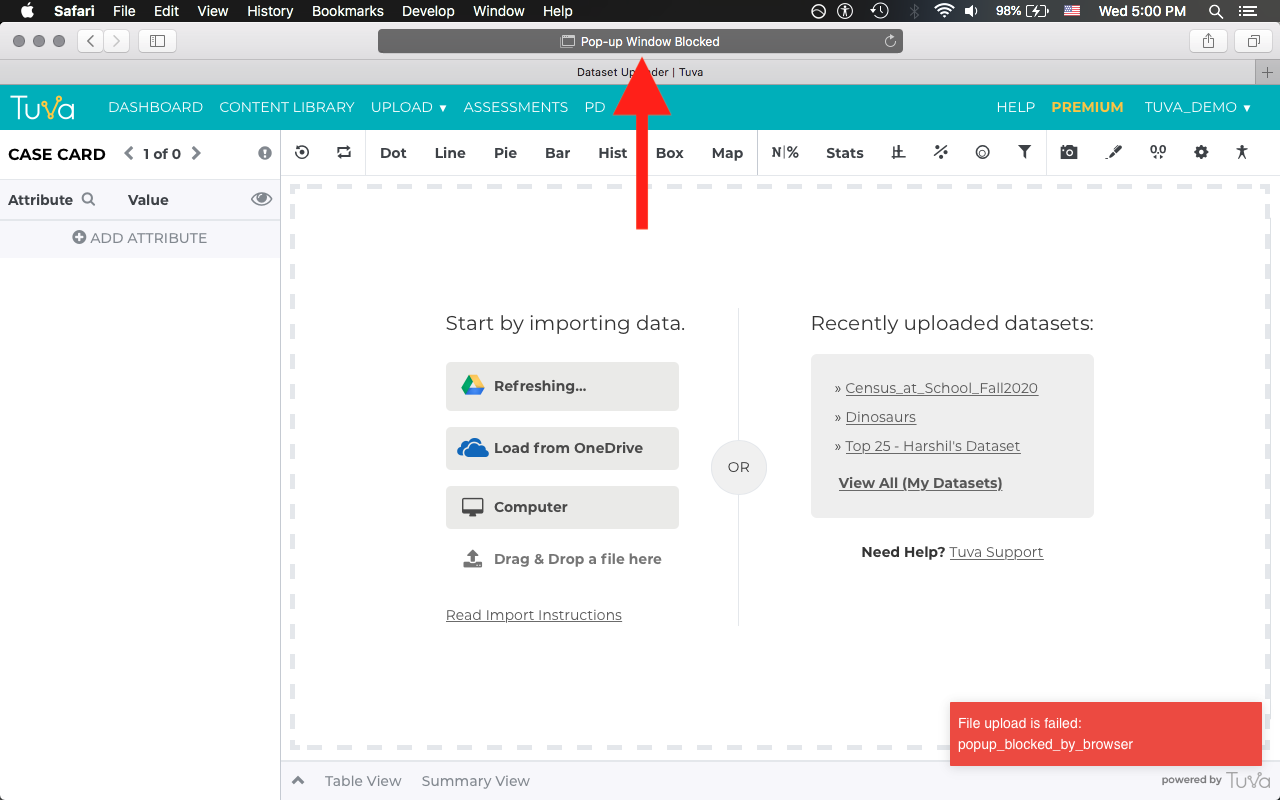
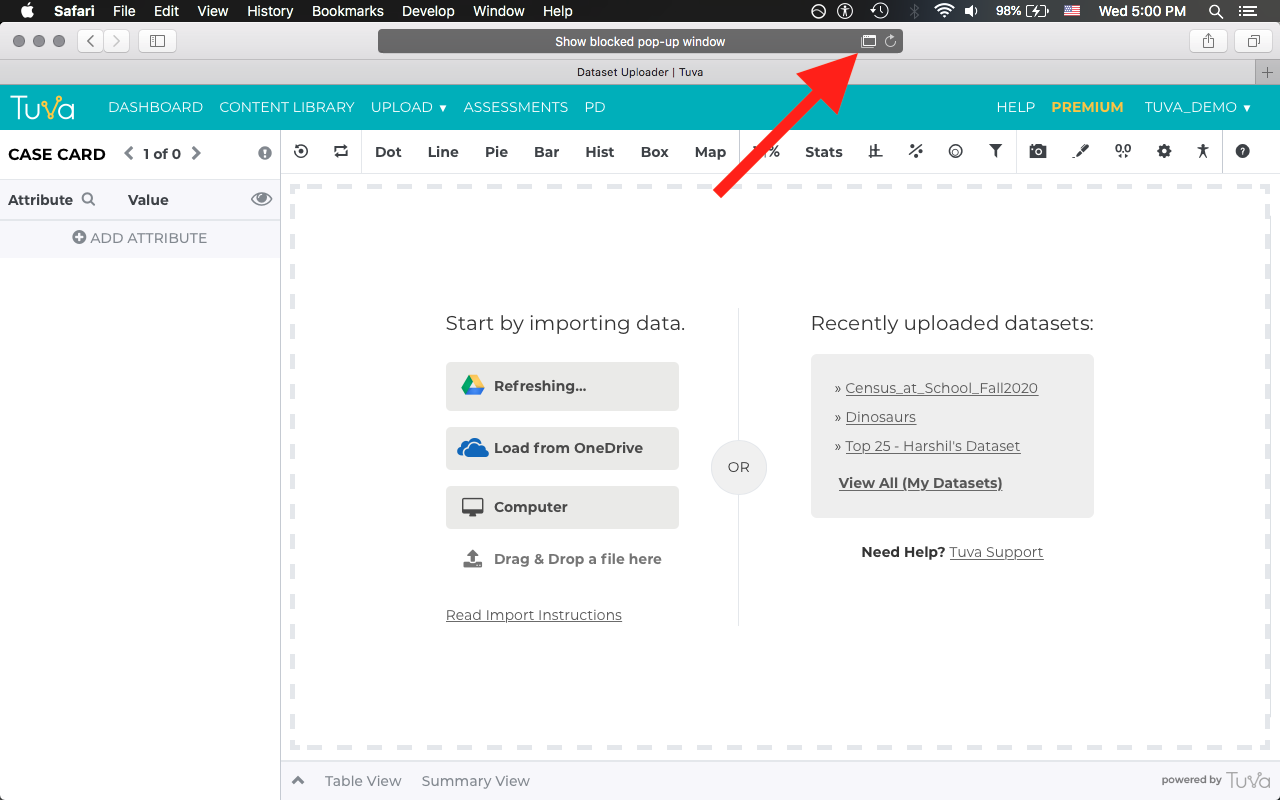
You will need to hover over and click the pop-up blocked icon that has appeared. By clicking it, you are telling Safari to show the blocked pop-up. It will also remember this choice the next time you visit Tuva.
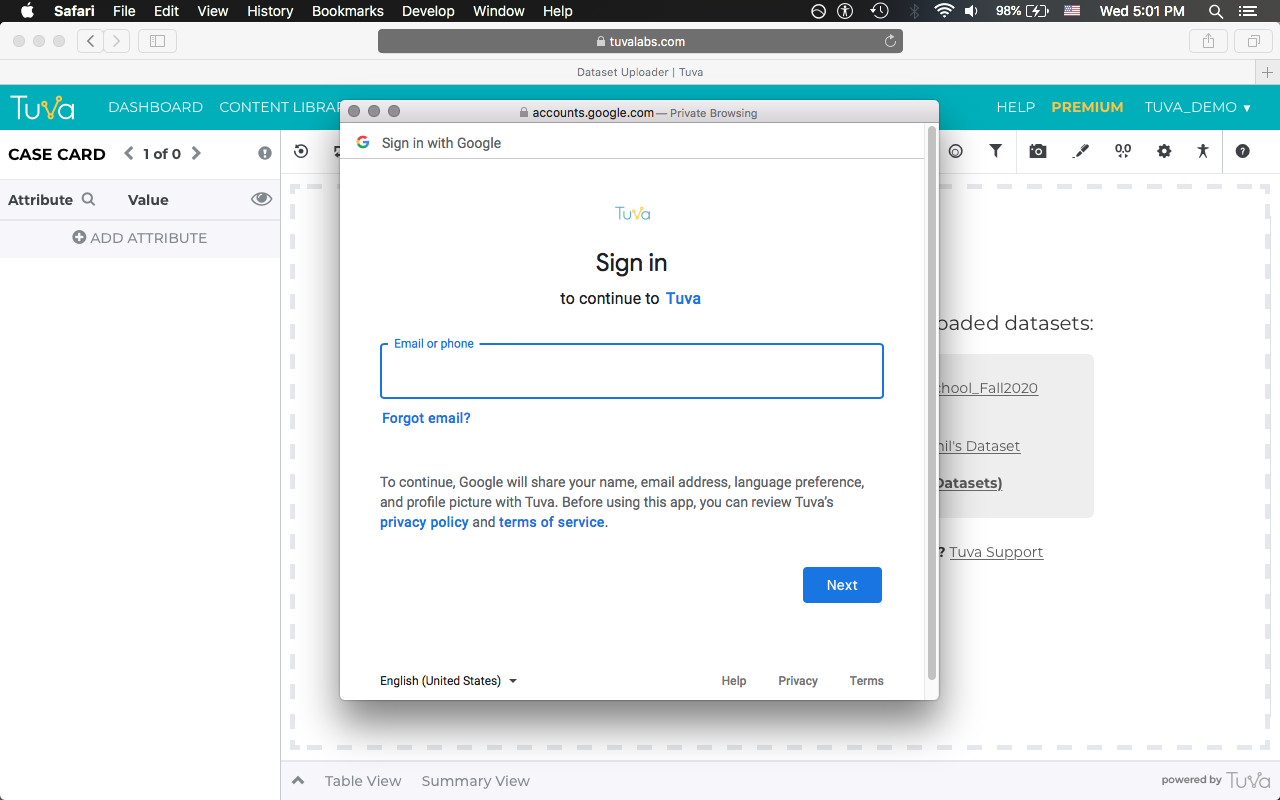
Once you click and allow pop-ups for Tuva, you will see a pop-up similar to the one shown in the screenshot below. This means pop-ups are being allowed on Tuva and once you authenticate, Tuva will be able to update your dataset.
Firefox
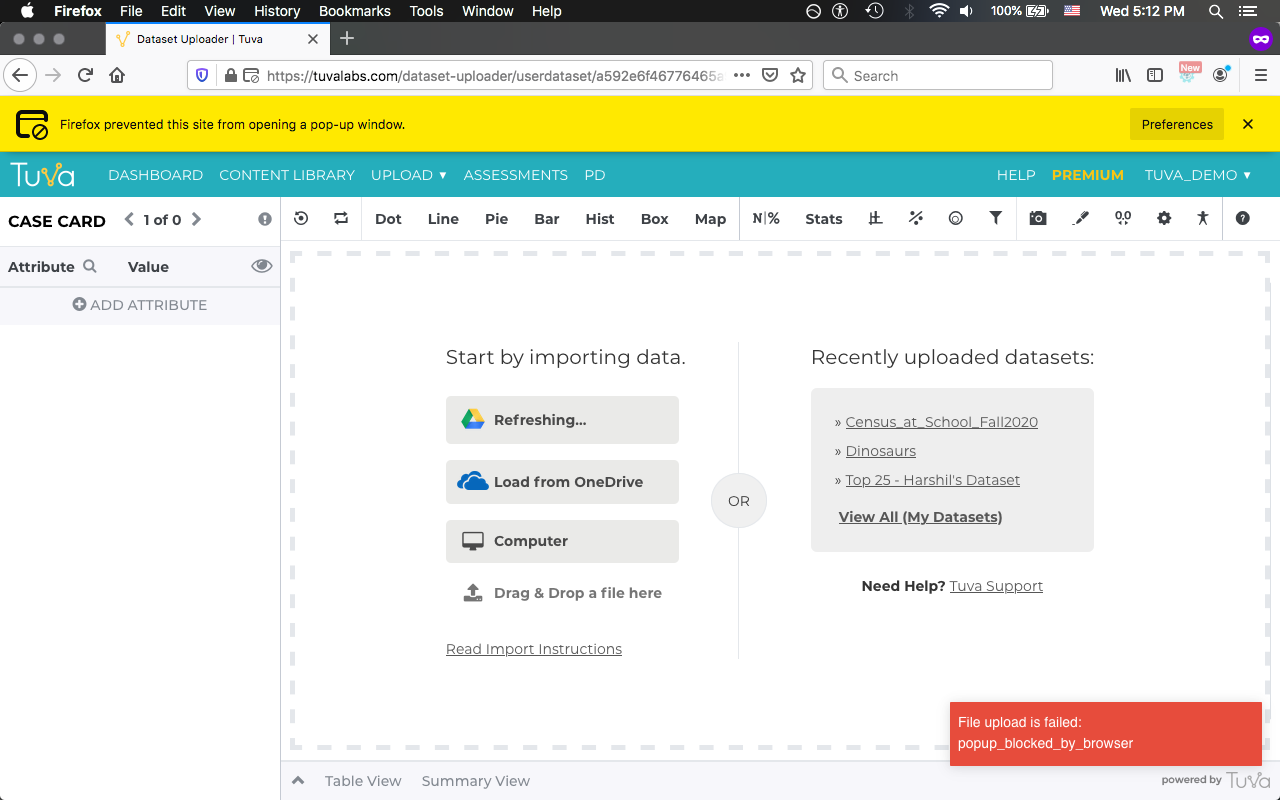
Section titled “Firefox”After choosing to refresh your data, you’ll see the following screen if you have not allowed pop-ups. Notice the large yellow banner that says “Firefox prevented this site from opening a pop-up window.” near the top of the web browser.
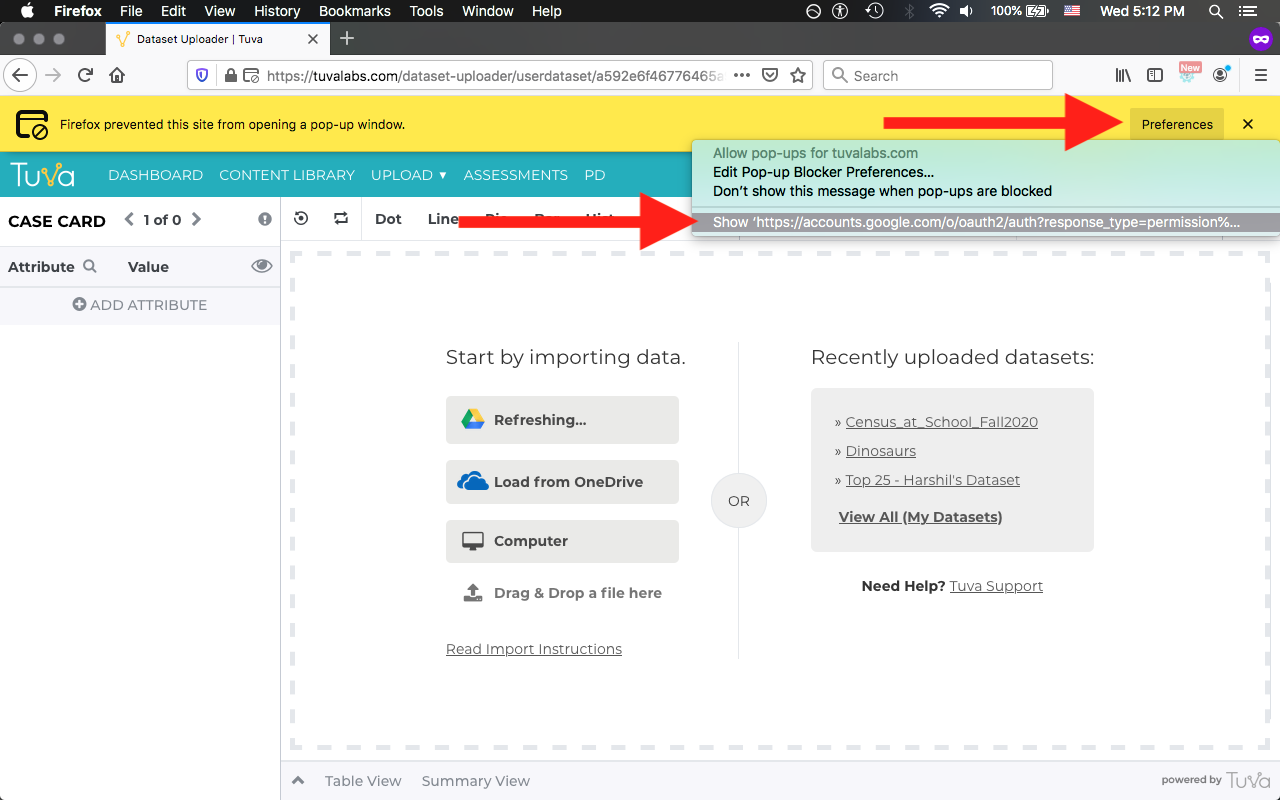
 You will need to click on Preferences towards the right of the yellow banner and then click to show the pop-up.
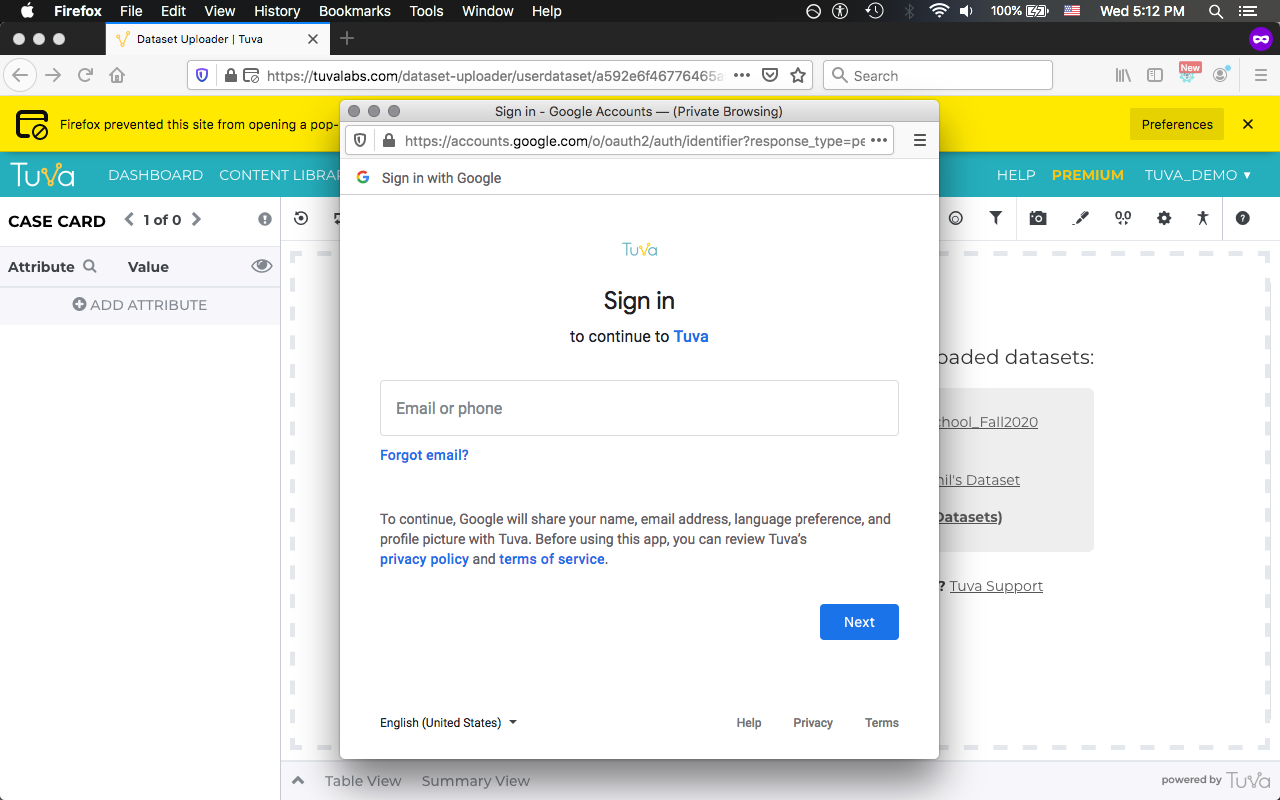
Once you click to allow this pop-up, you will see a pop-up similar to the one shown in the screenshot below. Once you provide your credentials and authenticate, Tuva will be able to update your dataset.
After choosing to refresh your data, you’ll see the following screen if you have not allowed pop-ups. Notice the “Pop-up blocked” text near the top of the web browser.
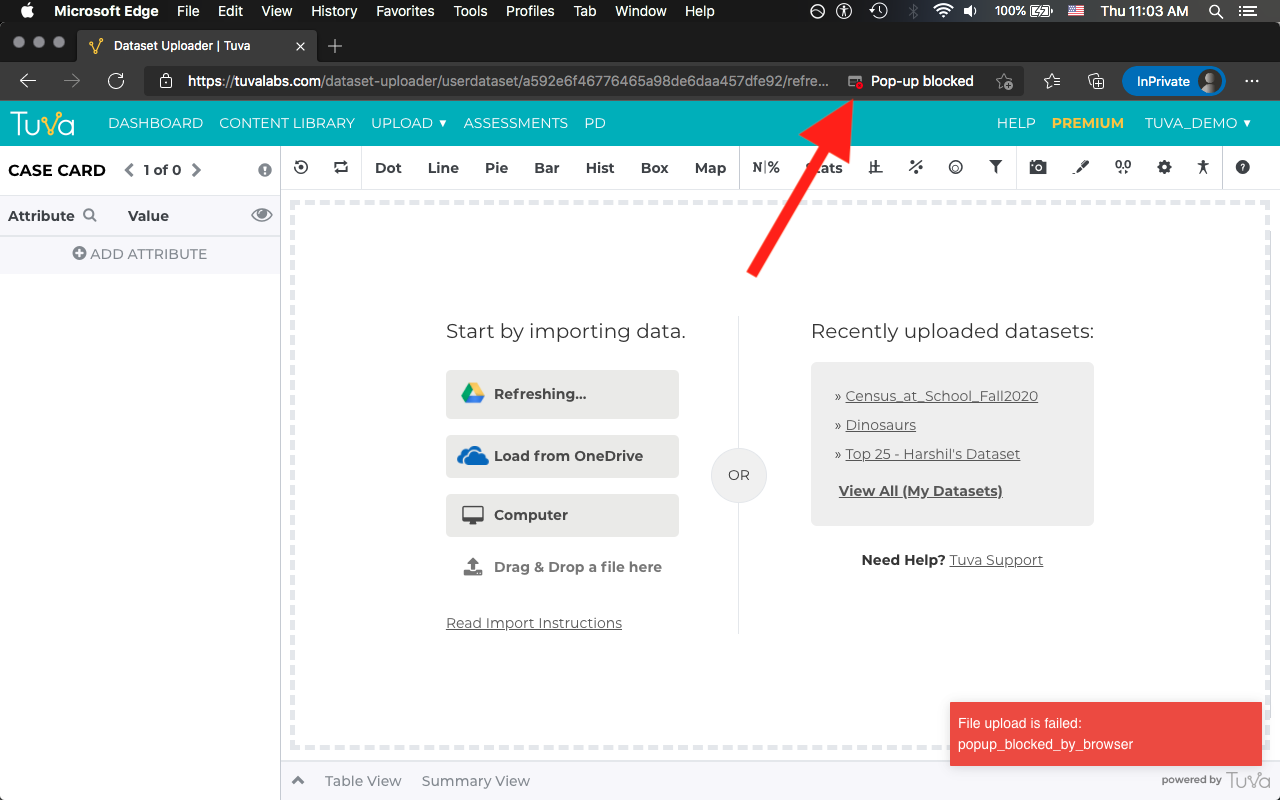
You will need to click the pop-up blocked button that has appeared. Once you click on it, you will see the following menu appear.
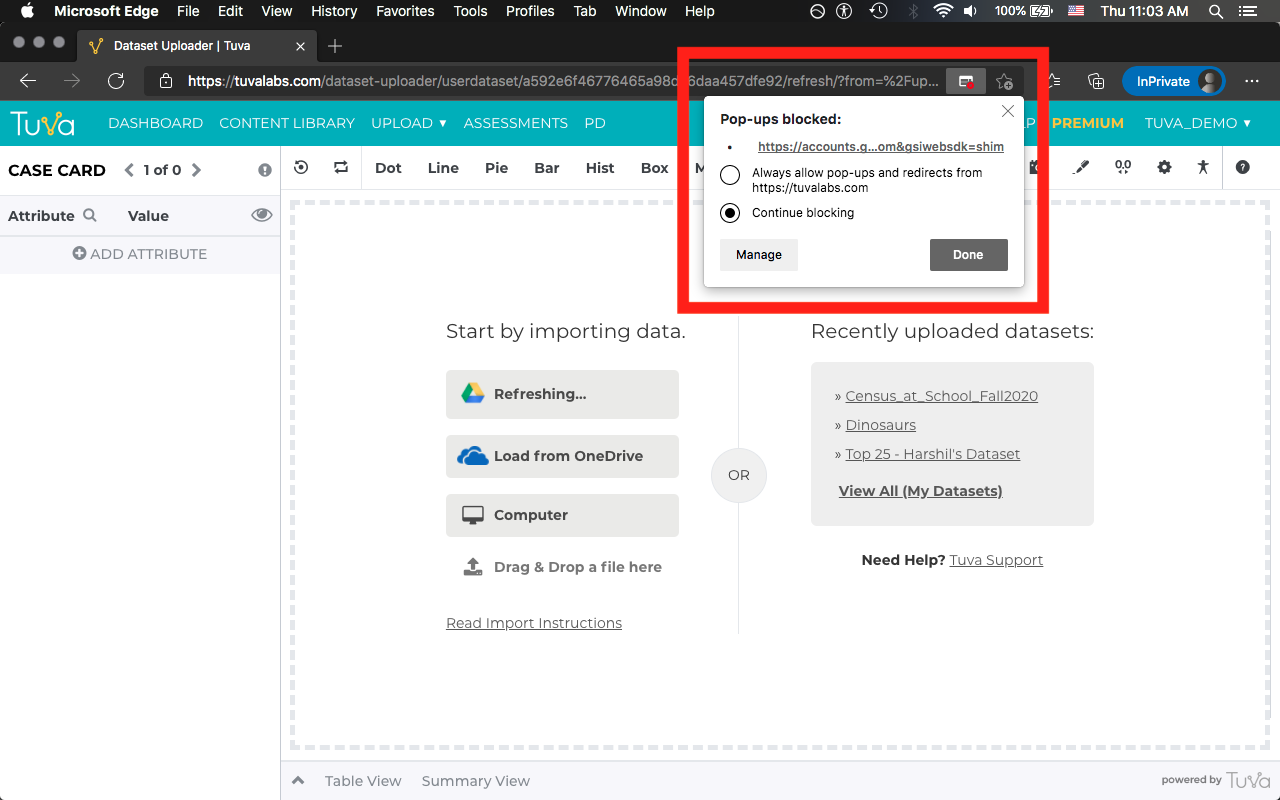
From the menu shown in the screenshot above, you will need to click to always allow pop-ups and redirects from tuvalabs.com, then click done.
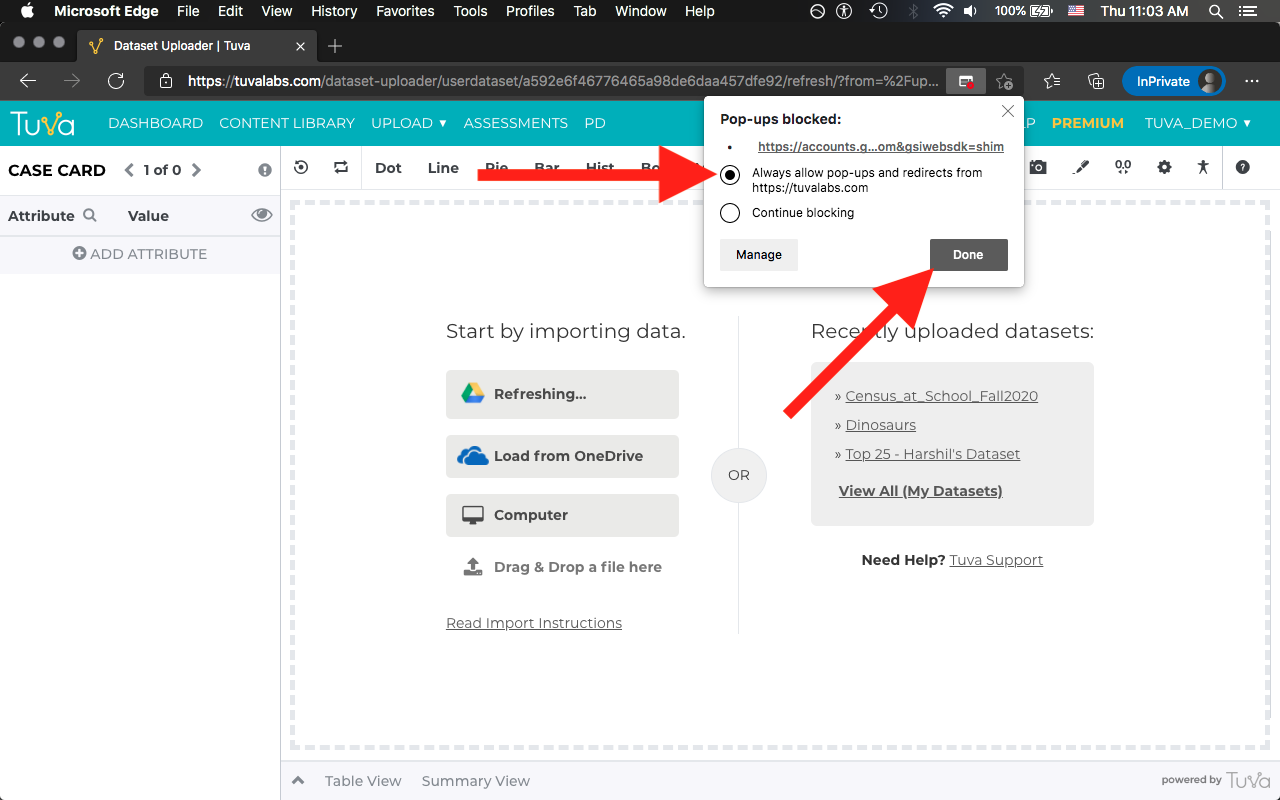
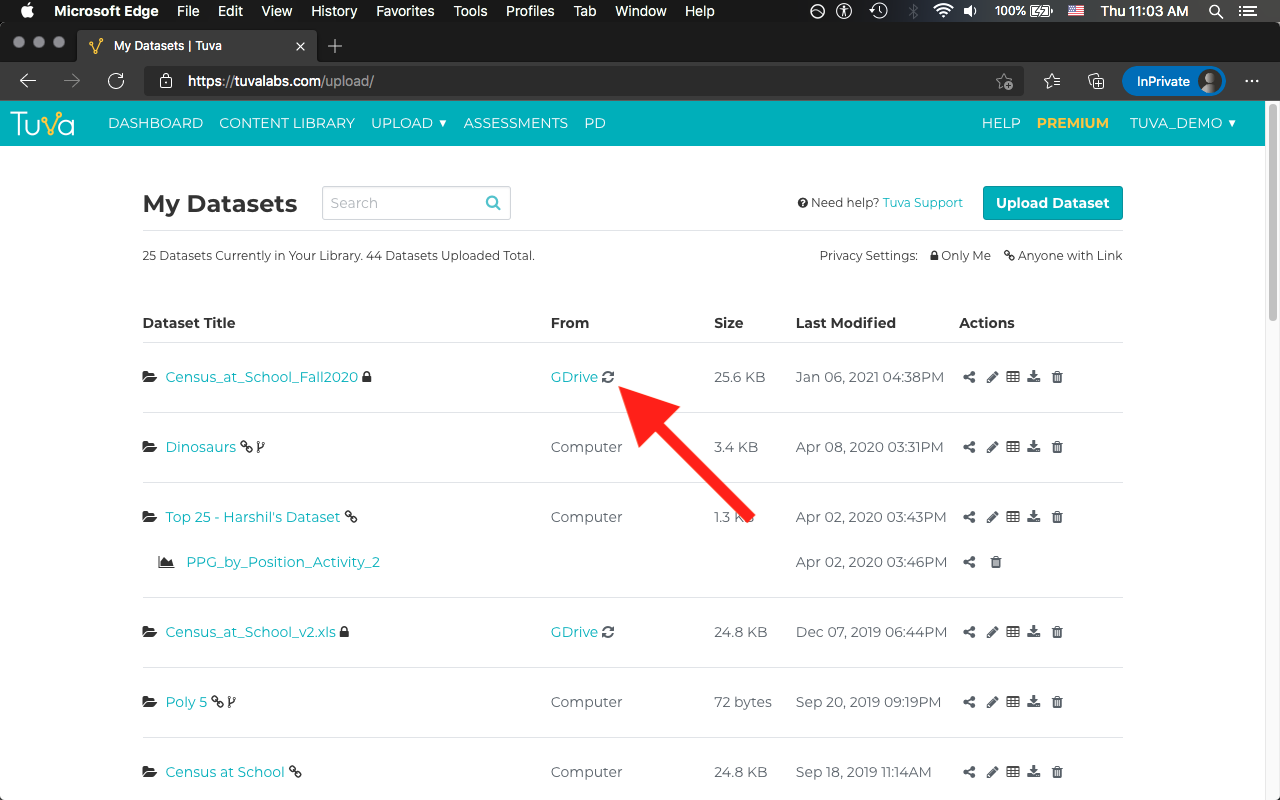
Once you click done, you will need to go back to My Datasets page and click refresh once more to allow Tuva to update your dataset.
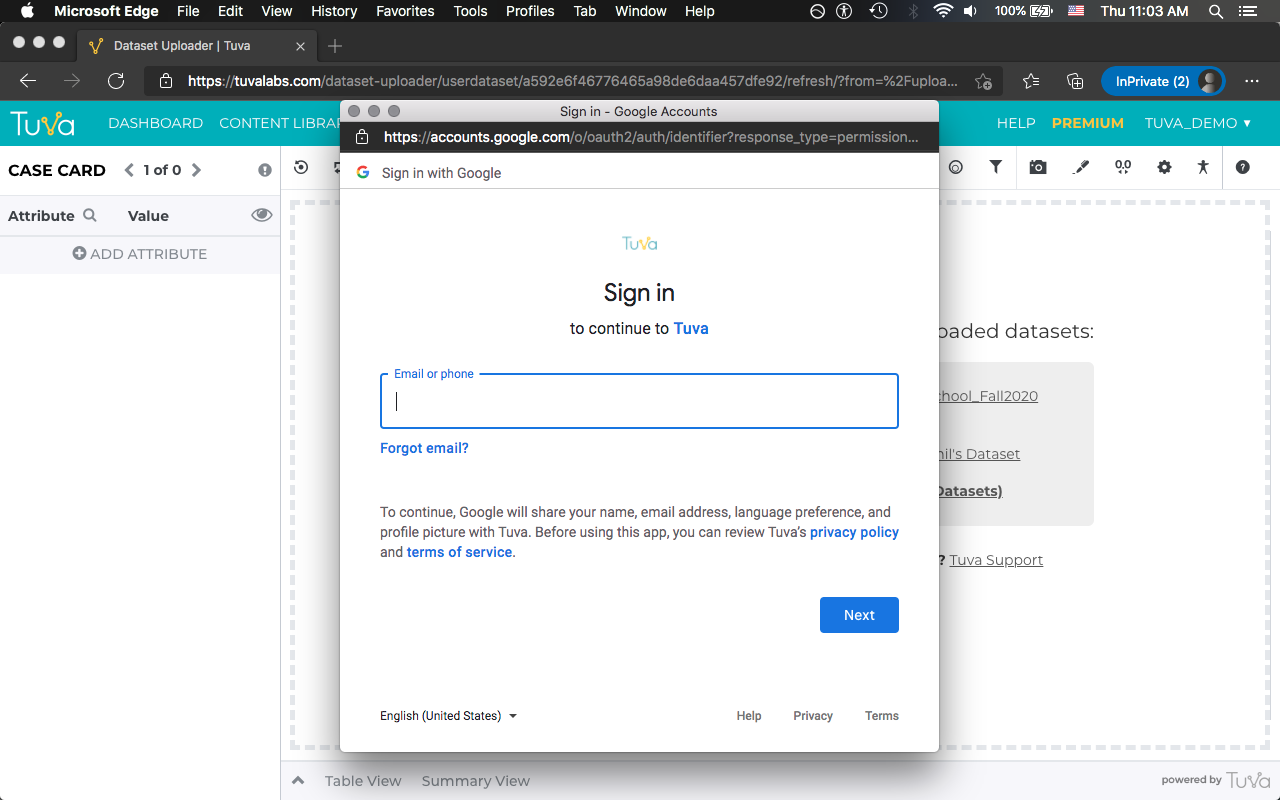
This time around when you click refresh, you will see a pop-up like the following asking you to authenticate. This means pop-ups are being allowed and once you authenticate, Tuva will be able to update your dataset.
Activity or dataset still blank? See Why is my activity or dataset blank?.
Was this page helpful?
This opens the ticket form with your comment and a link to this page, so we can reply to you.
Submit a ticket