
Import a Google Classroom roster and Tuva creates the class and its students for you, so you do not have to add anyone by hand.
You need to be signed in to Tuva with the Google account that owns the Google Classroom — see signing in with Google.
Import a class
Section titled “Import a class”-
Go to your dashboard.
-
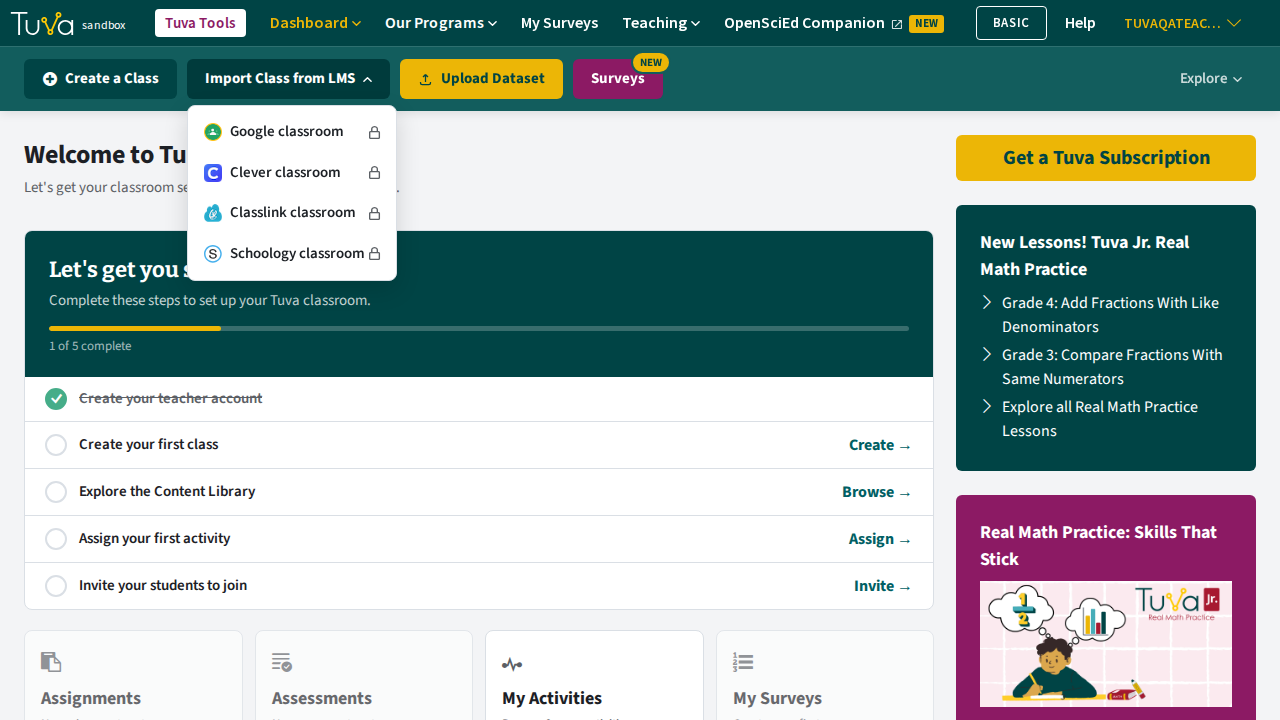
In the toolbar, click Import Class from LMS, then choose Google classroom from the menu.
-
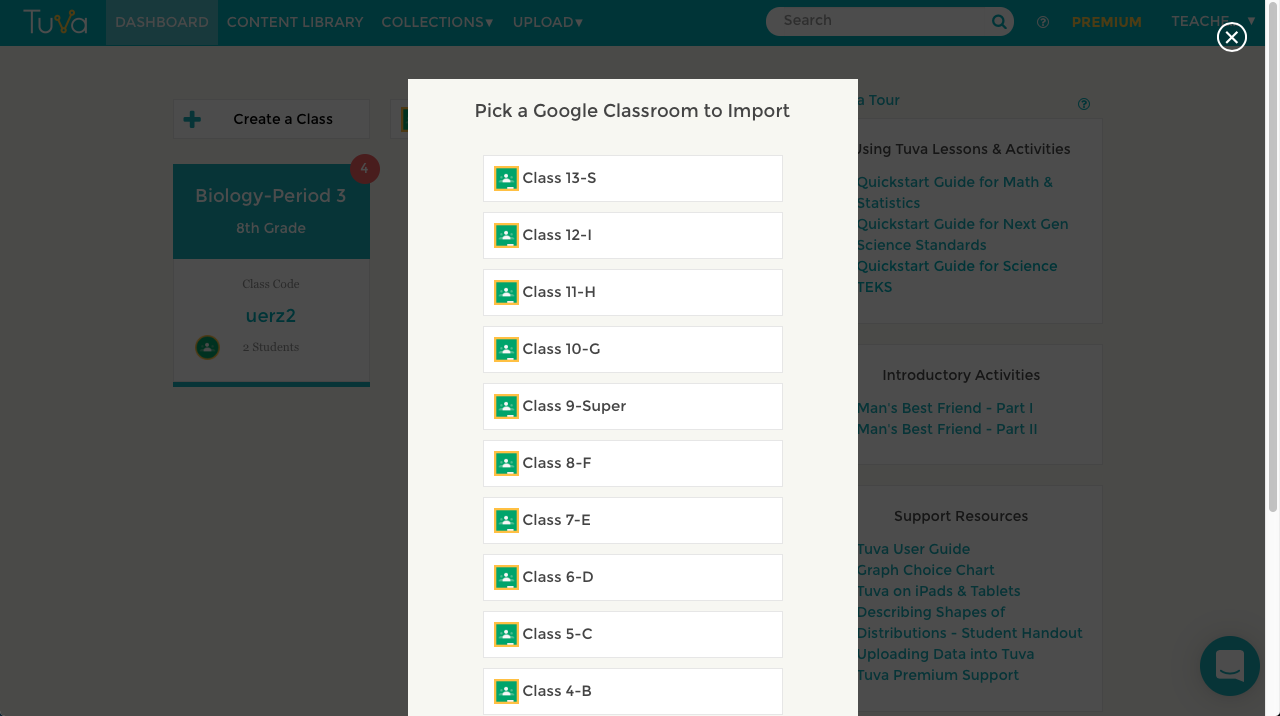
In the pop-up, pick the Google Classroom you want to import.
-
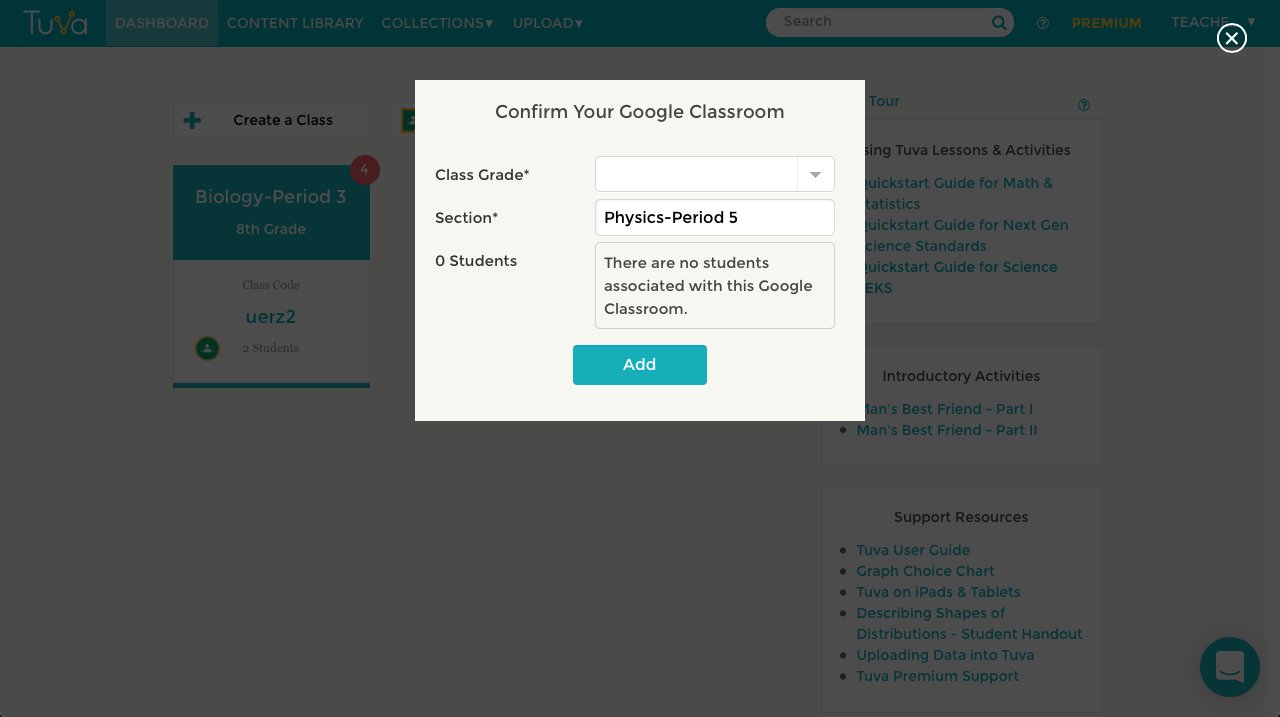
The pop-up lists the students it is about to import. Set the class grade, edit the class name if you want to, then click Add.
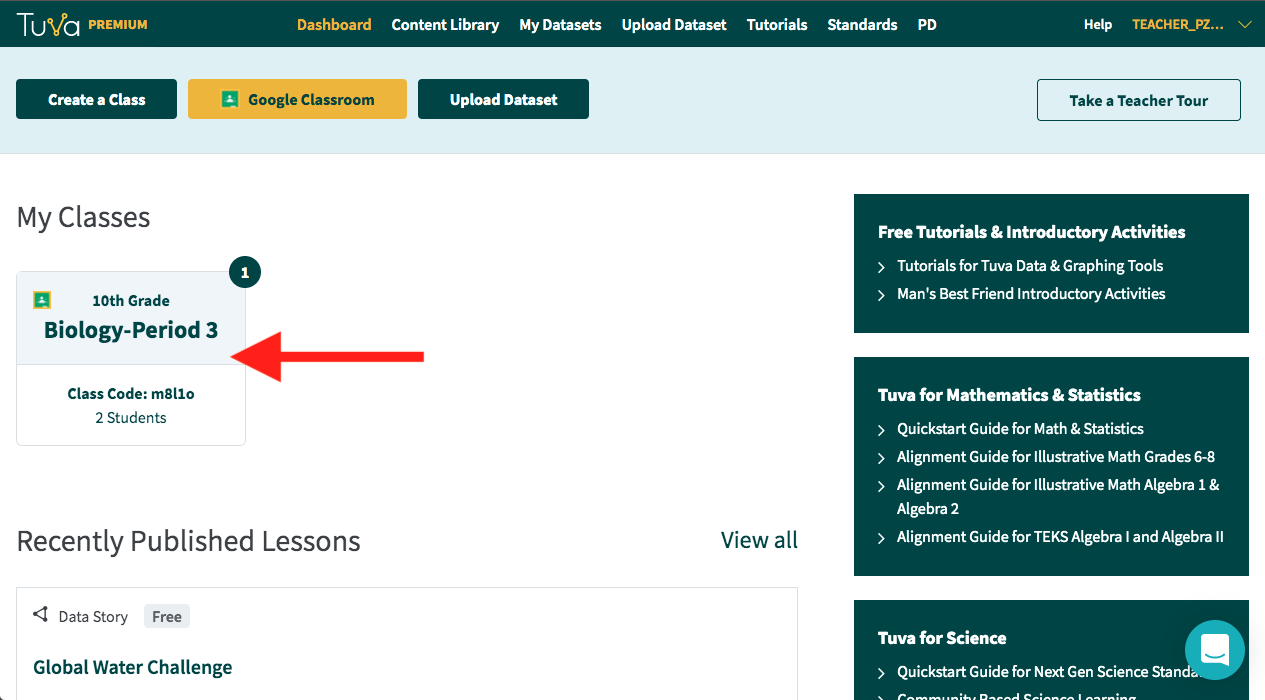
The class appears on your dashboard carrying a small Google Classroom icon, so you can tell it apart from classes you made yourself.
If you see “Tuva Subscription required”
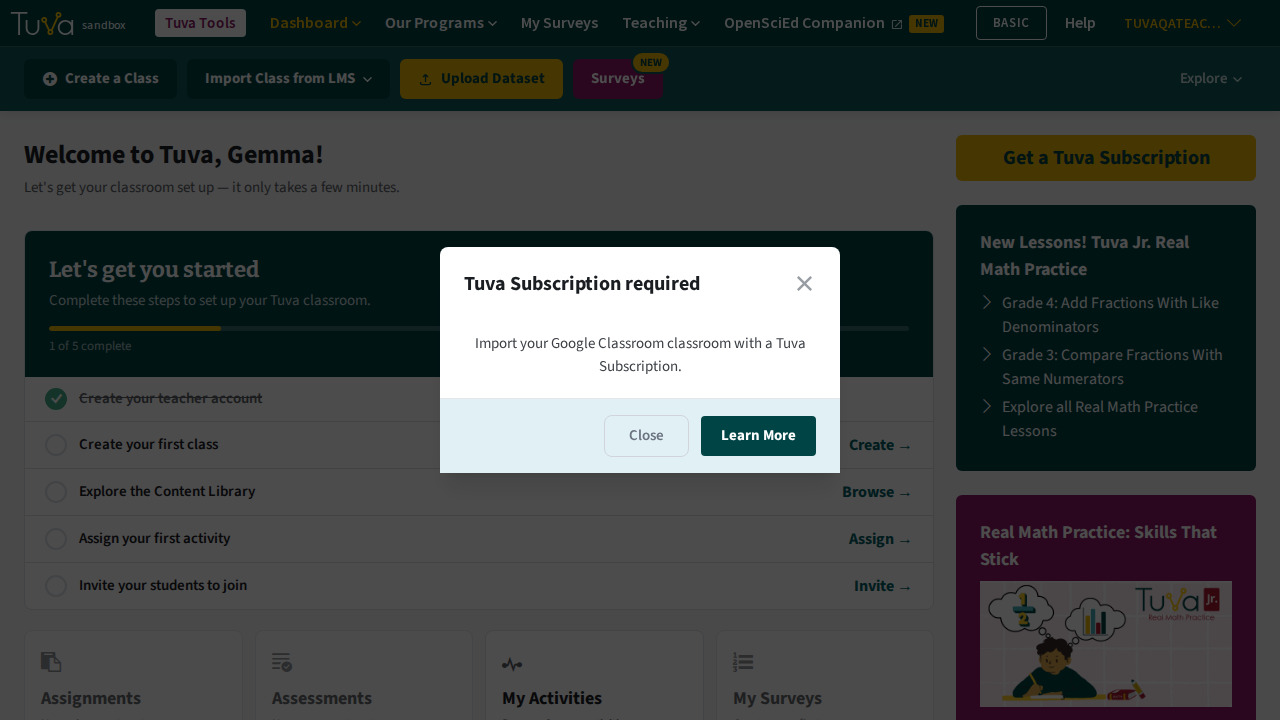
Section titled “If you see “Tuva Subscription required””Importing a class from an LMS needs a Tuva Subscription. On a Basic account the LMS menu items show a lock, and choosing one opens a Tuva Subscription required message instead of the pop-up. Click Learn More to see the plans, or Close to go back. You can still add students by hand or share your class code.
Keep the roster in sync
Section titled “Keep the roster in sync”Tuva does not follow Google Classroom automatically. When a student joins or leaves during the year, update Google Classroom first, then pull the change across:
-
From your dashboard, click the class you want to update.
-
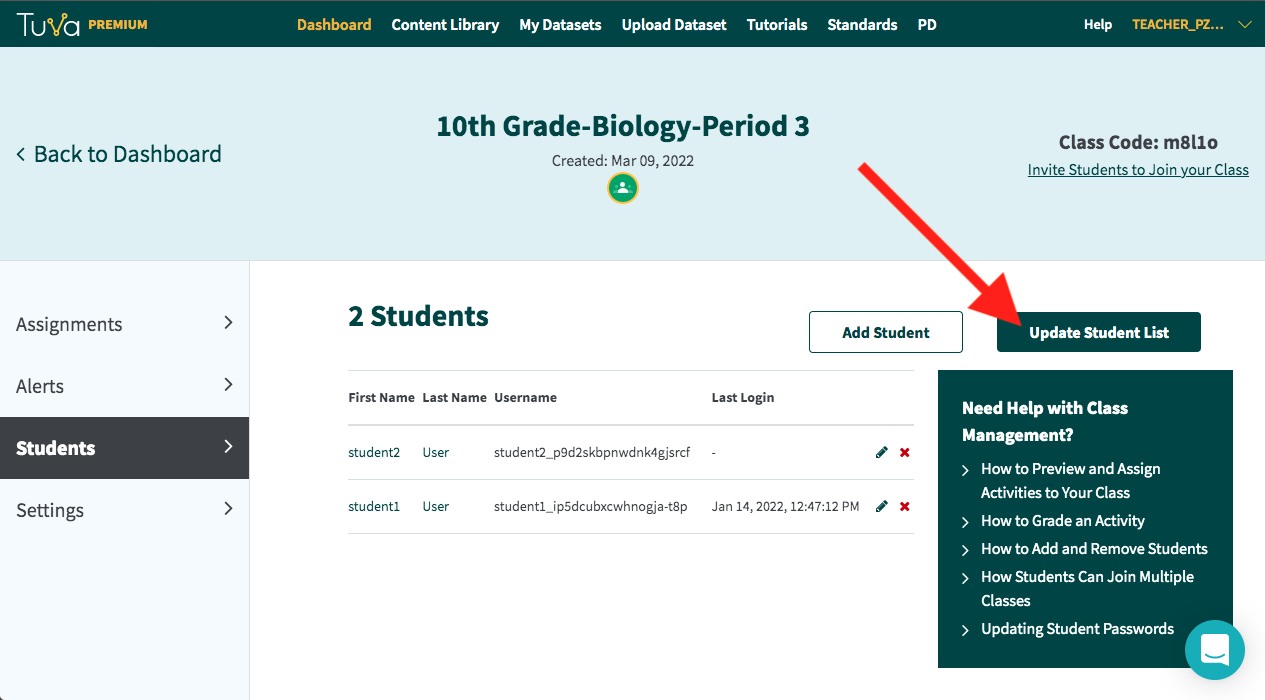
Open the Students tab and click Update Student List.
This pop-up can be blocked too, the same way the import one can.
Was this page helpful?
This opens the ticket form with your comment and a link to this page, so we can reply to you.
Submit a ticket