
A powerful feature offered by Tuva is importing data via One Drive. This gives you quick and easy access to the Tuva Data Tools for the spreadsheets of data you’ve created and stored in One Drive. Follow the steps below to learn how to import your data into Tuva from One Drive.
-
After logging into Tuva, you’ll land on your dashboard. From here, you have two options. The first is the upload dropdown in the top navigation menu and the other is the upload button on the dashboard. Both options will take you to the same place.
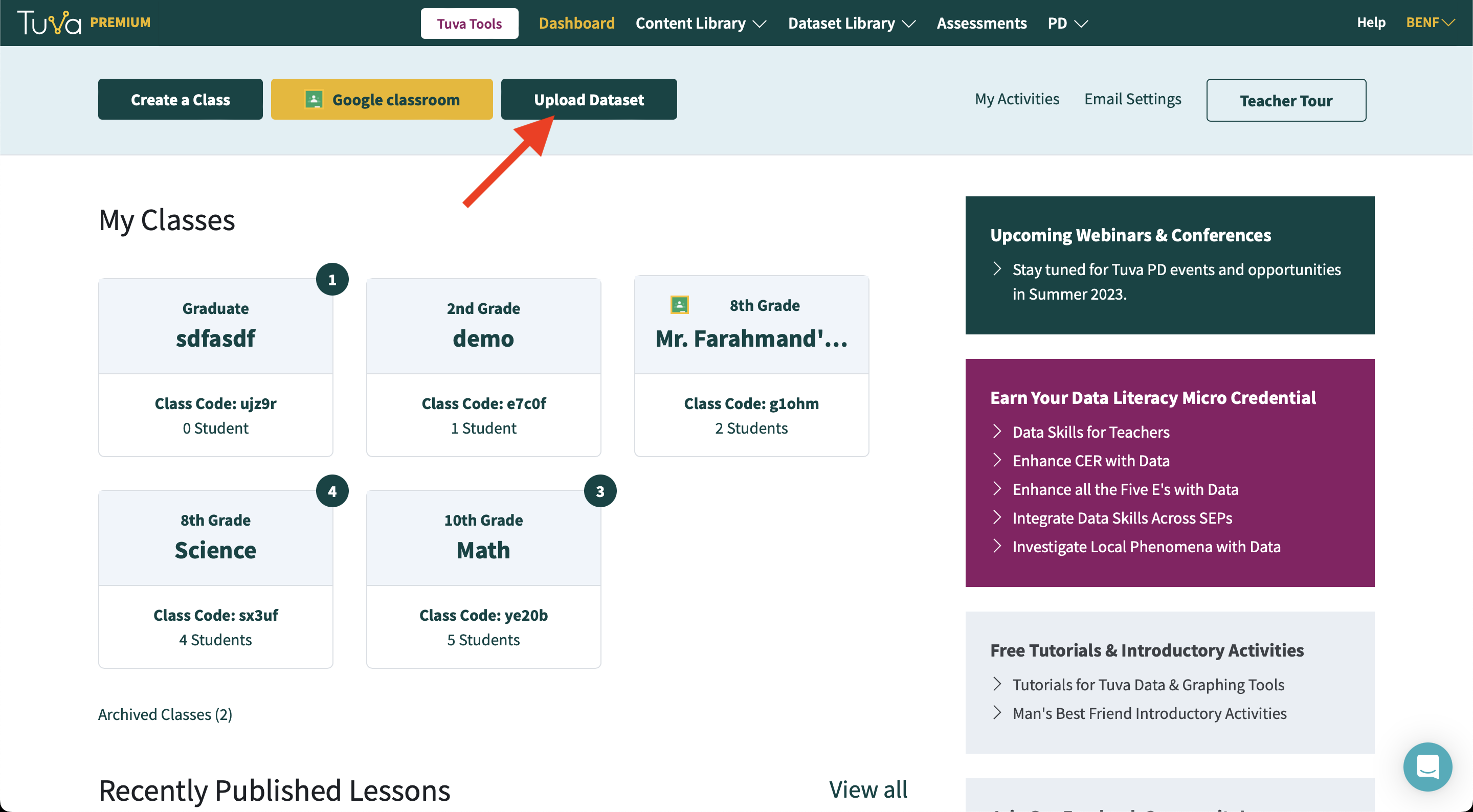
-
You’ll then be presented with the following screen giving you multiple options for importing data. Click Import from One Drive.
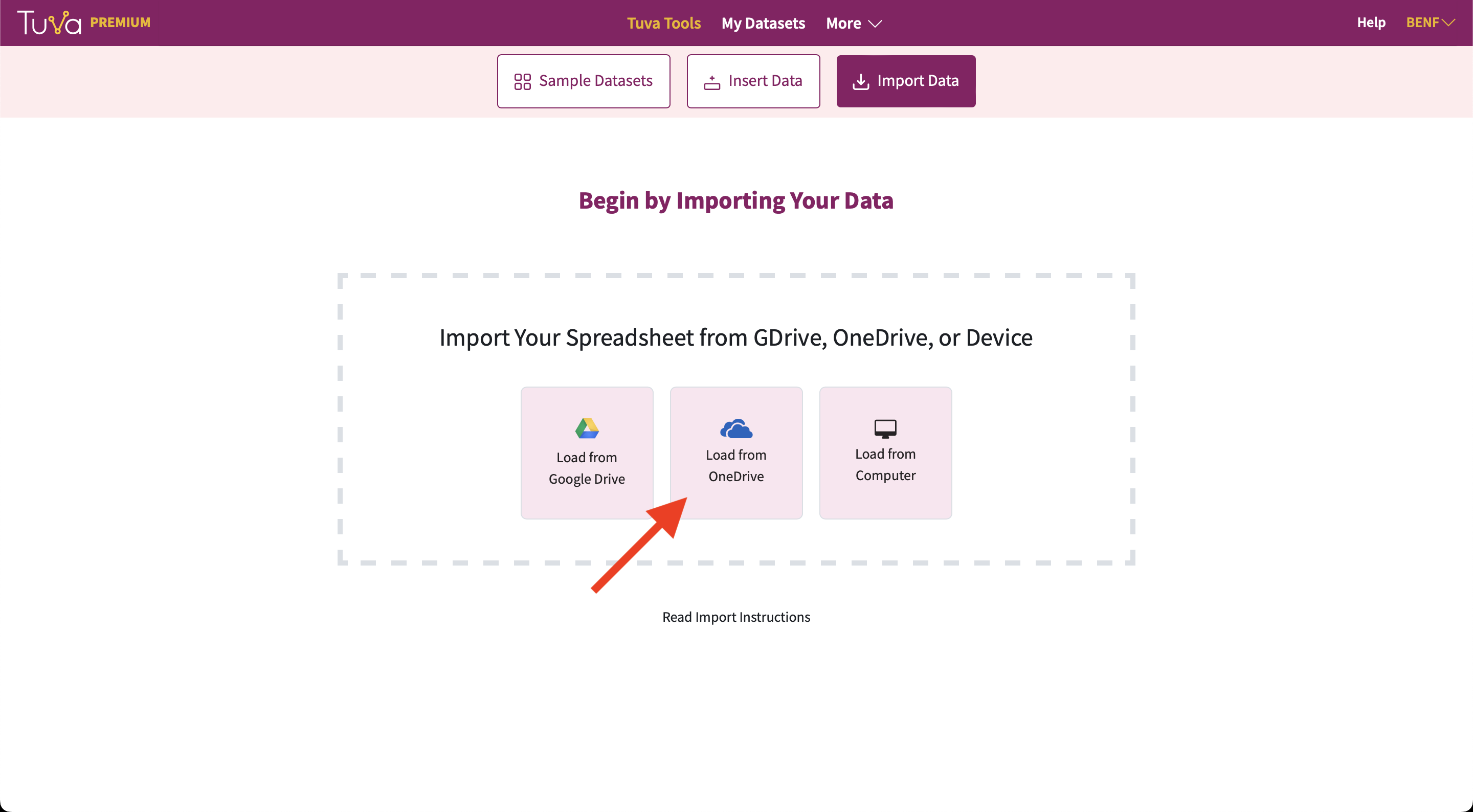
-
You will then be presented with the One Drive file picker. Here you can search for your spreadsheet containing the data you want to import.
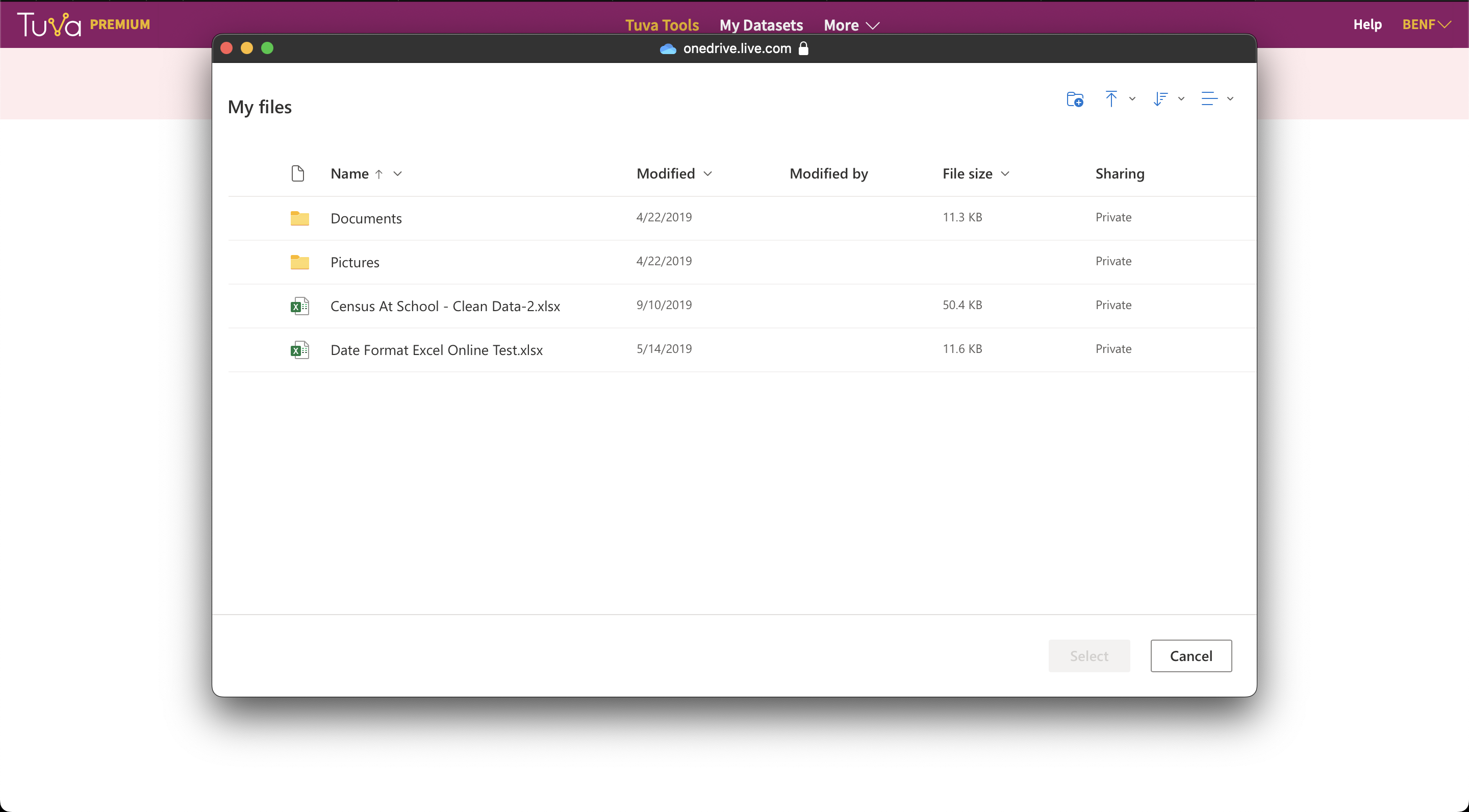
Note: If you are not currently logged into One Drive, you will be presented with a screen requiring you to login to your One Drive with your Microsoft credentials. -
After selecting your file, you will be able to review your data before you confirm your data import.
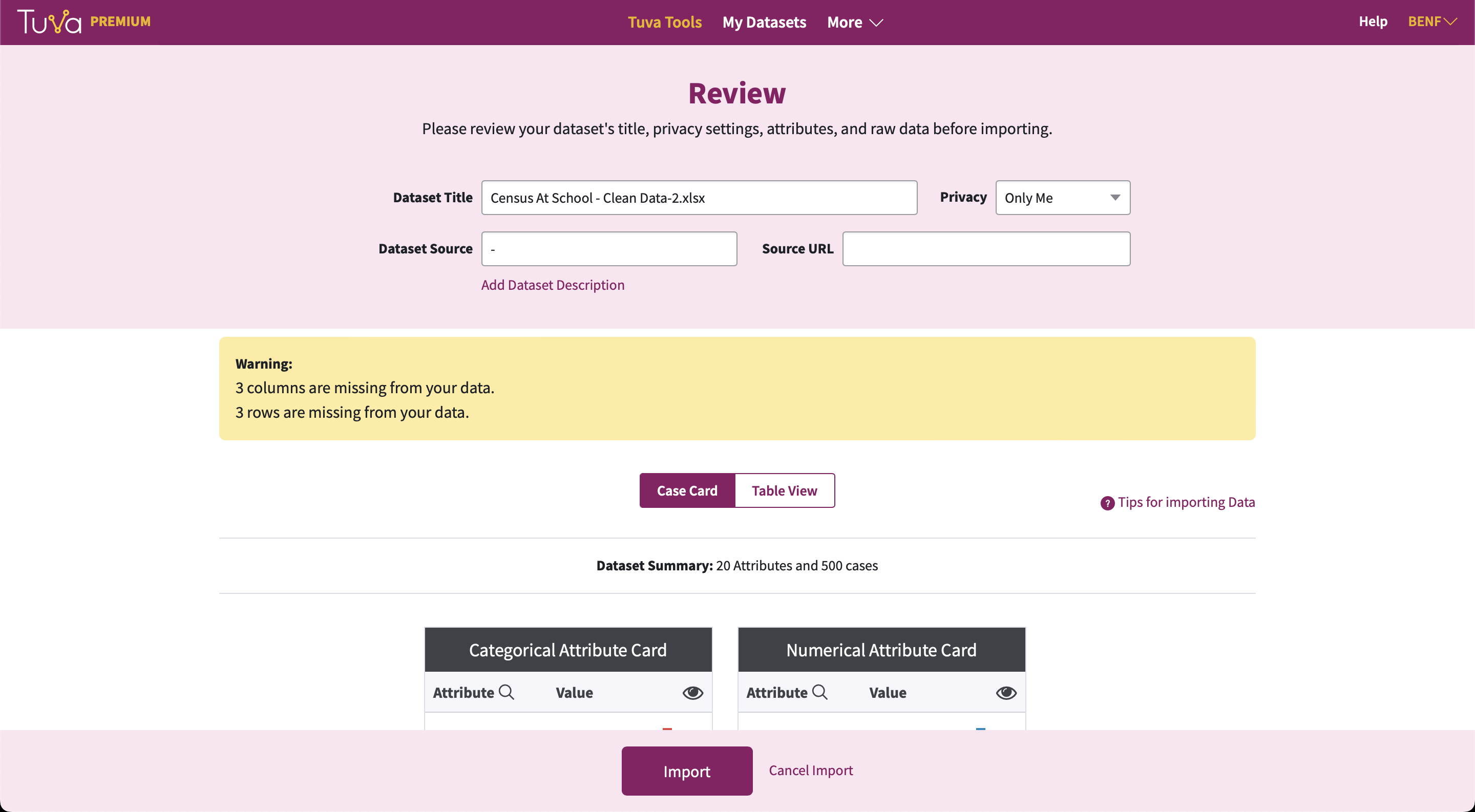
Was this page helpful?
This opens the ticket form with your comment and a link to this page, so we can reply to you.
Submit a ticket