
You can sign up for and sign in to Tuva with a Clever, Google, Microsoft or ClassLink account instead of keeping a separate Tuva password. This page covers all four.
Sign up with a provider
Section titled “Sign up with a provider”-
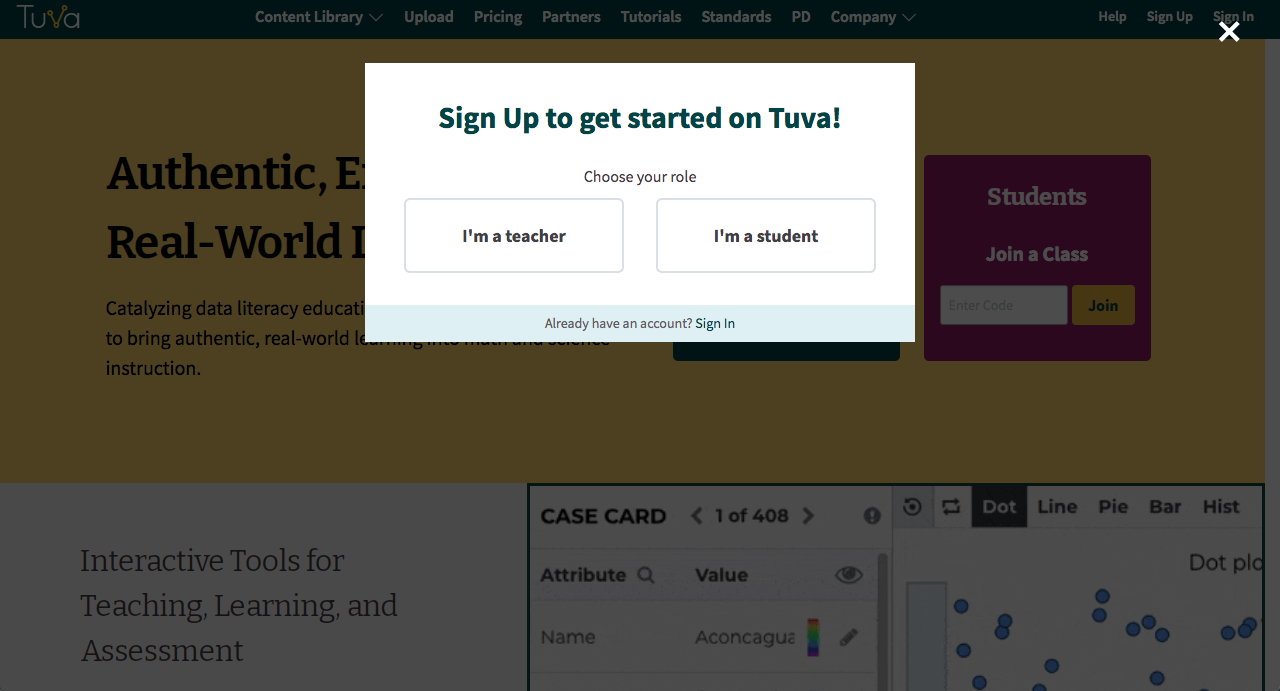
Go to tuvalabs.com and click Sign Up at the top right. Choose whether you are a teacher or a student.
-
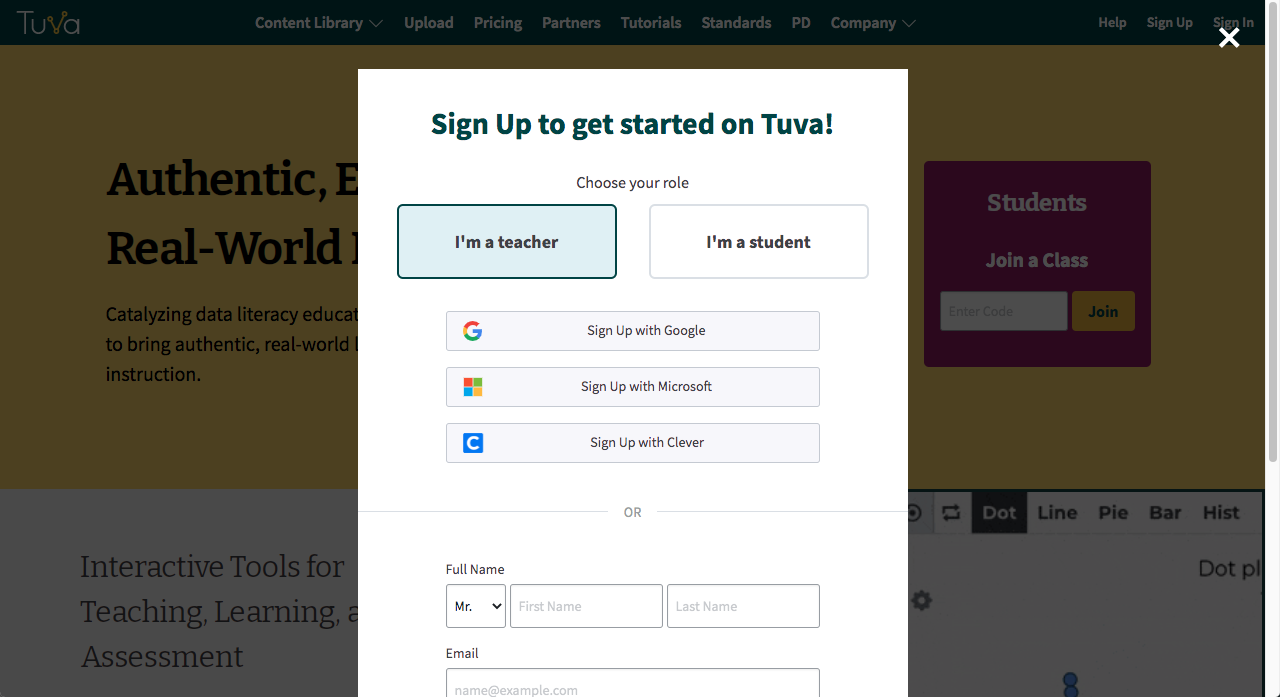
Click Google, Microsoft or Clever above the sign-up form.
-
Confirm your credentials with that provider. Tuva brings you back to finish creating your account.
Sign in afterwards
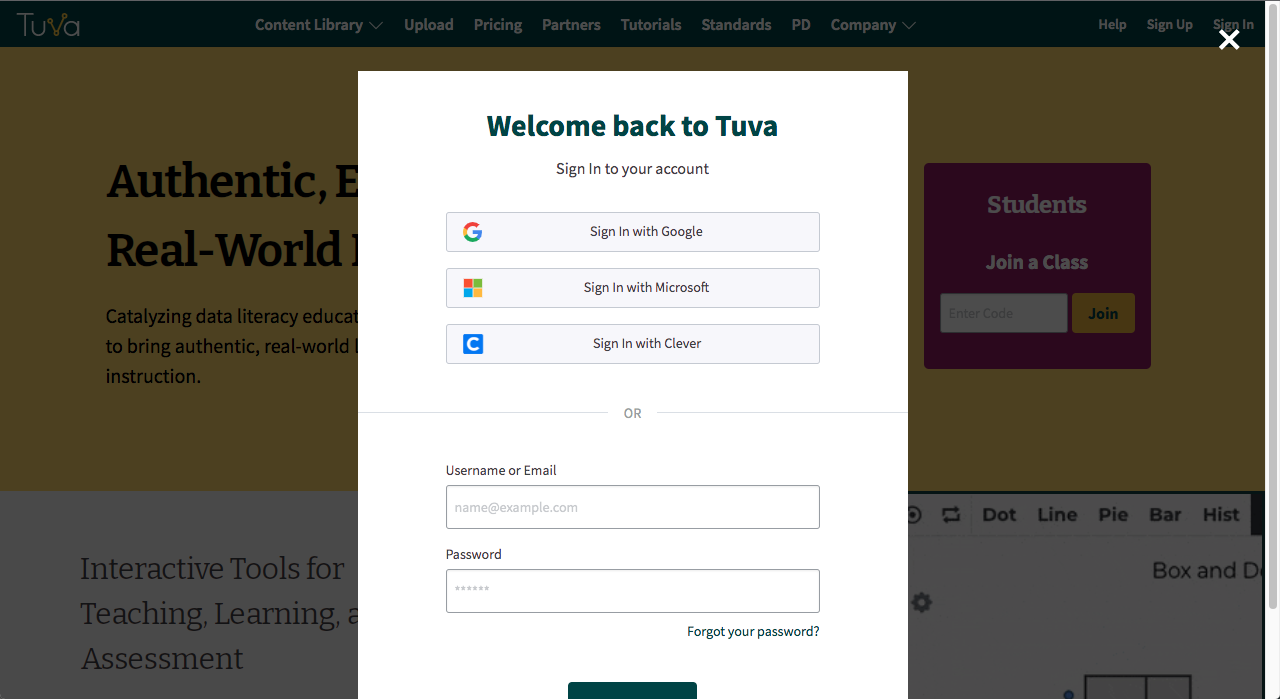
Section titled “Sign in afterwards”Click Sign In at the top right of any Tuva page, then choose the same provider you signed up with. No Tuva username or password is needed.
Add Tuva to your ClassLink dashboard
Section titled “Add Tuva to your ClassLink dashboard”ClassLink works slightly differently: before anyone can sign in through it, Tuva has to be added as an application to the ClassLink dashboard. This is a one-off setup job, not part of signing in.
-
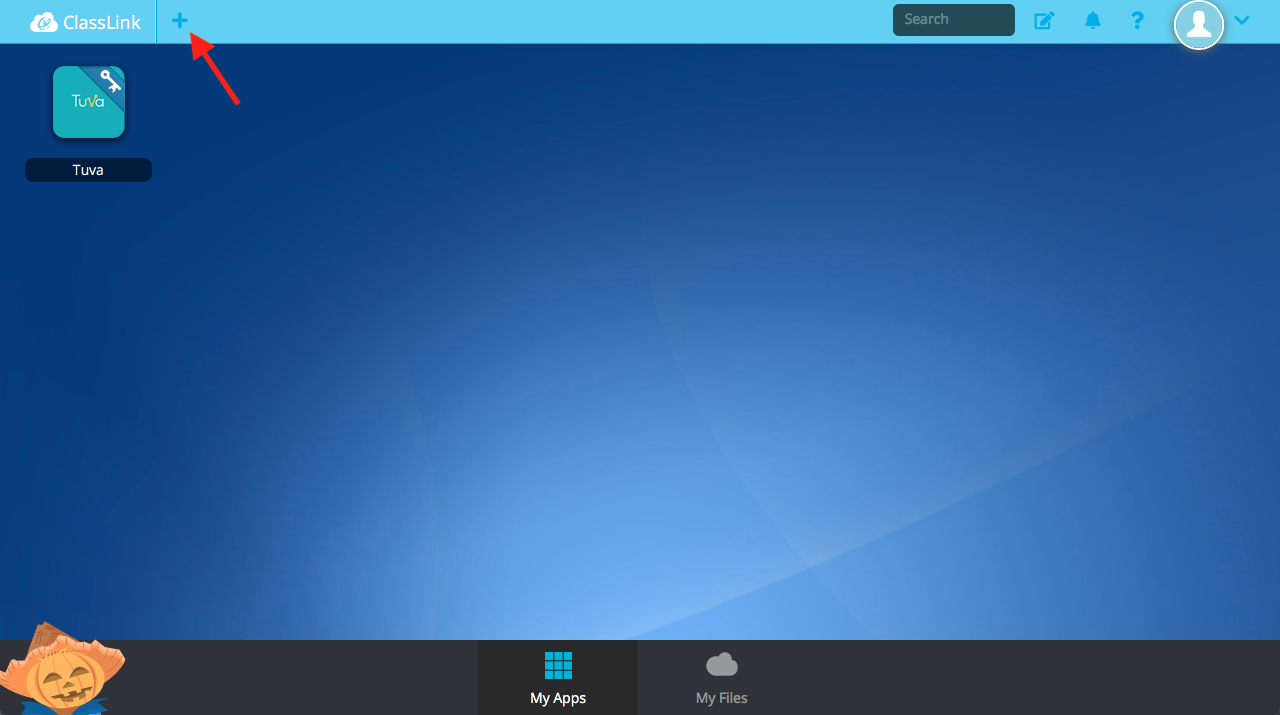
Click Add Application.
-
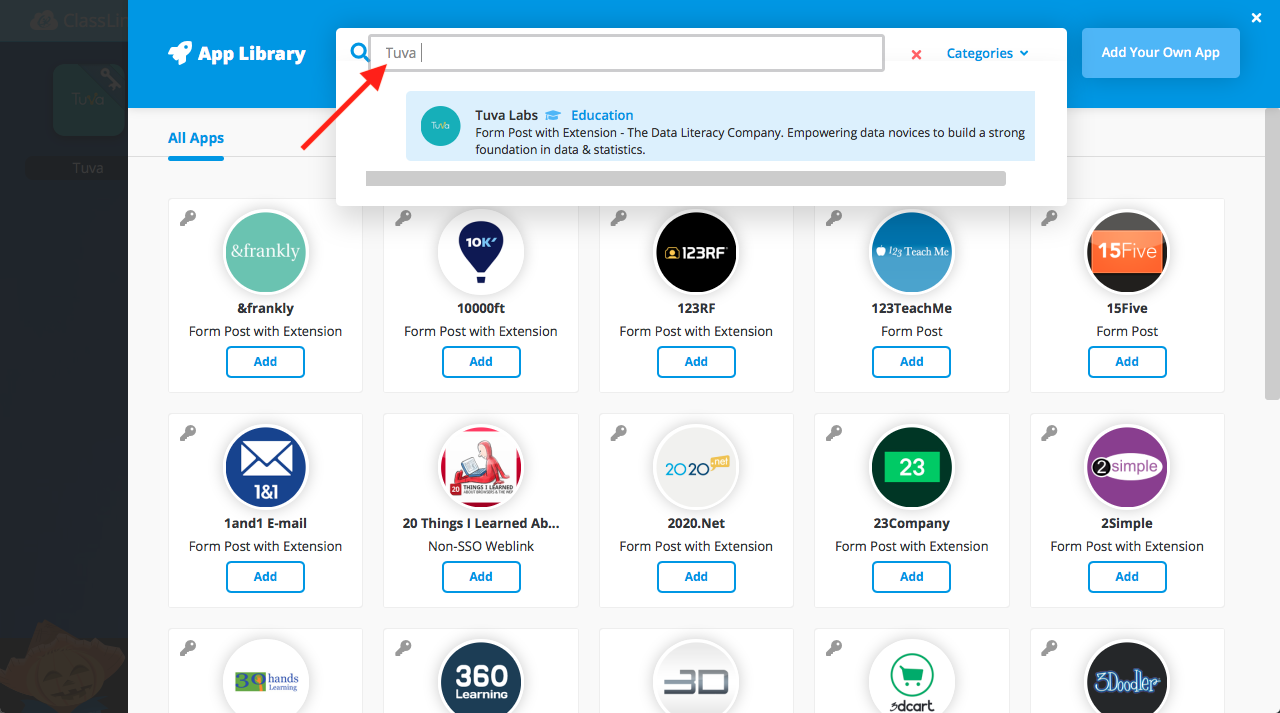
Search for Tuva and press Enter.
-
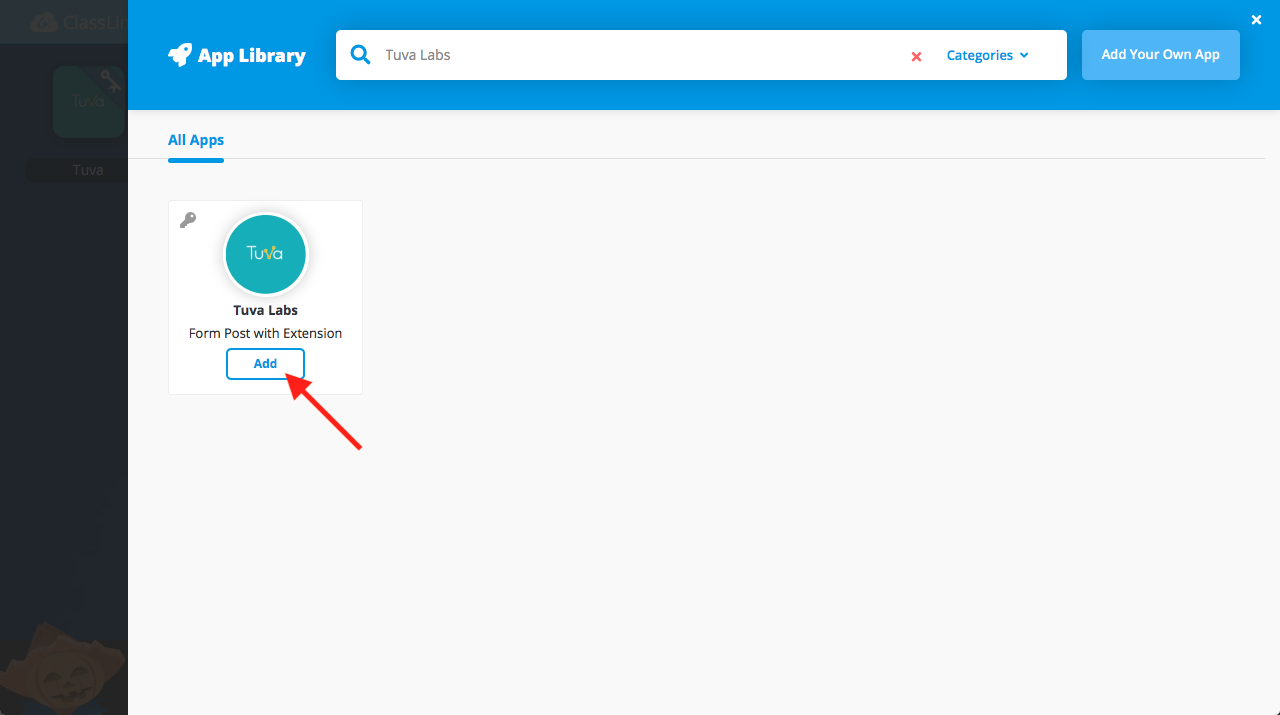
Click Add.
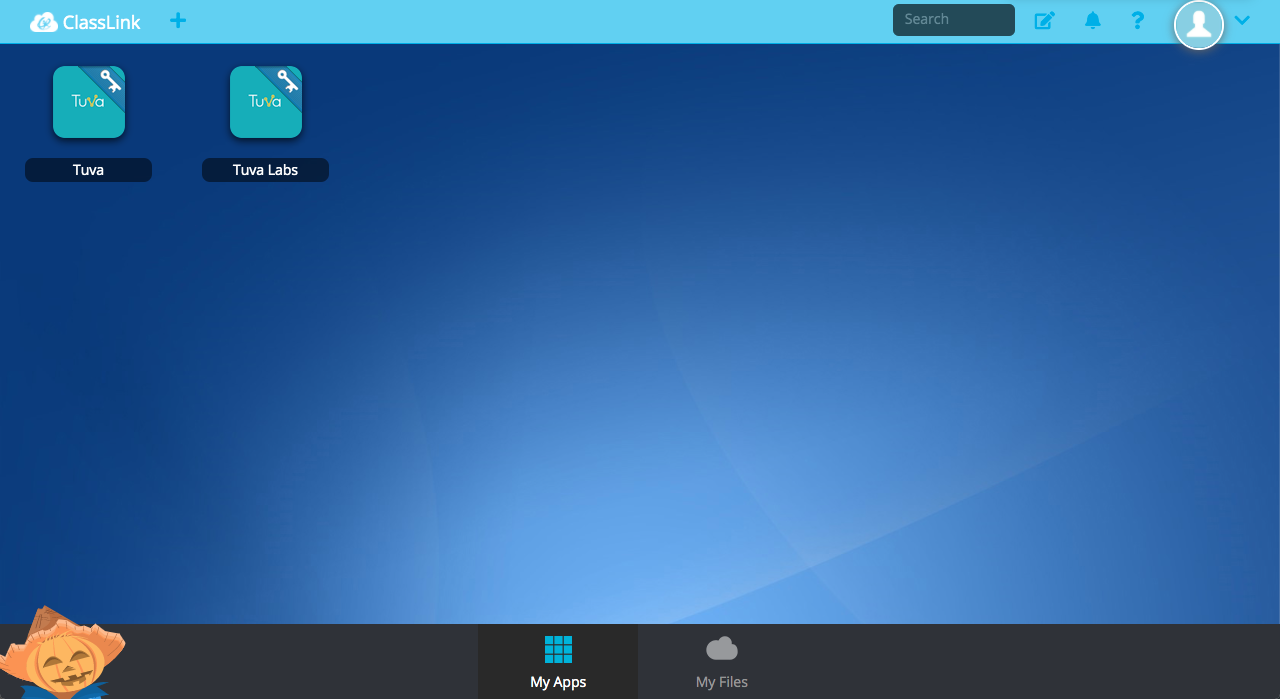
The Tuva tile now appears on the dashboard, and teachers and students can sign in from it.
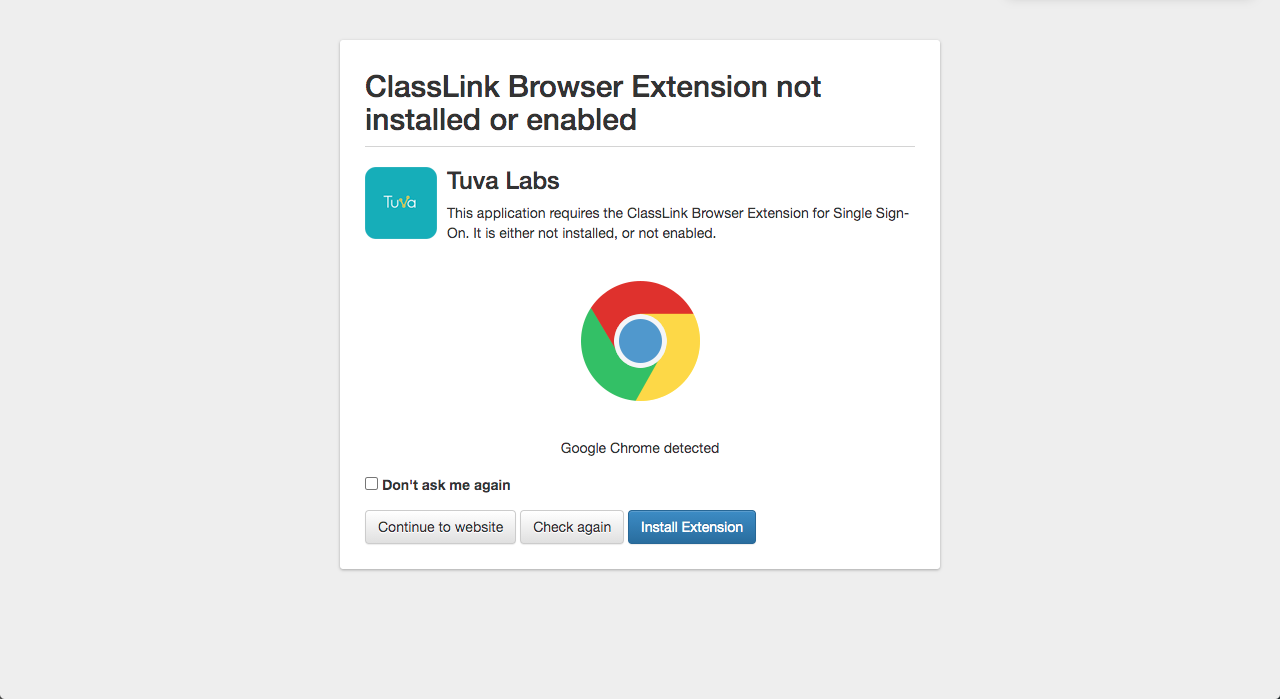
The first time someone signs in this way, ClassLink may ask them to install its browser extension. Install it, then click the Tuva tile again.
If you use Clever rather than ClassLink, the equivalent setup is adding Tuva to your Clever page.
For what each connection does and whether rostered students need an account, see How rostering and LMS sign-in work.
Was this page helpful?
This opens the ticket form with your comment and a link to this page, so we can reply to you.
Submit a ticket