
Update your profile details
Section titled “Update your profile details”-
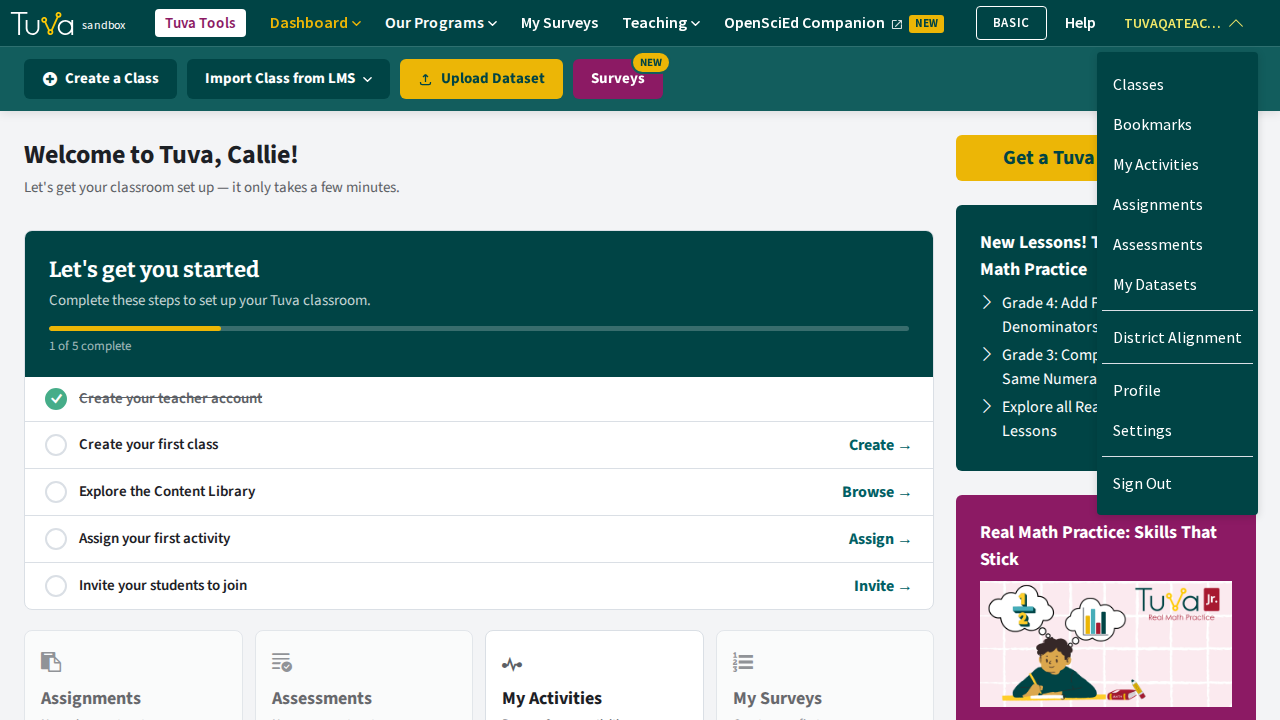
Click or hover on your username in the top right of the navigation menu.
-
From the dropdown menu that appears, select “Profile.”
-
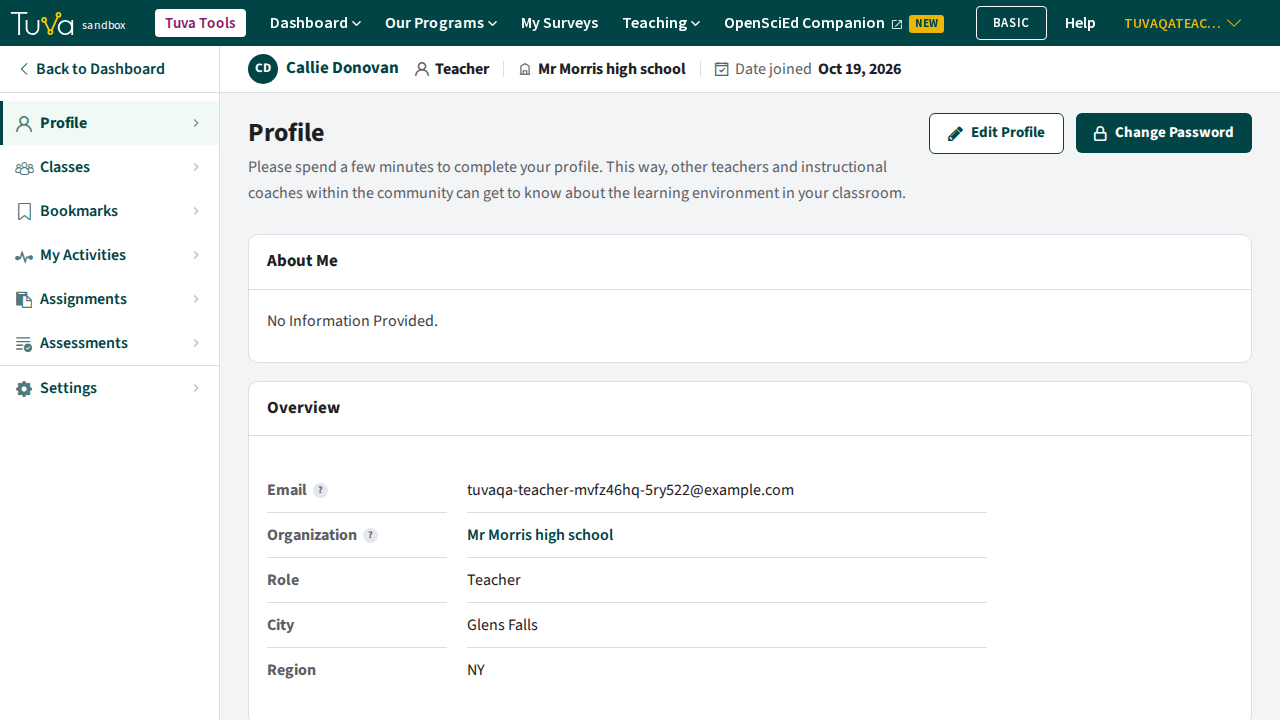
Ensure you’re on “Profile” in the menu on the left of the page. Then click “Edit Profile.”
-
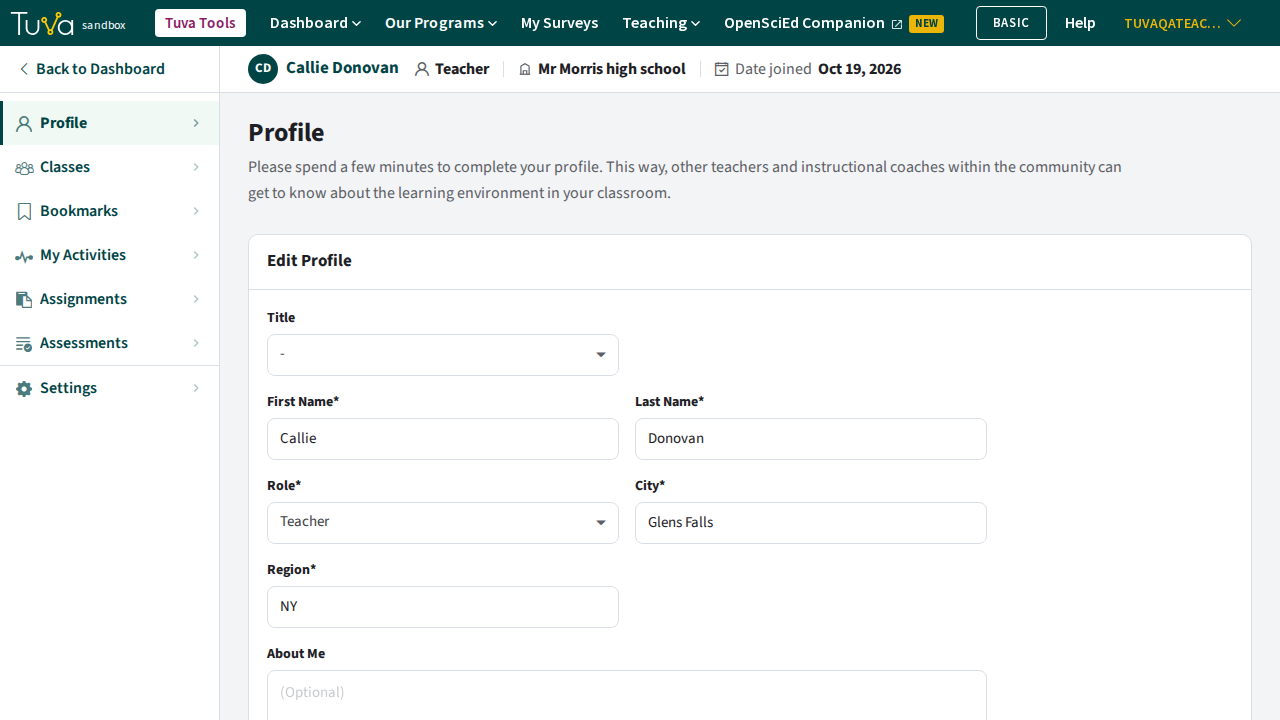
You may now update your title, first name, last name, role, city, region, and “About Me.” Your email and your school (shown as “Organization” on the Profile page) can’t be changed here. To change either one, send us a ticket.
-
Once you’re ready, click “Save” to preserve your new changes. Click “Cancel” to leave without saving.
Change your password
Section titled “Change your password”-
Click or hover on your username in the top right of the navigation menu.
-
From the dropdown menu that appears, select “Profile.”
-
Ensure you’re on “Profile” in the menu on the left of the page. “Change Password” is the button beside “Edit Profile.”
-
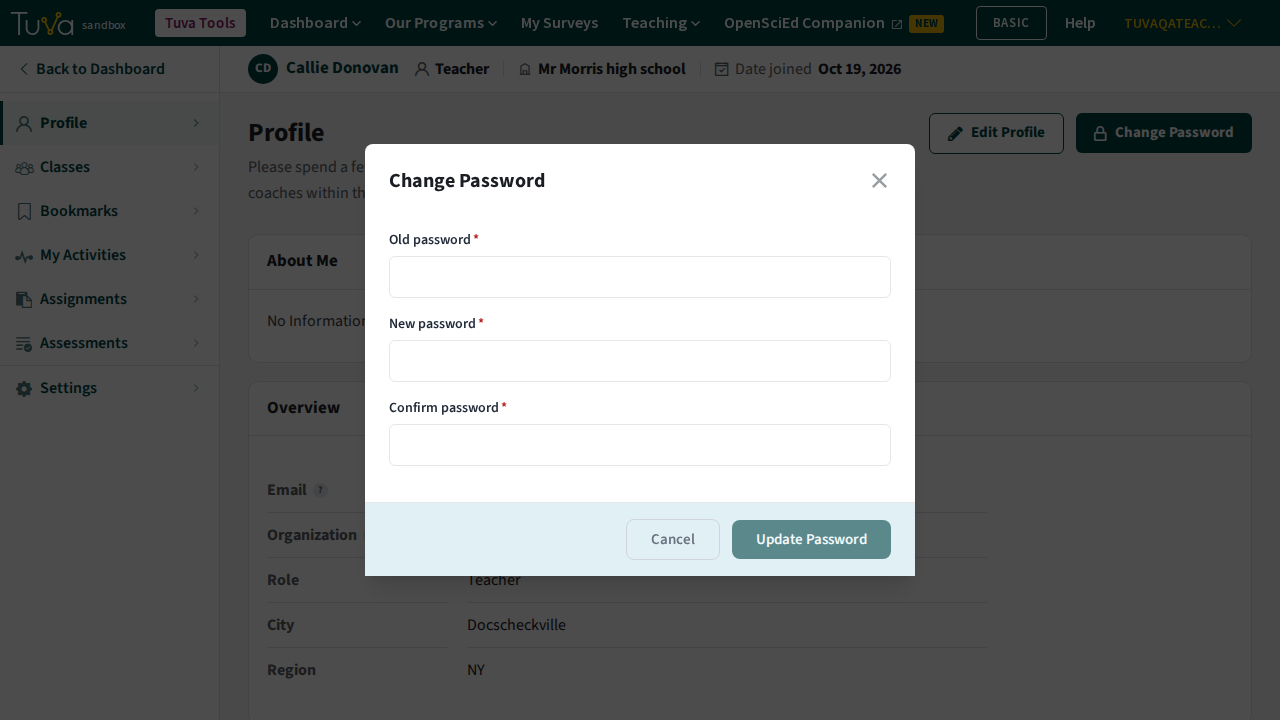
Click “Change Password” to view a pop-up allowing you to change your password.
-
You’ll need to provide your old password, and then provide and confirm a new password.
-
Finally, click “Update Password” to update your password.
View activities you have created (Tuva Premium)
Section titled “View activities you have created (Tuva Premium)”-
Click or hover on your username in the top right of the navigation menu.
-
From the dropdown menu that appears, select “Profile.”
-
Then, click “My Activities” in the menu on the left to view every activity you’ve created.
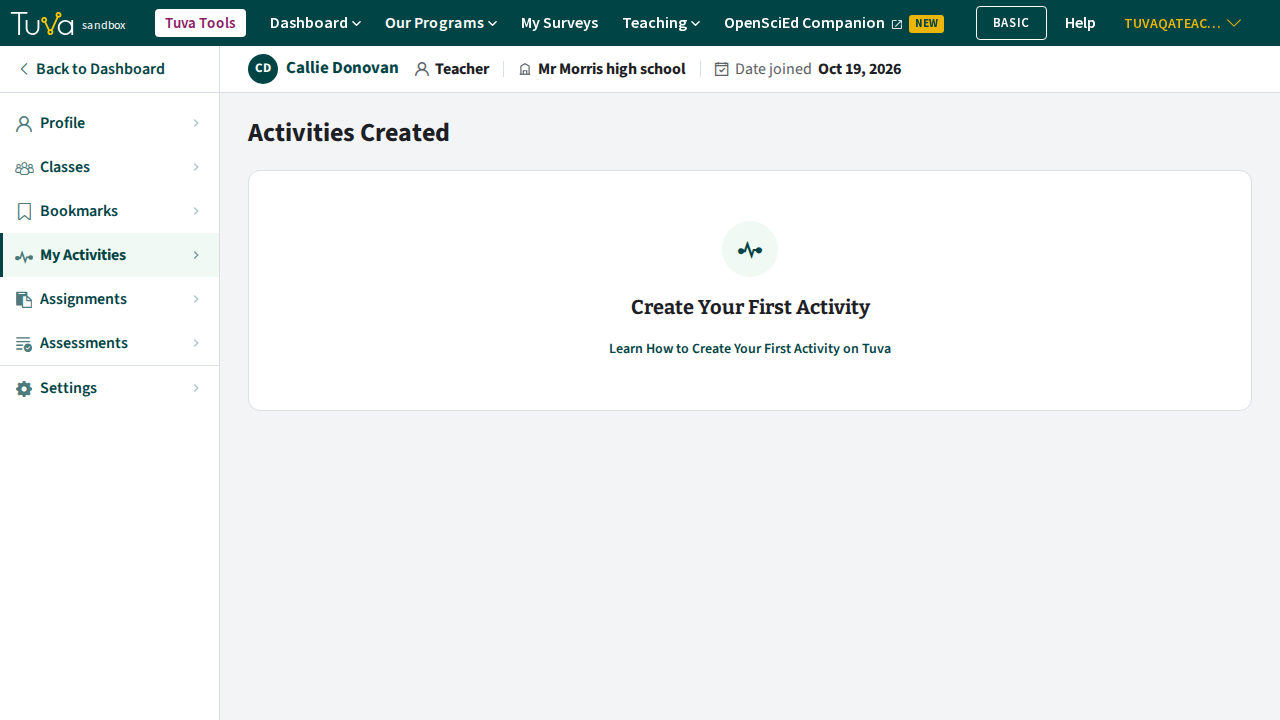
From this tab, you may access and edit your activities.
-
To preview your activity, click on the title of the activity.
-
To edit your activity, click on the pencil icon.
View your bookmarked datasets
Section titled “View your bookmarked datasets”-
Click or hover on your username in the top right of the navigation menu.
-
From the dropdown menu that appears, select “Profile.”
-
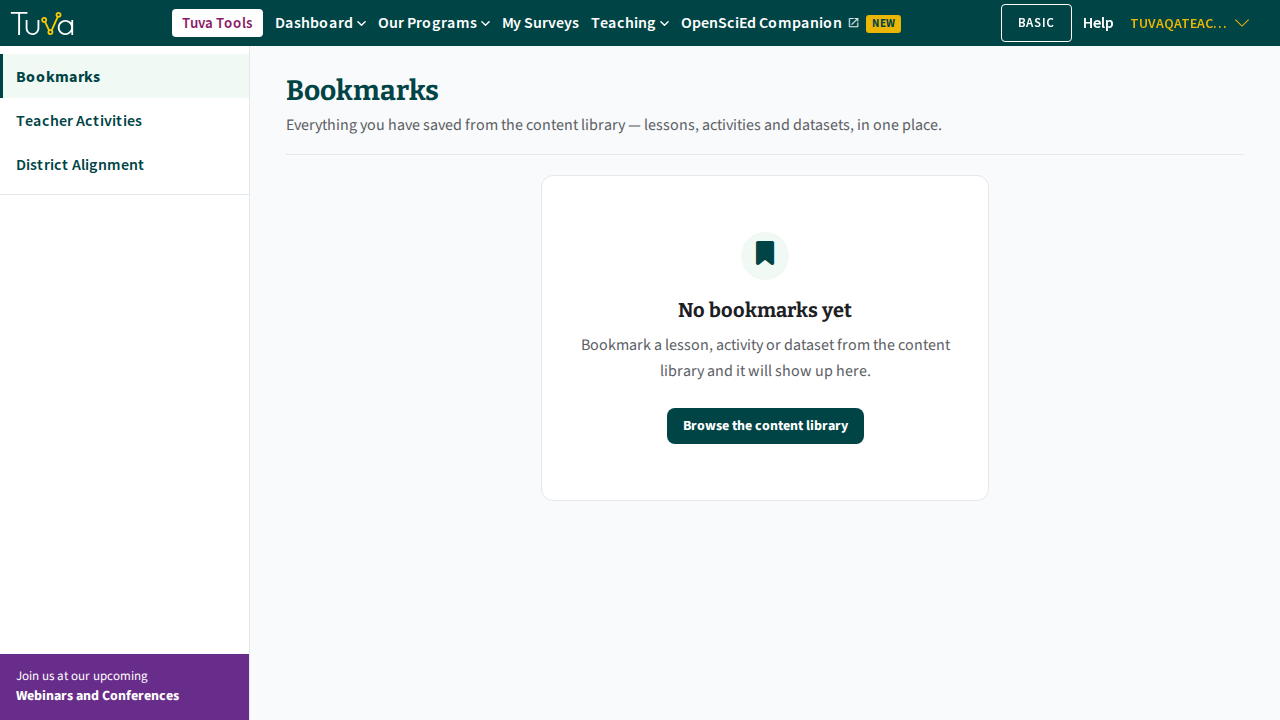
Click “Bookmarks” in the menu on the left to see what you’ve bookmarked, including datasets, lessons and activities.
-
You may click on the title of a dataset to view it.
Update your email notification settings
Section titled “Update your email notification settings”-
Click or hover on your username in the top right of the navigation menu.
-
From the dropdown menu that appears, select “Profile.”
-
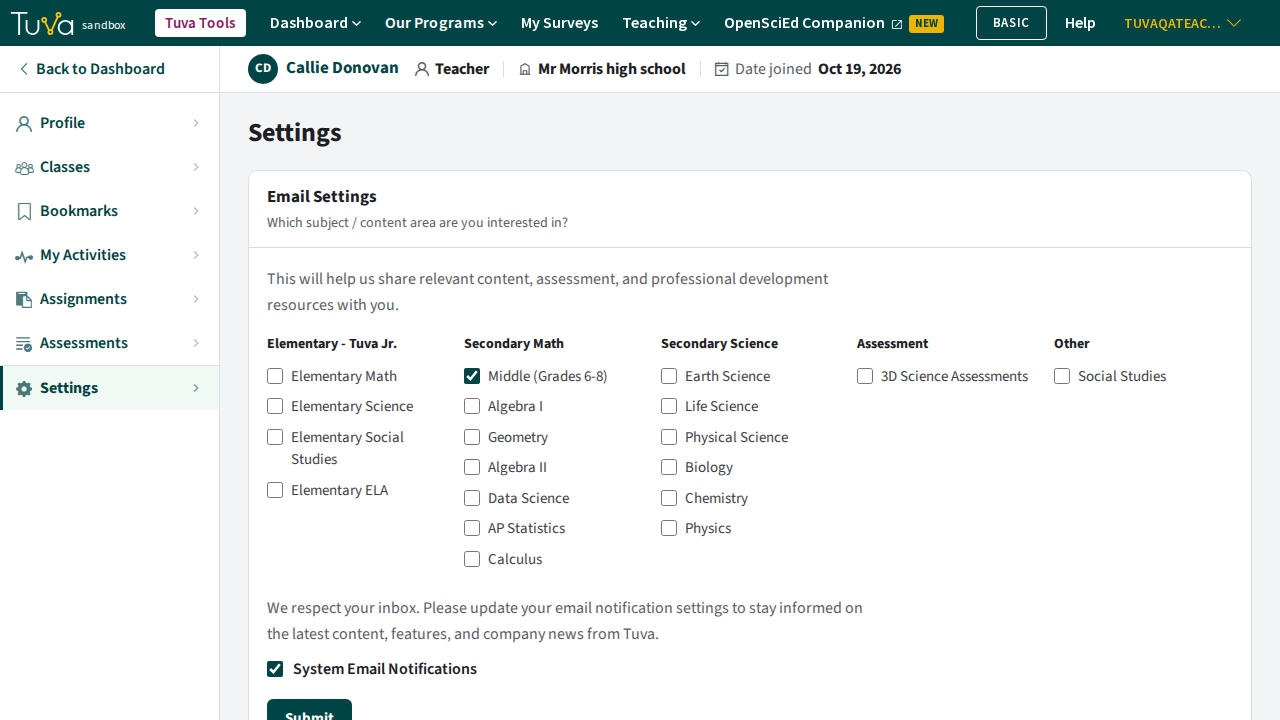
Click “Settings” in the menu on the left. The “Email Settings” section is at the top of the page.
-
Check the subjects you want to hear about and the “System Email Notifications” box, and uncheck the ones you don’t. Click “Submit” to save.
Was this page helpful?
This opens the ticket form with your comment and a link to this page, so we can reply to you.
Submit a ticket