
This page covers how a teacher’s school is set, how a school or district administrator gets access, and what you can do about another teacher’s class.
Add or choose your school
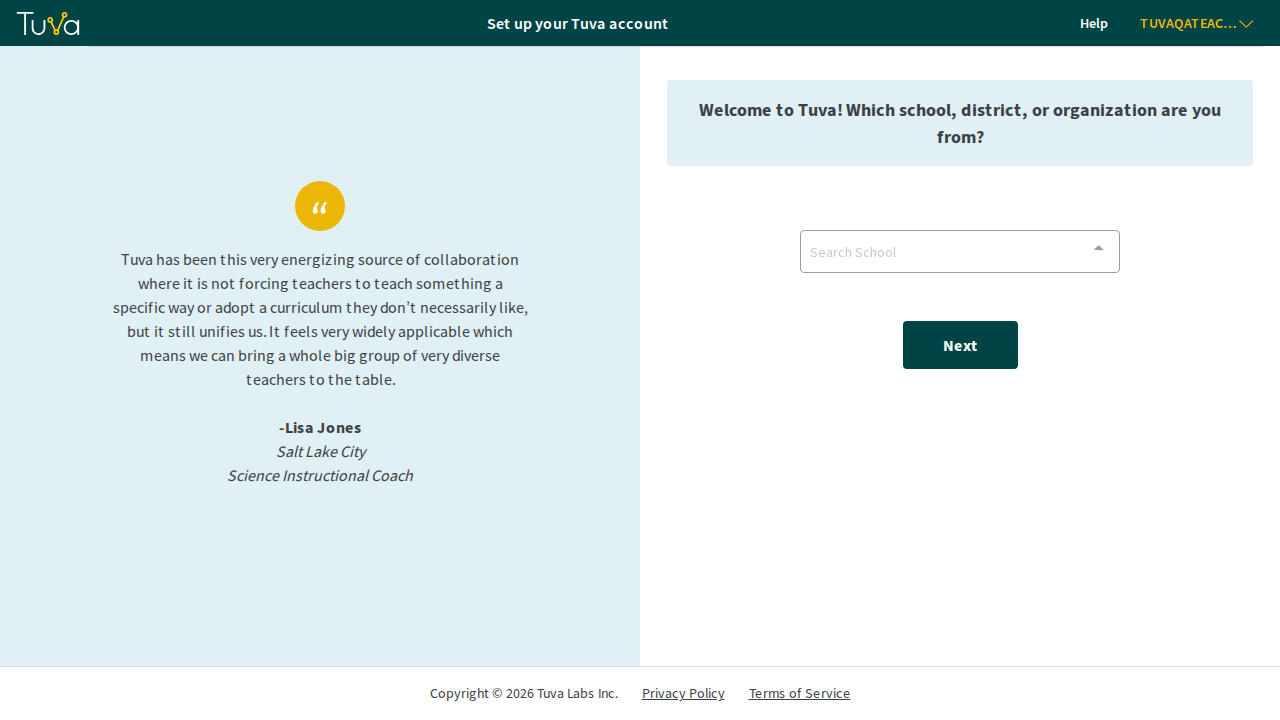
Section titled “Add or choose your school”You choose your school when you set up your teacher account. Tuva asks “Which school, district, or organization are you from?”
-
Tuva first lists schools that match your email address.
-
If yours is not there, type its name or its school code in Search School.
-
If nothing matches, the name you type is kept as your school.
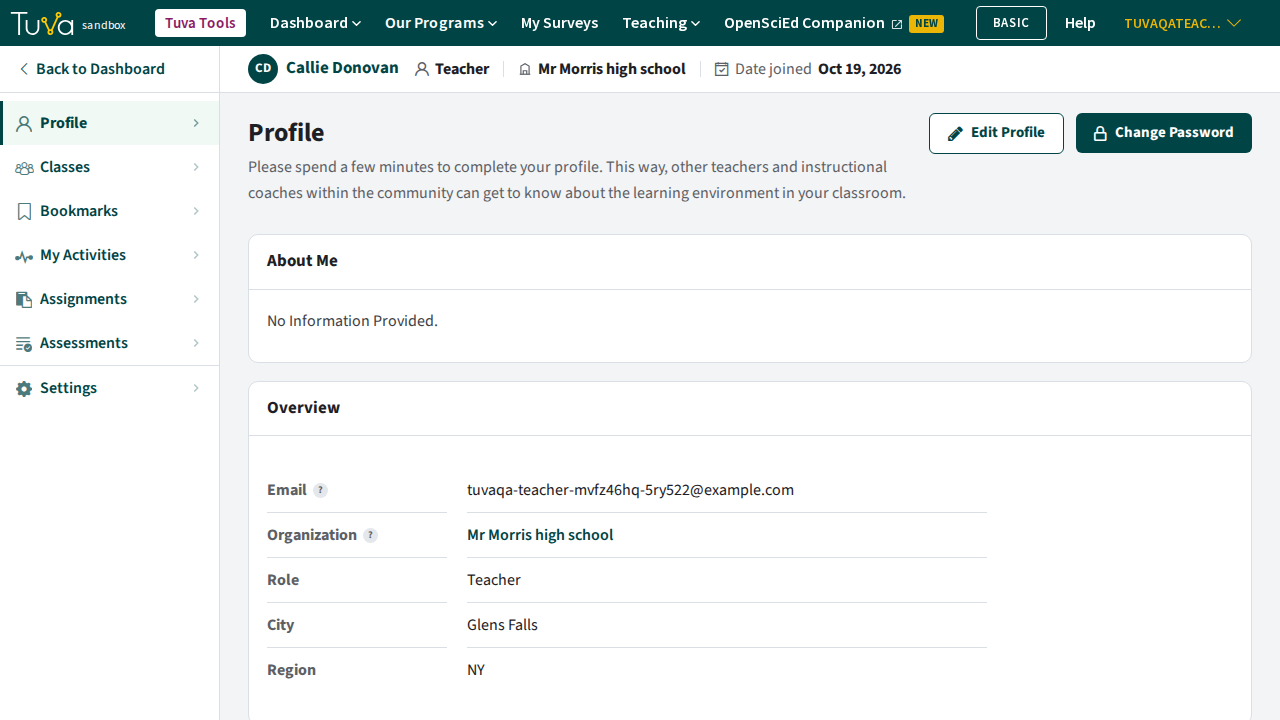
After set-up, your school shows on your Profile page, next to your name and as “Organization” under Overview. You can’t change it in Edit Profile. If your school is wrong, send us a ticket with your account email and the school (and district) name you want.
Get school or district administrator access
Section titled “Get school or district administrator access”Choosing an administrator role during set-up does not by itself give you access. Tuva staff confirm administrators.
- Send us a ticket from your work email. Include your role, your school or district, and the email on your Tuva account.
- Once you are confirmed, follow View your school and district analytics.
- If your school should be part of a district and you do not see it, tell us in the same ticket.
A school administrator sees their own school. A district administrator sees every school in the district.
What administrators can see
Section titled “What administrators can see”- A summary for each teacher: classes, students, assignments, assessments, bookmarks and uploads.
- Analytics for the classes of teachers in their school (or district).
- Each teacher’s assignments.
Assigning to another teacher’s class
Section titled “Assigning to another teacher’s class”Administrators can see another teacher’s class analytics, but the Assign button only works for classes you teach. Two ways to share the work:
-
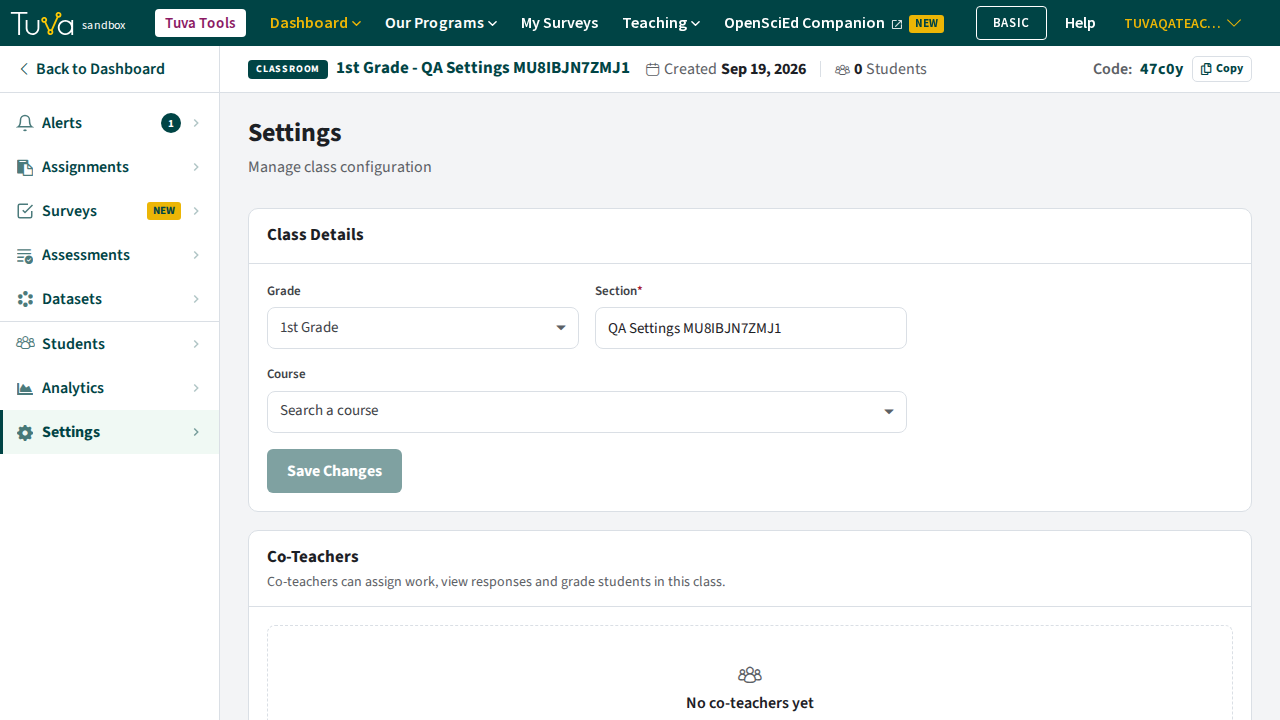
Ask the other teacher to add you as a co-teacher. Open the class, go to Settings, then Add a Co-Teacher, search for the teacher, and click Add Co-Teacher. Co-teachers can create assignments, track progress and review and grade work. You can only add teachers who are at the same school as the class.
-
Ask the other teacher to assign it.
Basic and Premium
Section titled “Basic and Premium”A teacher has Premium when their school has an active Premium subscription, or when they have their own. Teachers with neither are on Basic. Administrators see the school’s Basic and subscribed teacher counts on the school page.
Related
Section titled “Related”Was this page helpful?
This opens the ticket form with your comment and a link to this page, so we can reply to you.
Submit a ticket