
If you’ve forgotten your password, you’ll need to reset your password. Follow the steps below to learn how to reset your password.
- On the Sign In pop-up, click “Forgot Password?” under the Password field.
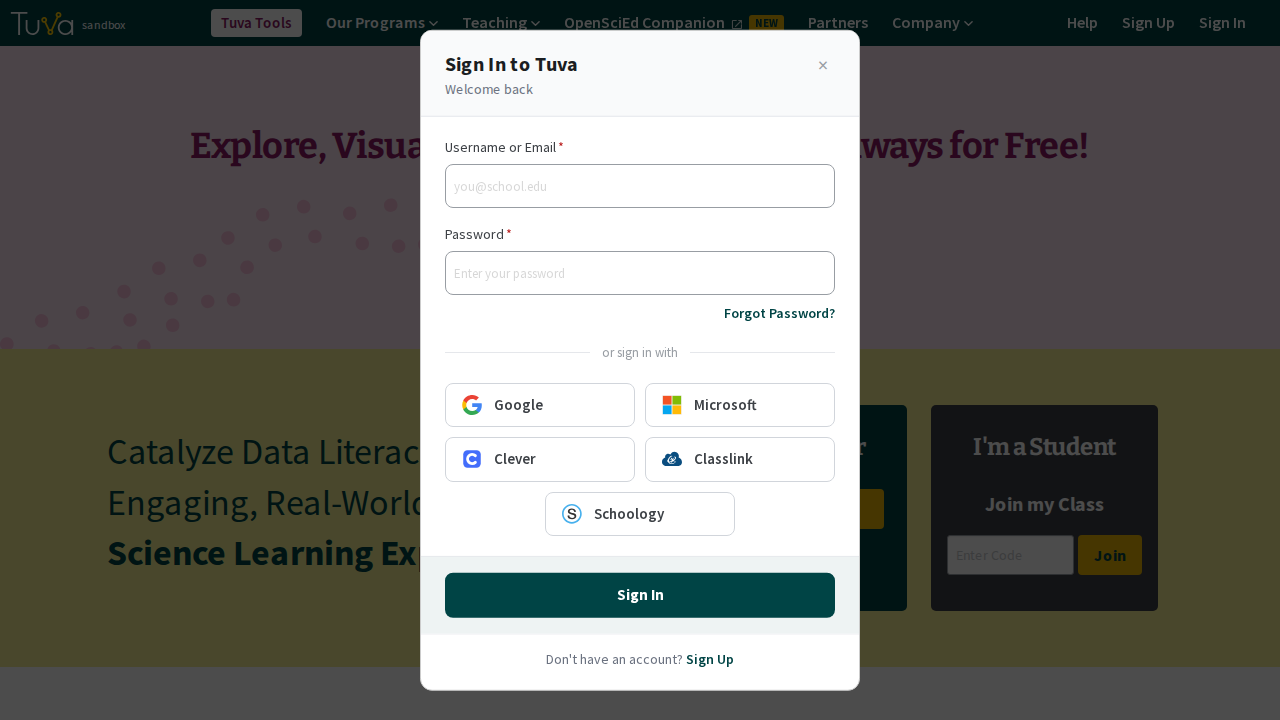
- Then, you’ll need to provide the email address associated with your account, then click Submit.
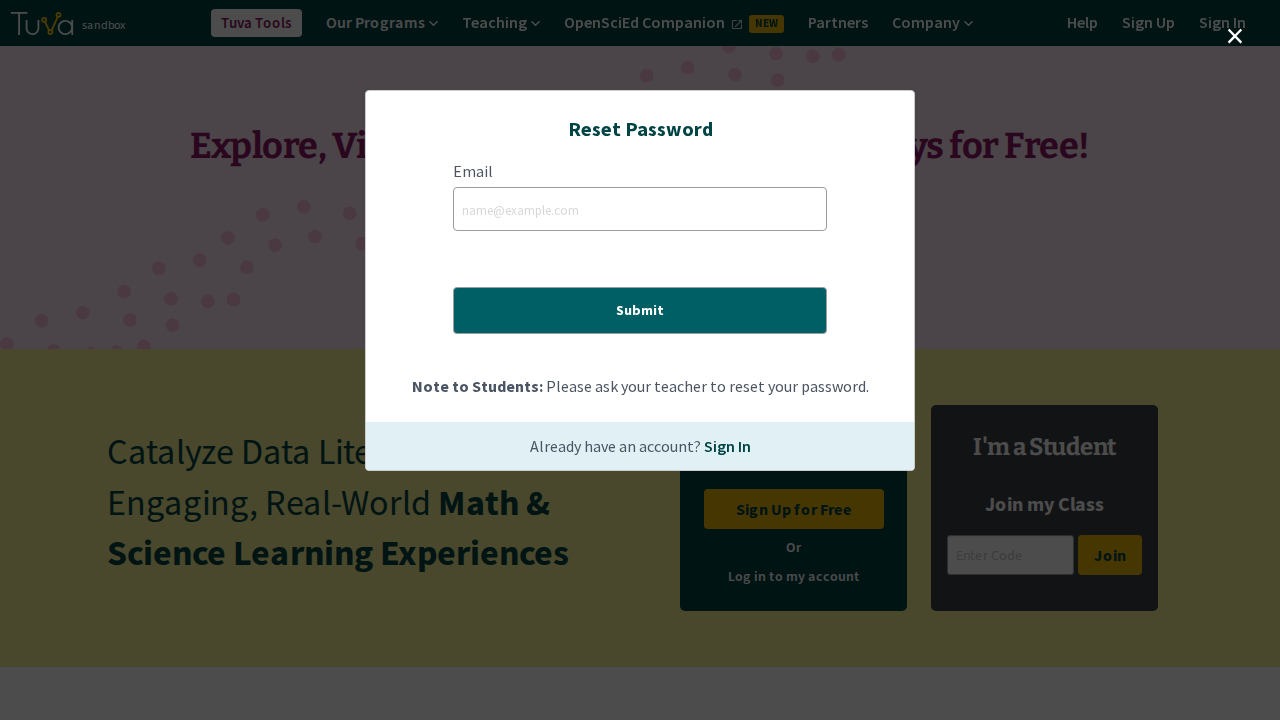
- After providing your email address and clicking submit, you will need to check the inbox associated with your email address. We will send you a password reset email, which will contain a link you need to click in order to reset your password.
- The email will contain a link directing you to a page to input a new password.
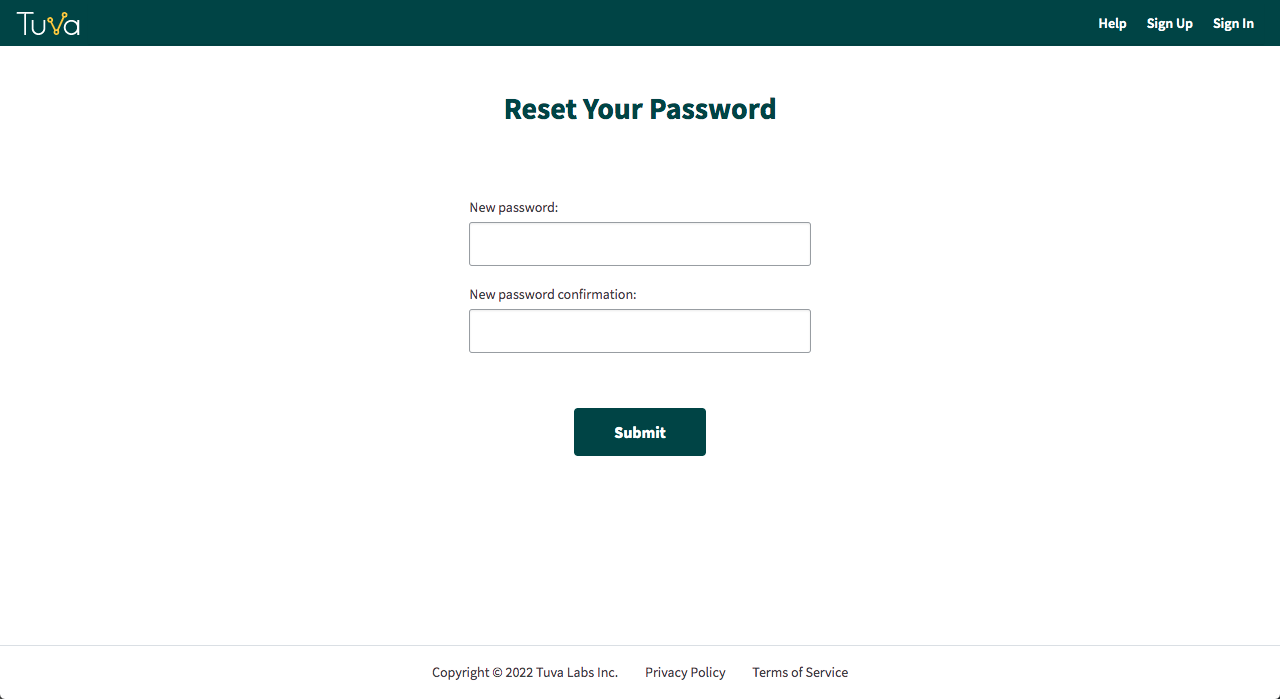
- Once you’ve provided a new password, you may login with your new password.
If you are a student, the Reset Password pop-up asks you to have your teacher reset your password instead. See update a student’s password.
Was this page helpful?
This opens the ticket form with your comment and a link to this page, so we can reply to you.
Submit a ticket