
Insert Data lets you type or paste values straight into Tuva instead of importing a file — useful when your class has just collected data on paper, or when you want to fix a few values in a dataset you already uploaded.
If your data is already in a file, one of the other routes is quicker: from your computer, from Google Drive, or from OneDrive.
Type data in
Section titled “Type data in”-
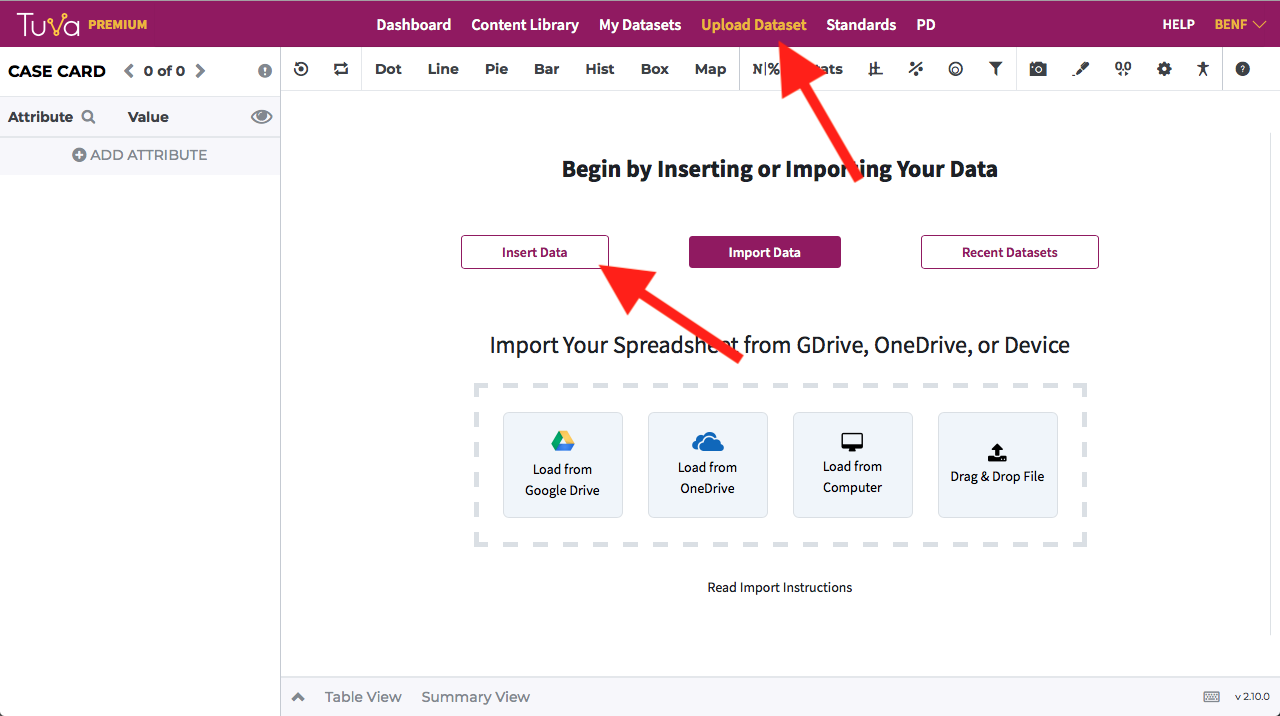
From your dashboard, click Upload Dataset, then Insert Data.
-
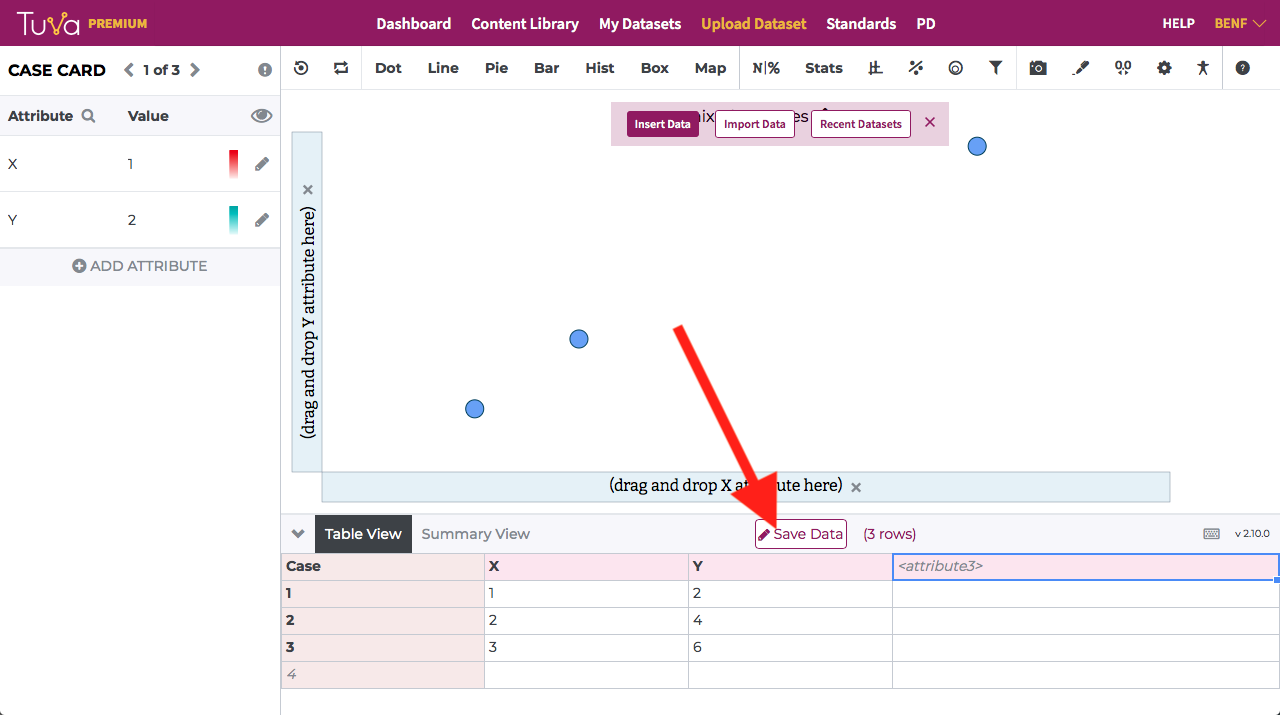
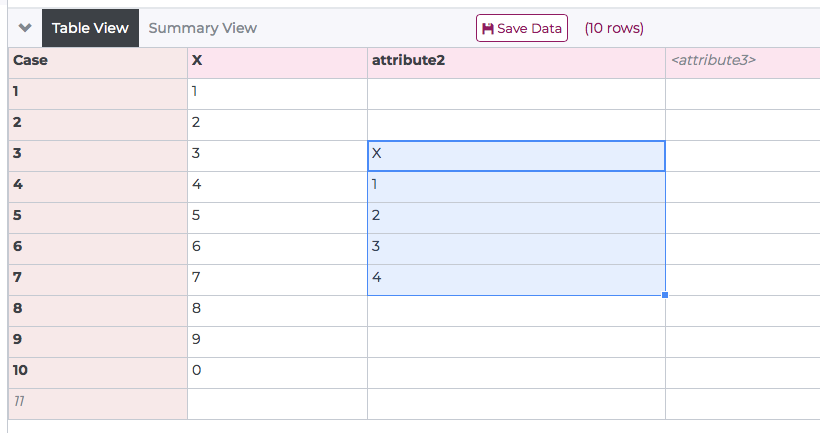
Type your values into the cells of the Table View — the spreadsheet of rows and columns. The first row holds the attribute names.
-
Click Save Data.
-
Tuva takes you through the same review screen every import uses, to confirm the dataset name, its privacy setting and its attributes.
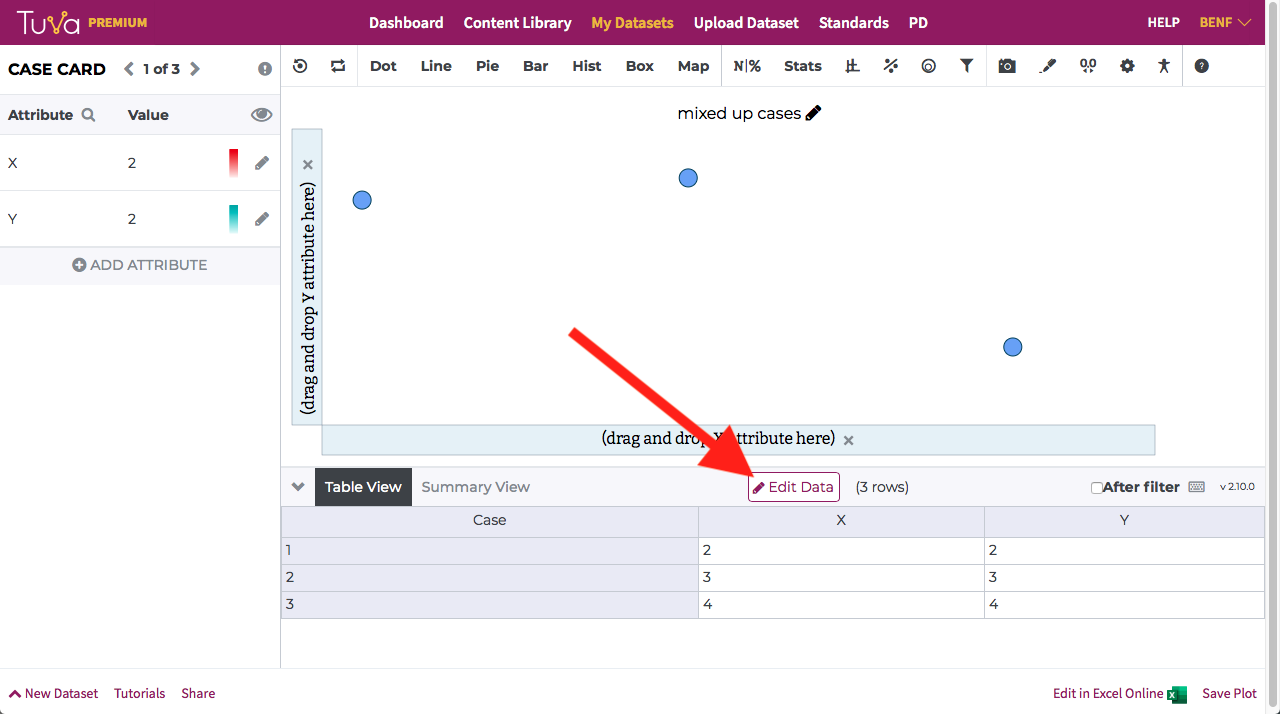
You land back on the dataset page, where the Table View now has an Edit Data button.
Edit a dataset you already own
Section titled “Edit a dataset you already own”Click Edit Data in the Table View and the cells become editable.
Copy and paste
Section titled “Copy and paste”Select one or more cells and press Ctrl+C (Windows) or Cmd+C (Mac).
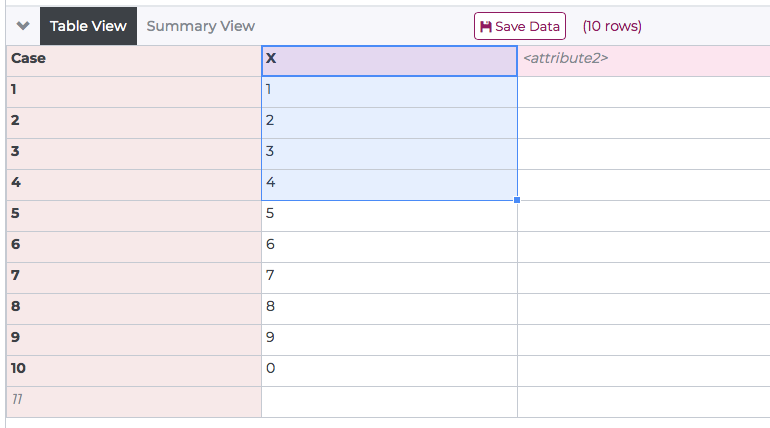
Select any cell and press Ctrl+V or Cmd+V to paste.
Delete
Section titled “Delete”Select one or more cells and press Backspace (Windows) or Delete (Mac).
Was this page helpful?
This opens the ticket form with your comment and a link to this page, so we can reply to you.
Submit a ticket