
Deleting a class is permanent. If you only want it out of the way, archive it instead — an archived class can be restored.
-
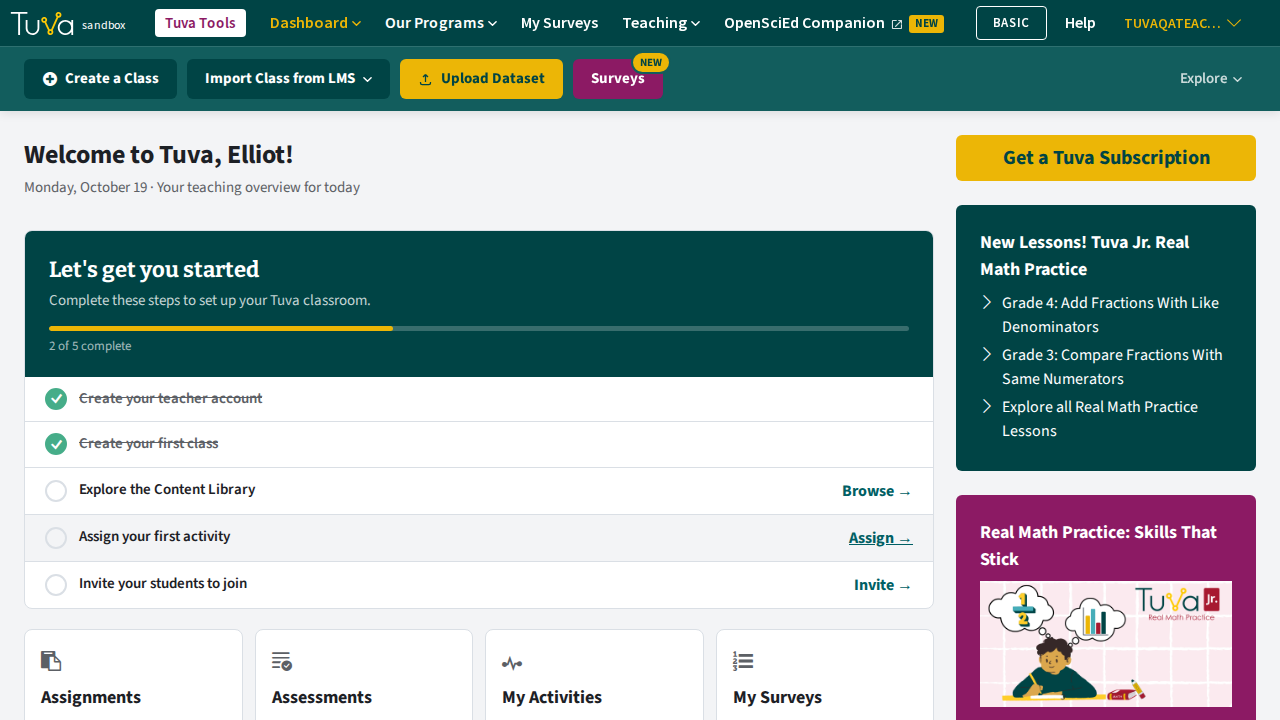
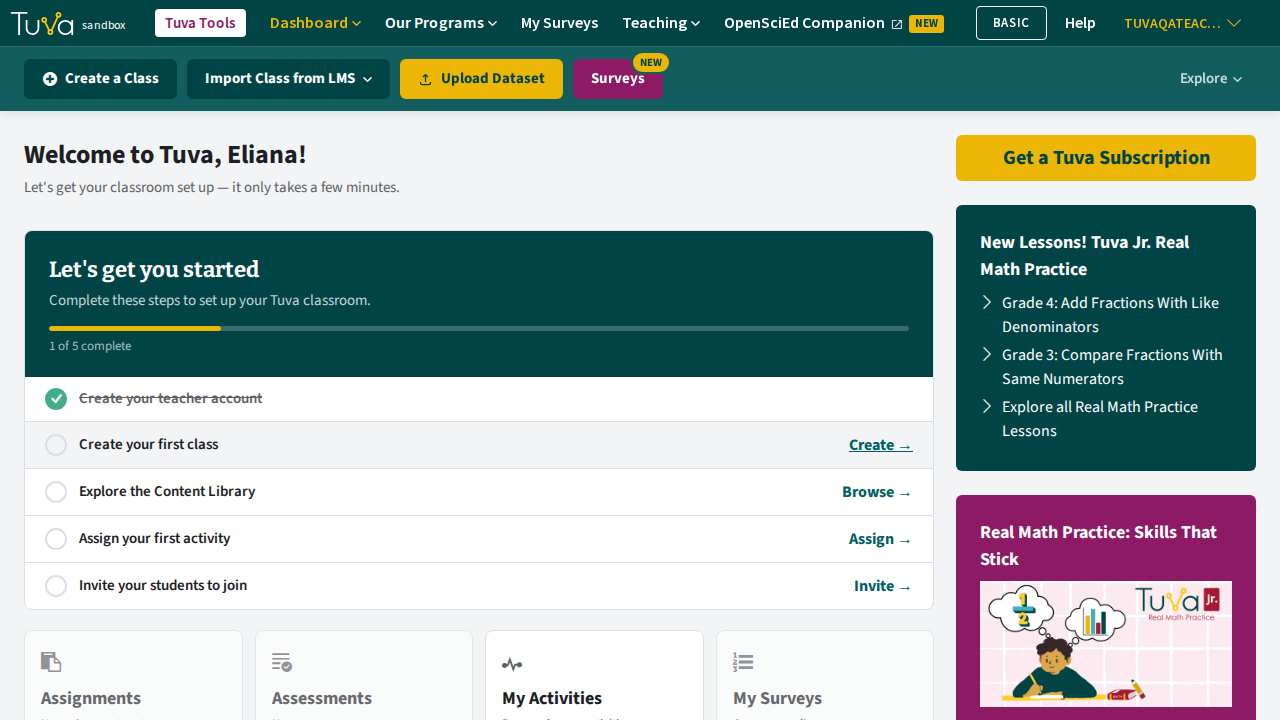
From your dashboard, click the class you want to delete.
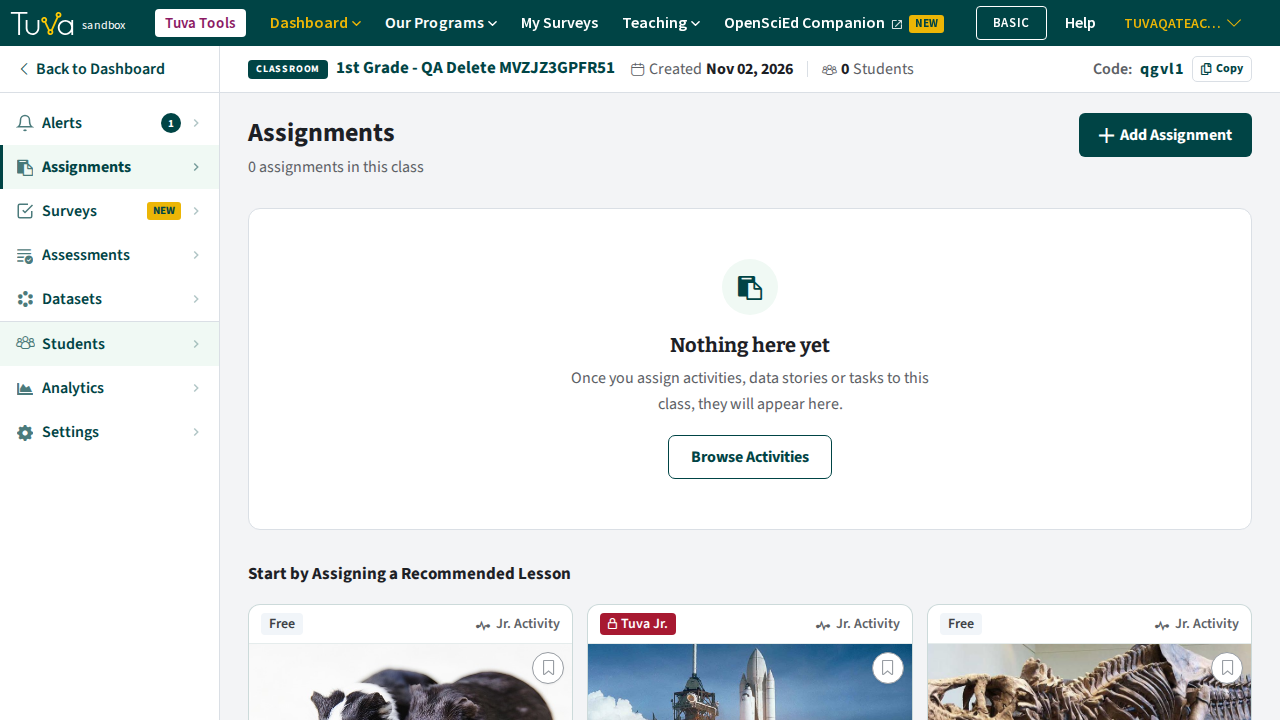
The class opens on its Assignments tab, with the classroom navigation menu down the left side.
-
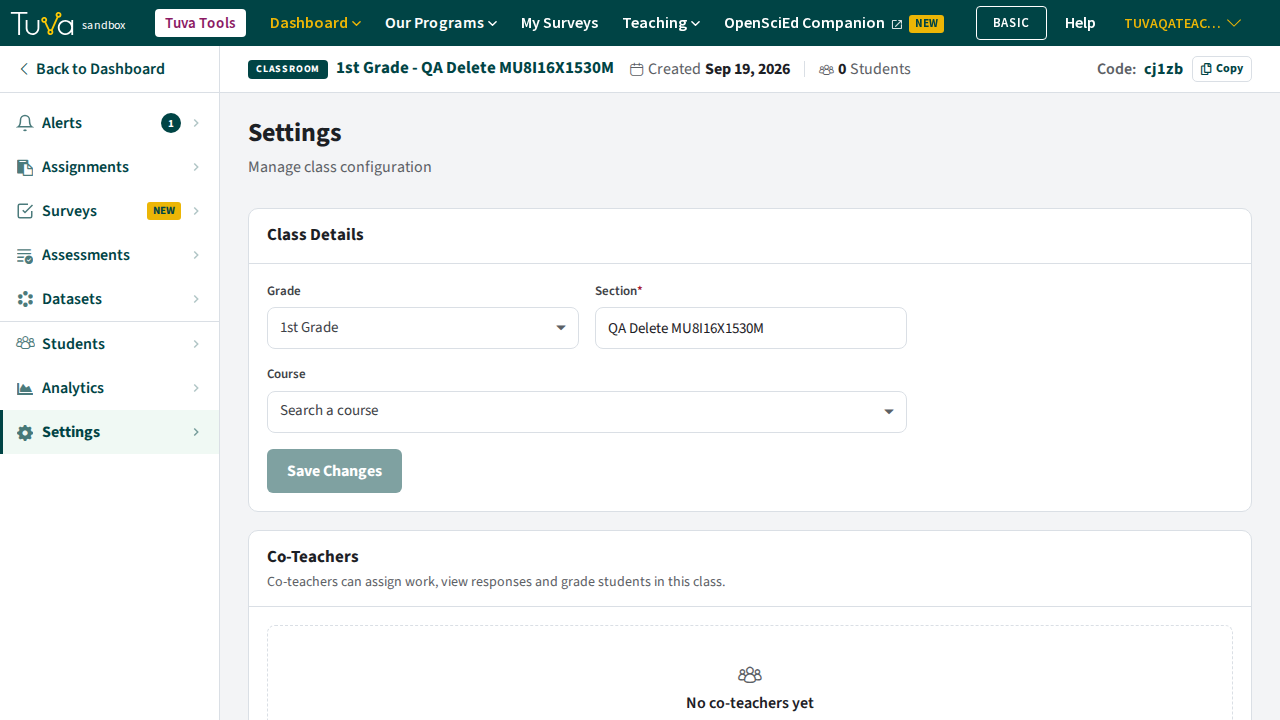
Open the Settings tab on the classroom navigation menu.
-
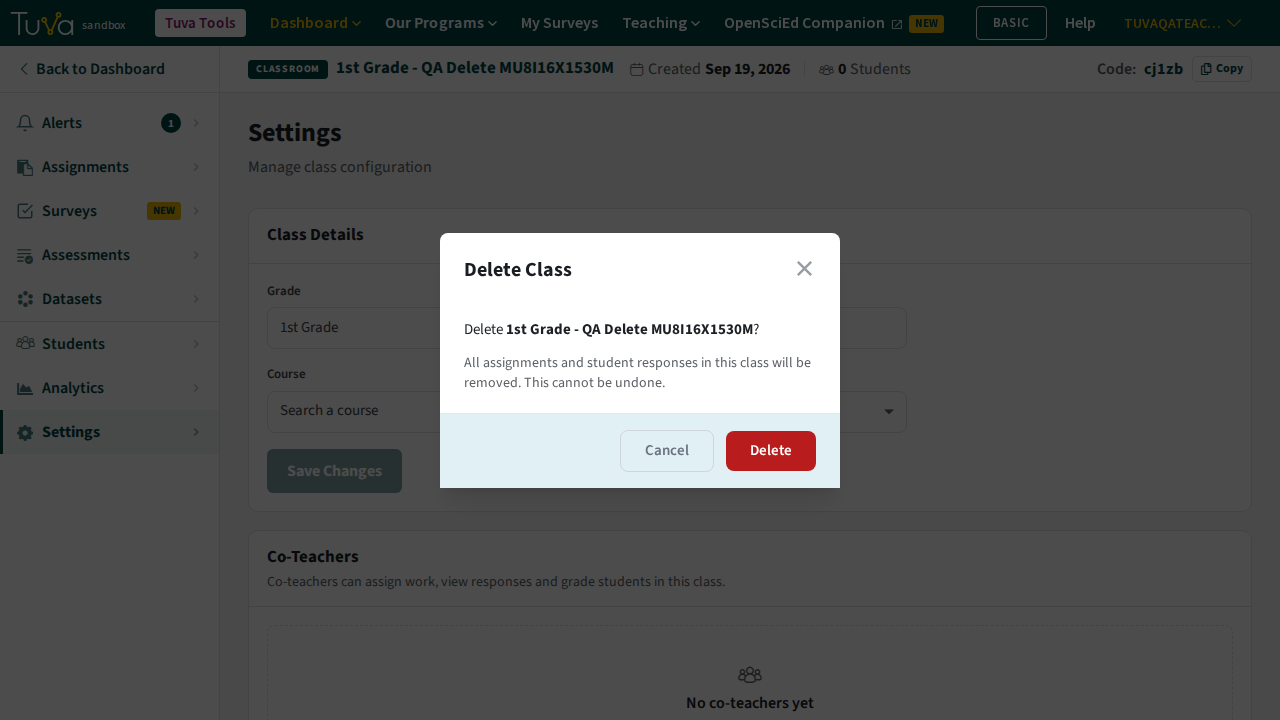
Scroll to the bottom of the tab and click Delete Class, then click Delete in the confirmation pop-up.
The class disappears from your dashboard, and it is not kept in the Classes tab of your profile either.
An archived class cannot be deleted
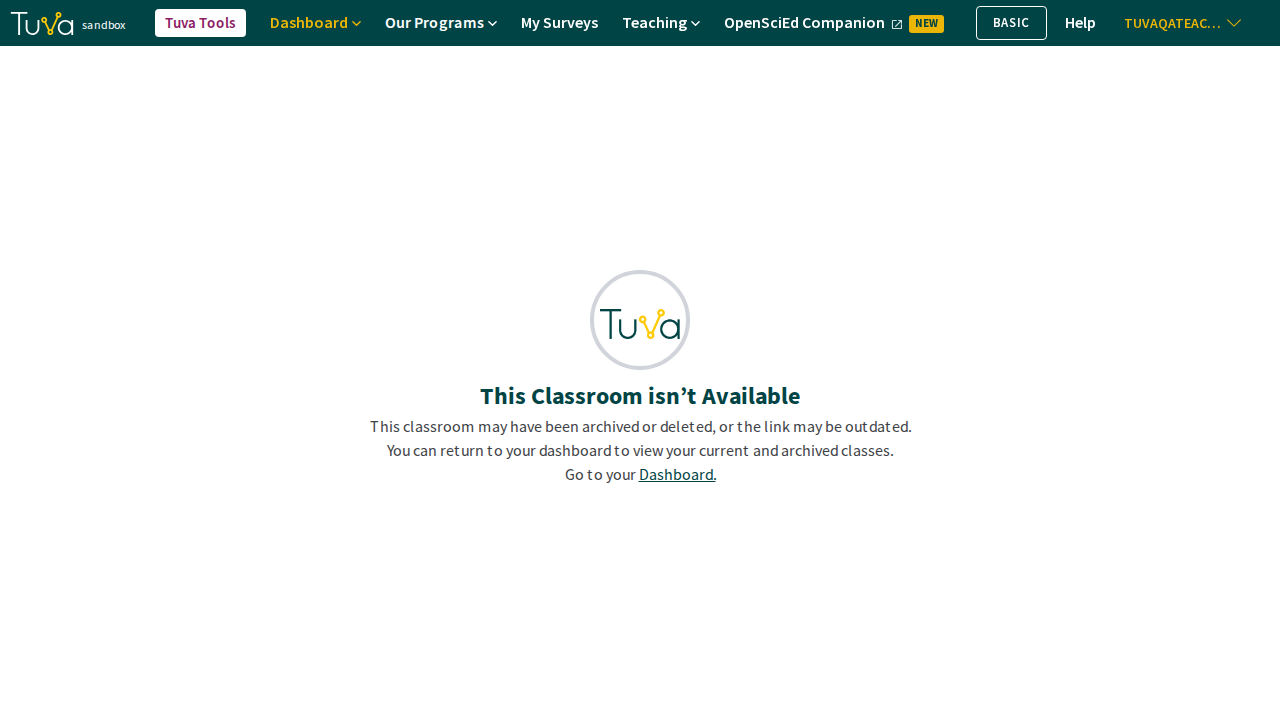
Section titled “An archived class cannot be deleted”You cannot delete a class while it is archived, because its pages cannot be opened at all — the link shows This Classroom isn’t Available, so you never reach the Settings tab. Restore the class first, then delete it.
Was this page helpful?
This opens the ticket form with your comment and a link to this page, so we can reply to you.
Submit a ticket