
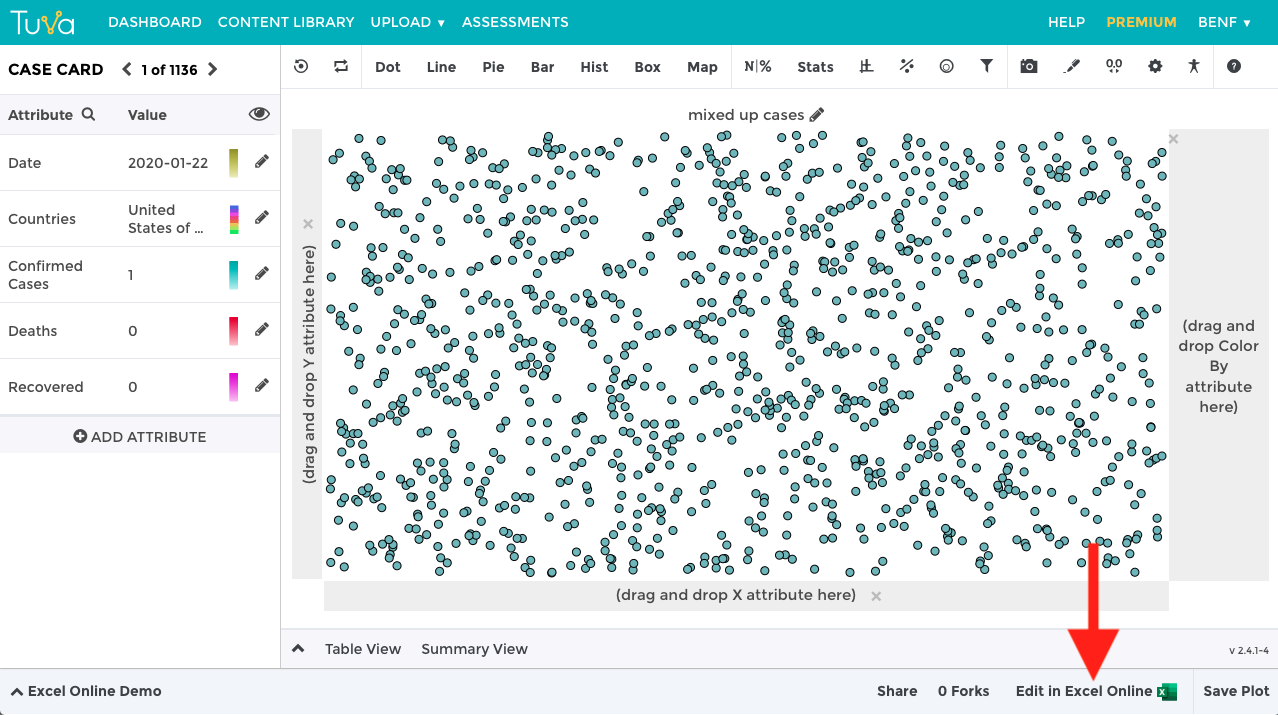
After you have uploaded your data into Tuva as a Comma Separated Values (CSV) file, you will have the option to edit the raw data using Excel Online. You can access Excel Online via the button “Edit in Excel Online,” which can be found in the bottom right of the footer. See the screenshot below.
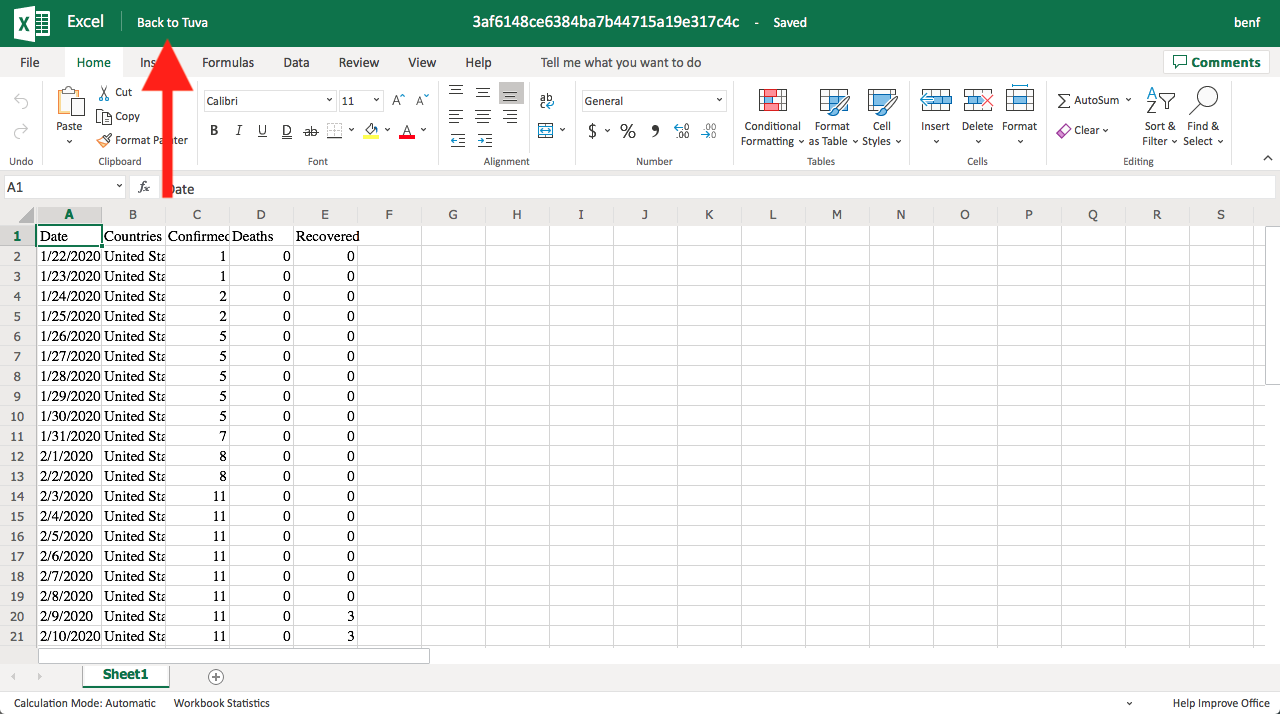
After clicking Edit in Excel Online, you will have access to all of Excel’s functionality to make changes and modifications to your data.
Any edits you make will be saved to Tuva after you click “Back to Tuva” in the top left corner. See the screenshot below.
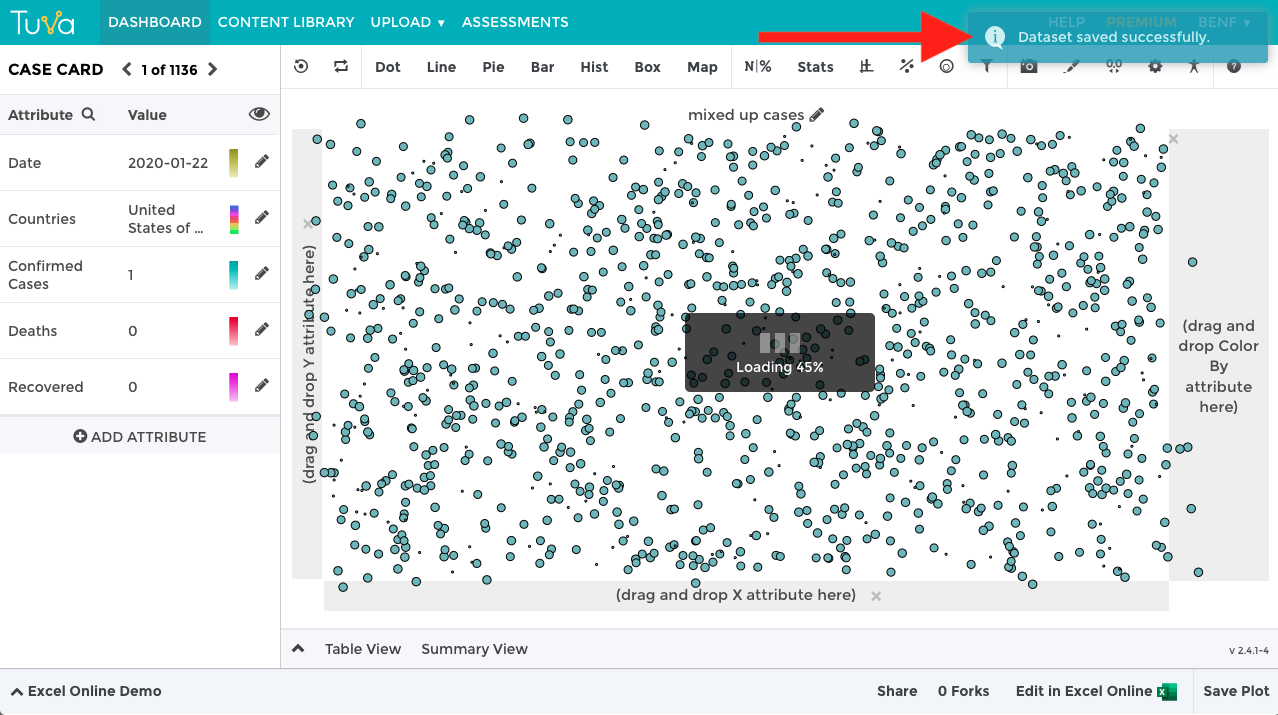
After making your changes and clicking “Back to Tuva,” the Tuva Data Tools will reload and confirm that all changes have been saved.
Was this page helpful?
This opens the ticket form with your comment and a link to this page, so we can reply to you.
Submit a ticket