
-
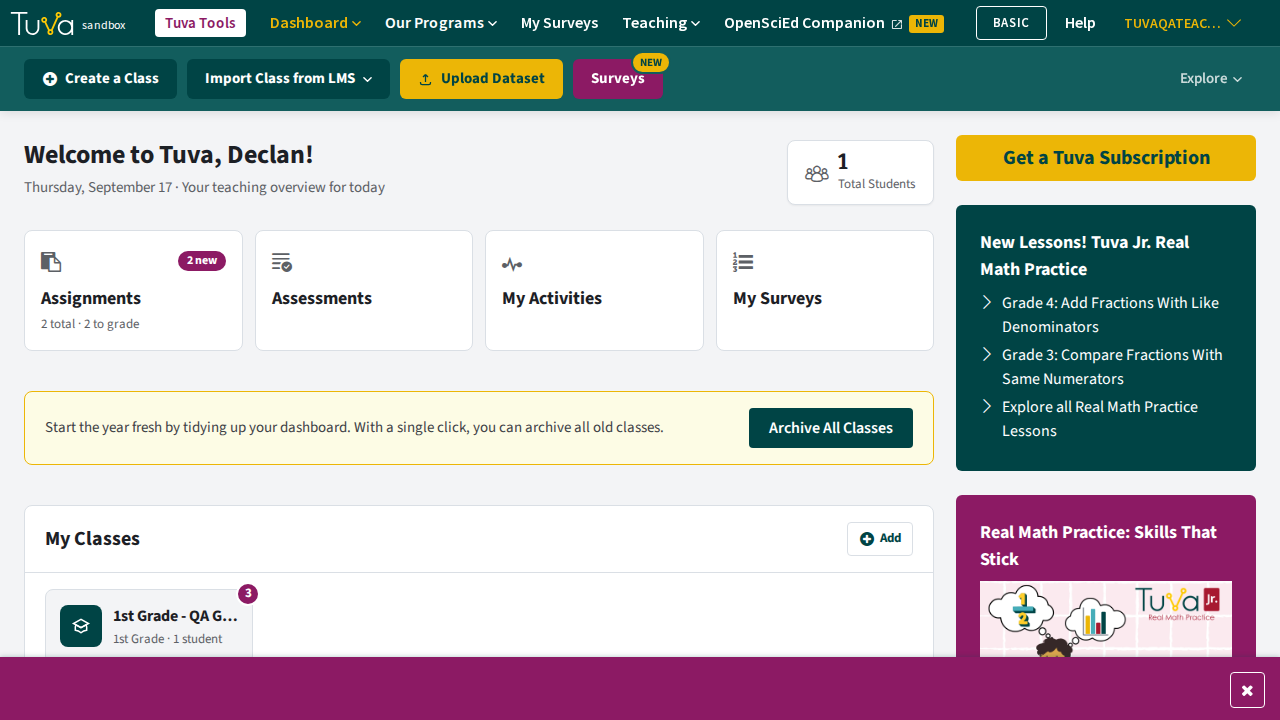
From your dashboard, click the class that has the activity you want to grade.
-
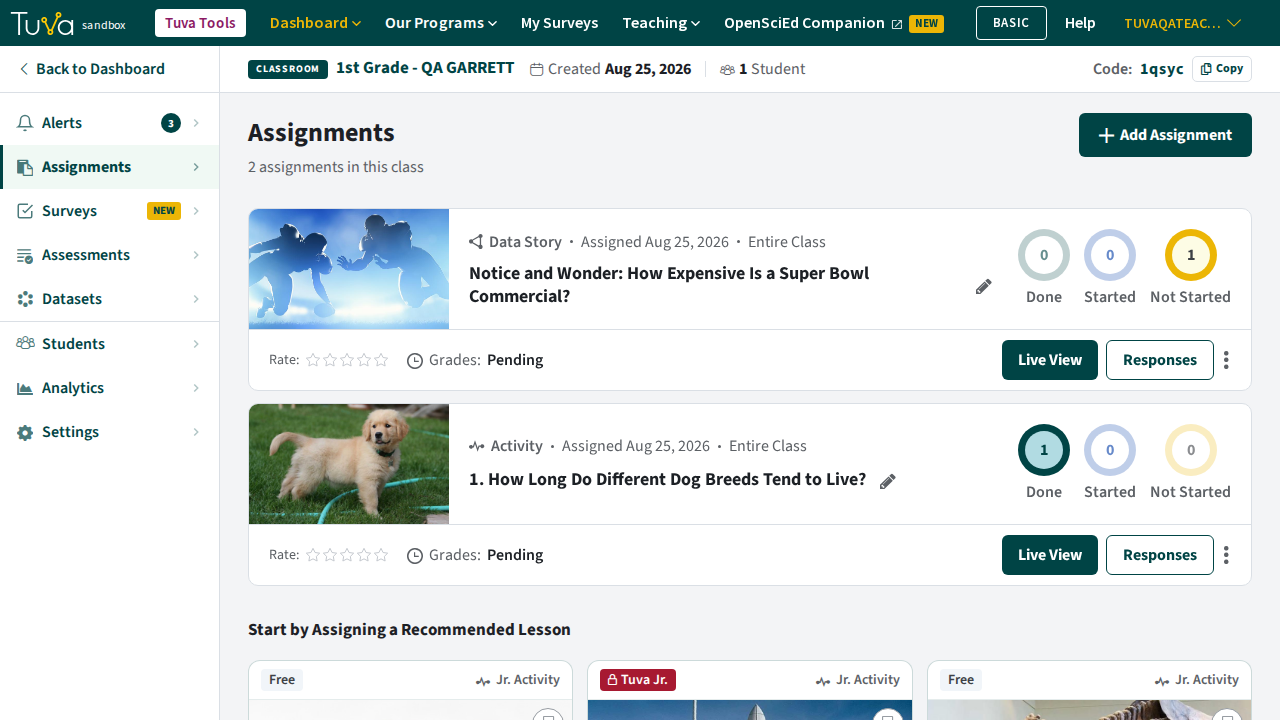
Open the Assignments tab, find the activity, and click Responses.
-
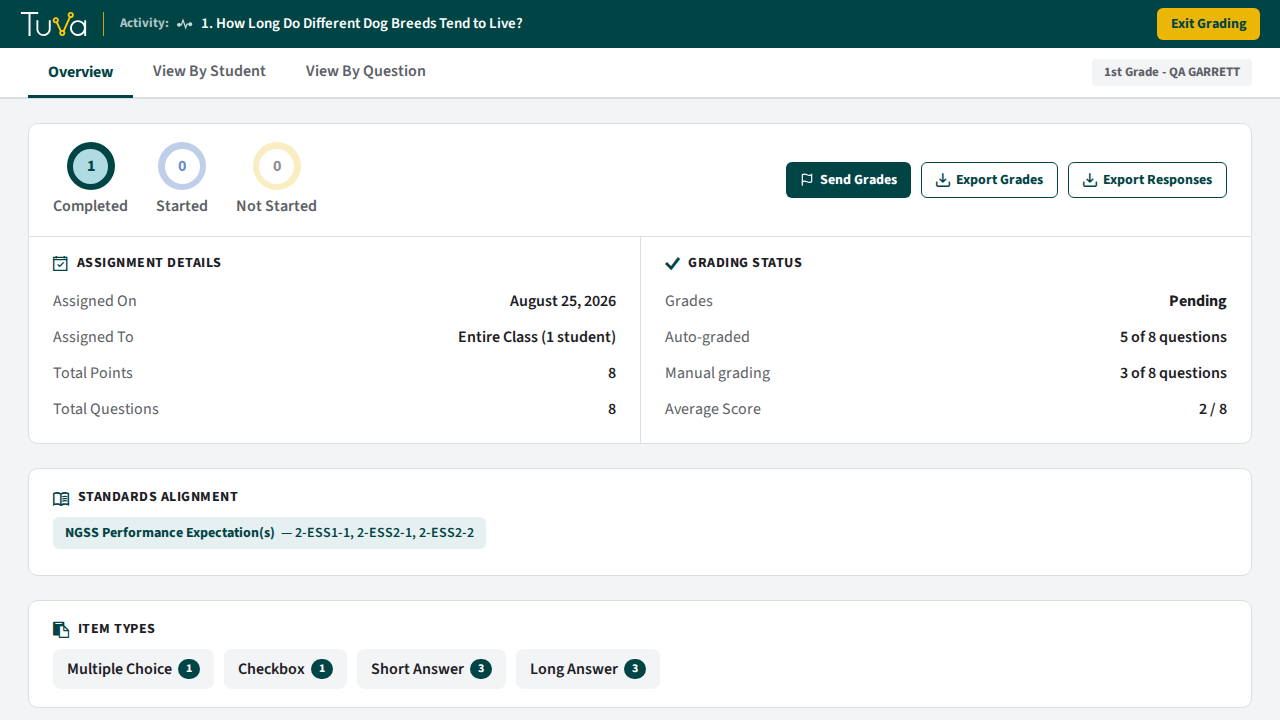
This opens the activity’s grading overview, with Export Grades and Export Responses buttons for downloading every student’s results at once.
-
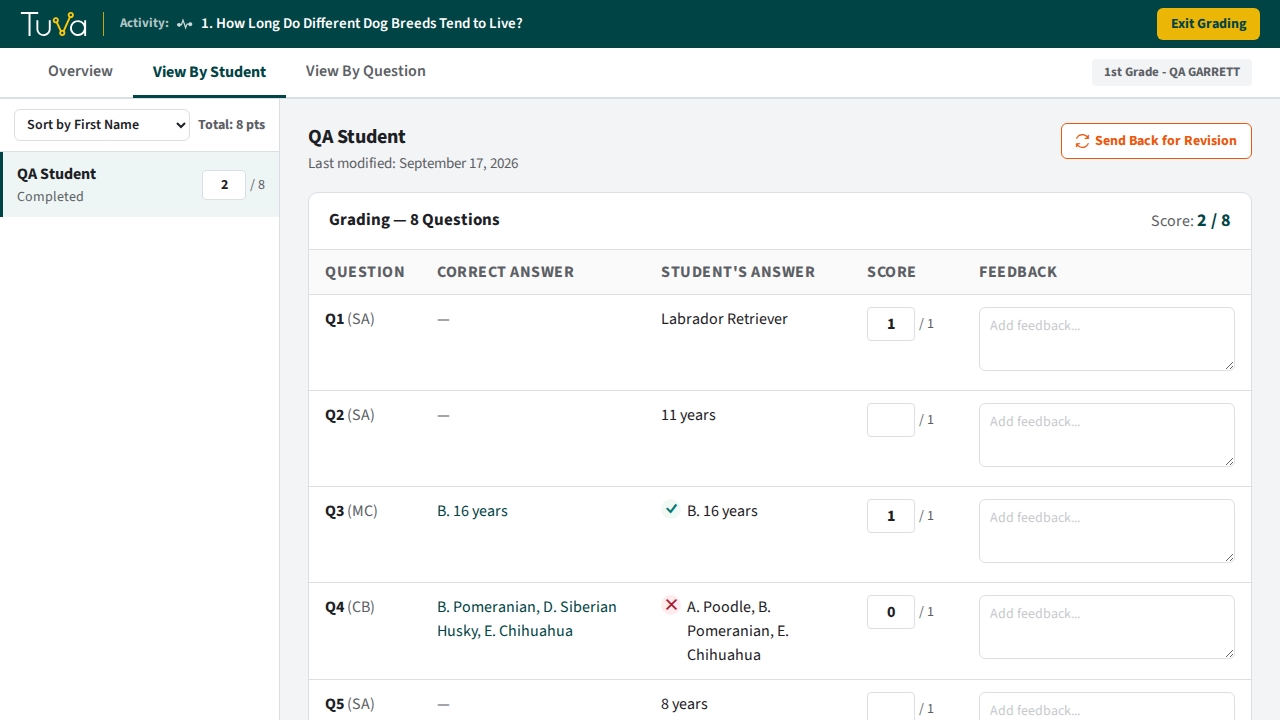
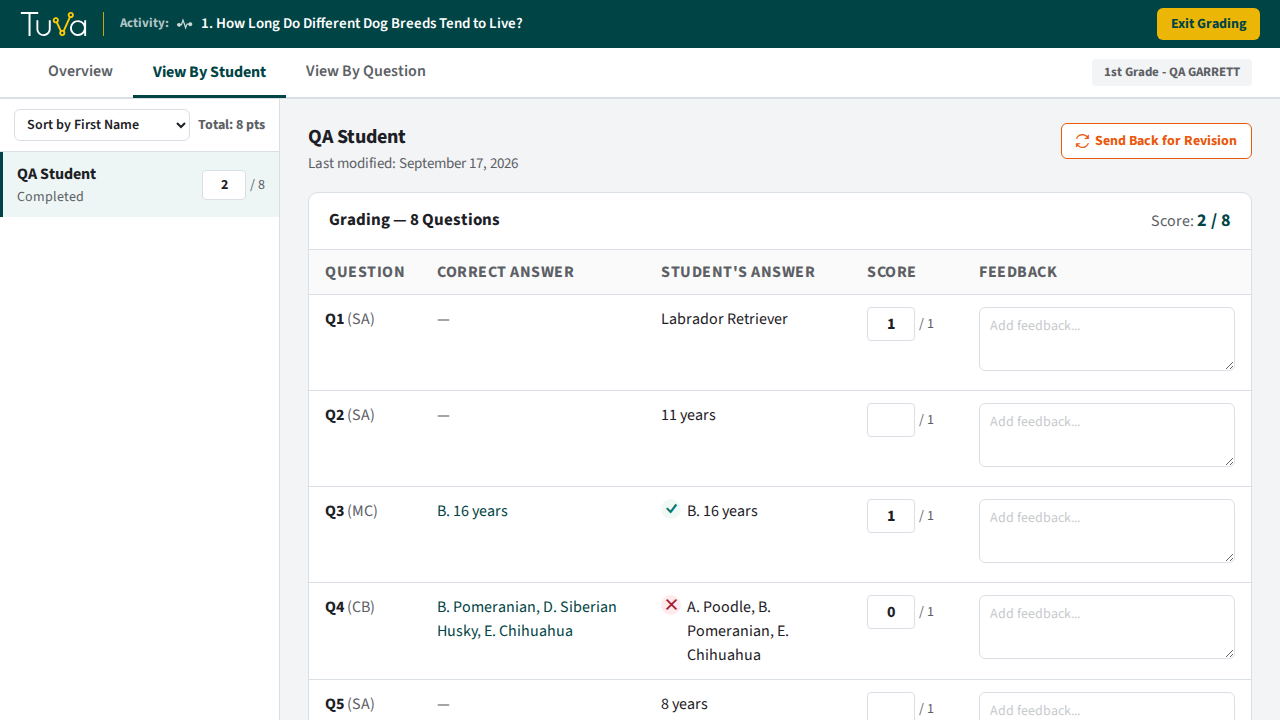
Click View By Student and choose a student from the list on the left. Each row shows the question, the student’s answer, and — for auto-graded questions — a check or X mark next to the Correct Answer column.
-
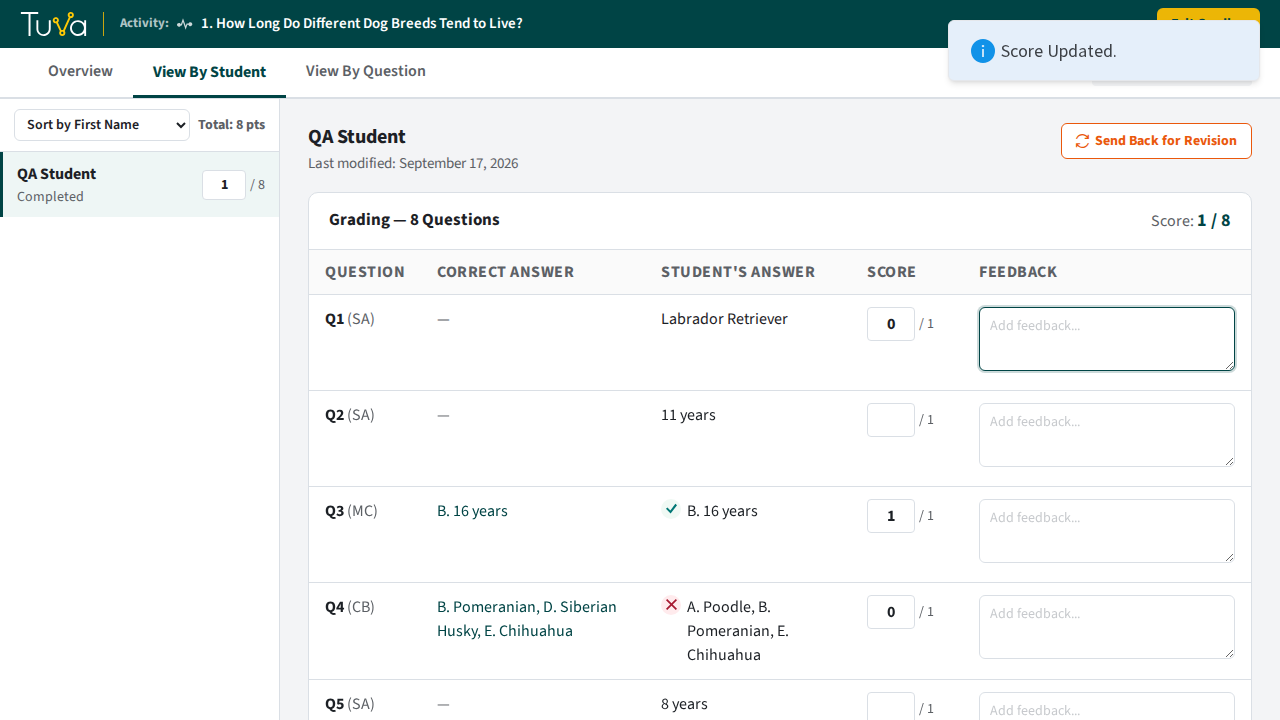
Enter a score for each question in the Score column, and use the Feedback box next to it to leave a comment on that question. Scores save automatically.
-
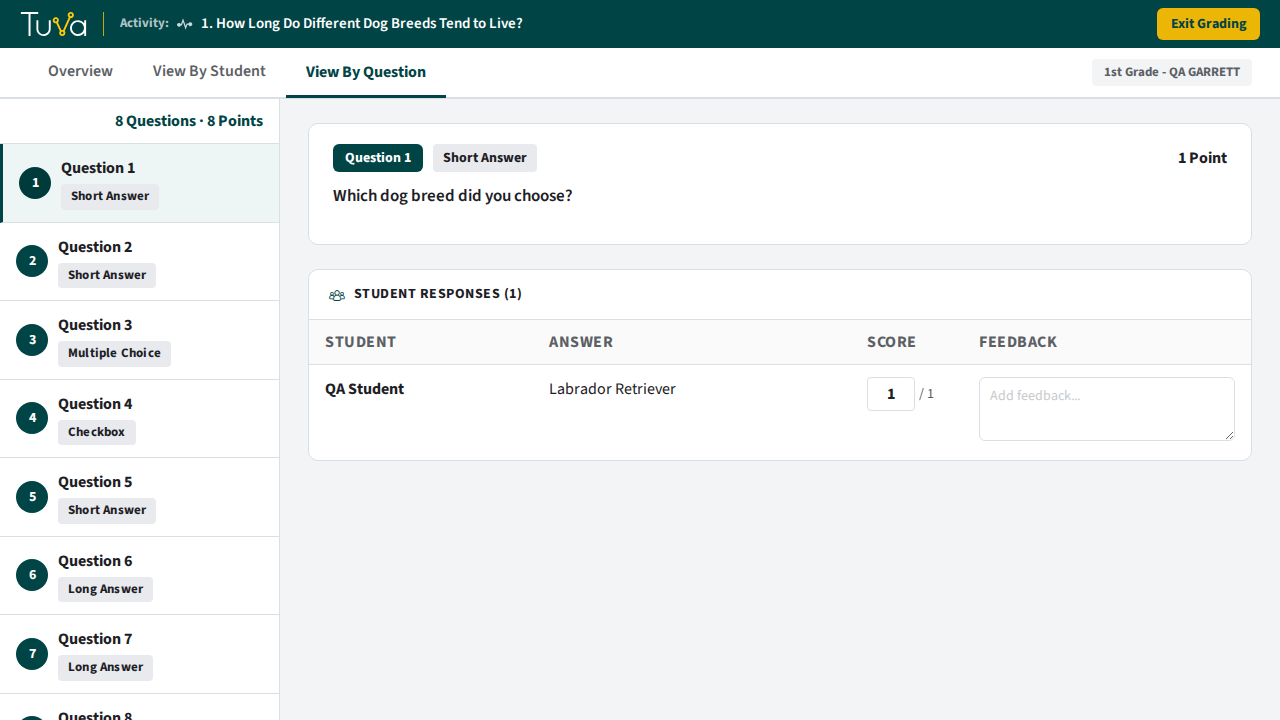
Click View By Question to see one question at a time, with every student’s answer listed in a table under the Student column.
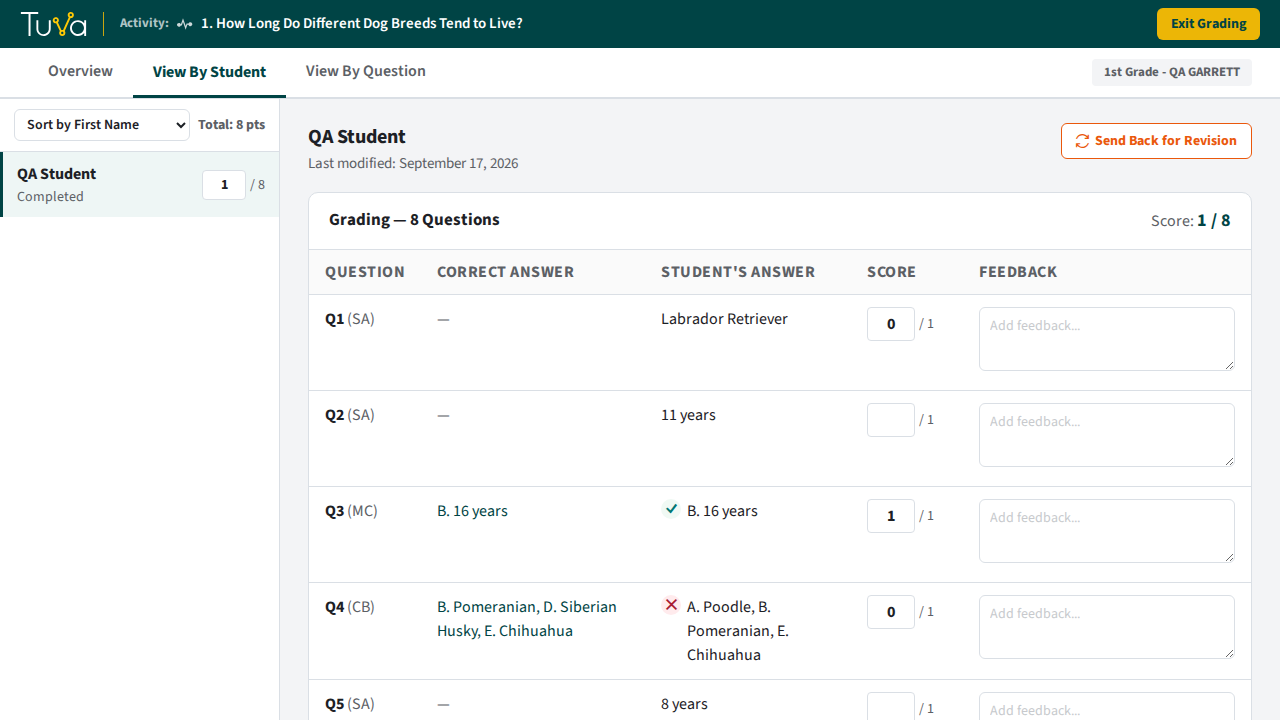
Scores you enter are saved right away, and are still there if you reload the page or come back later.
Was this page helpful?
This opens the ticket form with your comment and a link to this page, so we can reply to you.
Submit a ticket