
Did you know you can embed your data on your site with the Tuva Tools? Continue reading to learn how.
-
Start by uploading your dataset in to Tuva. To see how, read import a dataset.
-
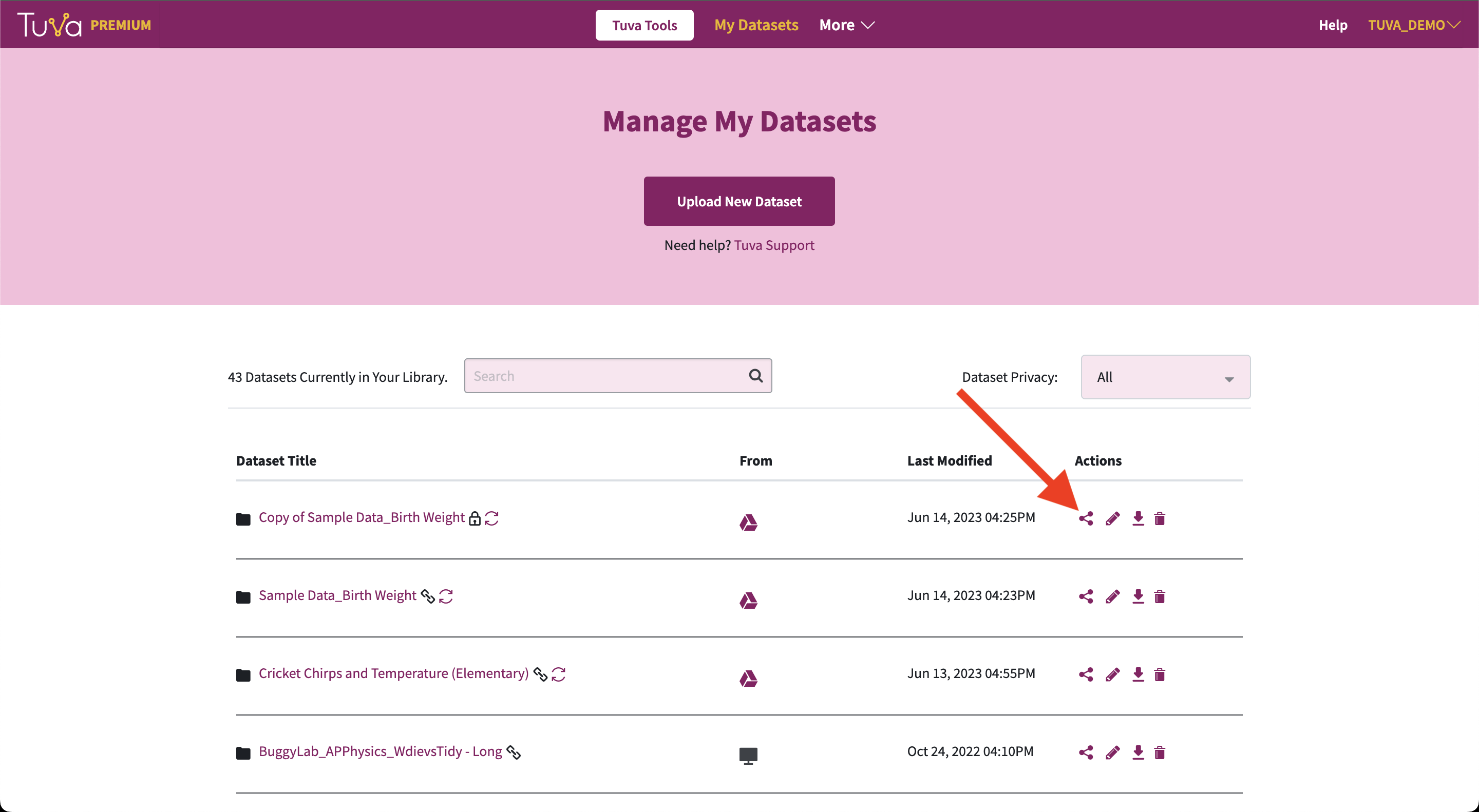
Once your dataset is uploaded, you’ll need to find the Share Dataset Pop-up. It’s available in one of two places. The first place to look is on the My Datasets page. Click the share icon to reveal the Share Dataset Pop-up.
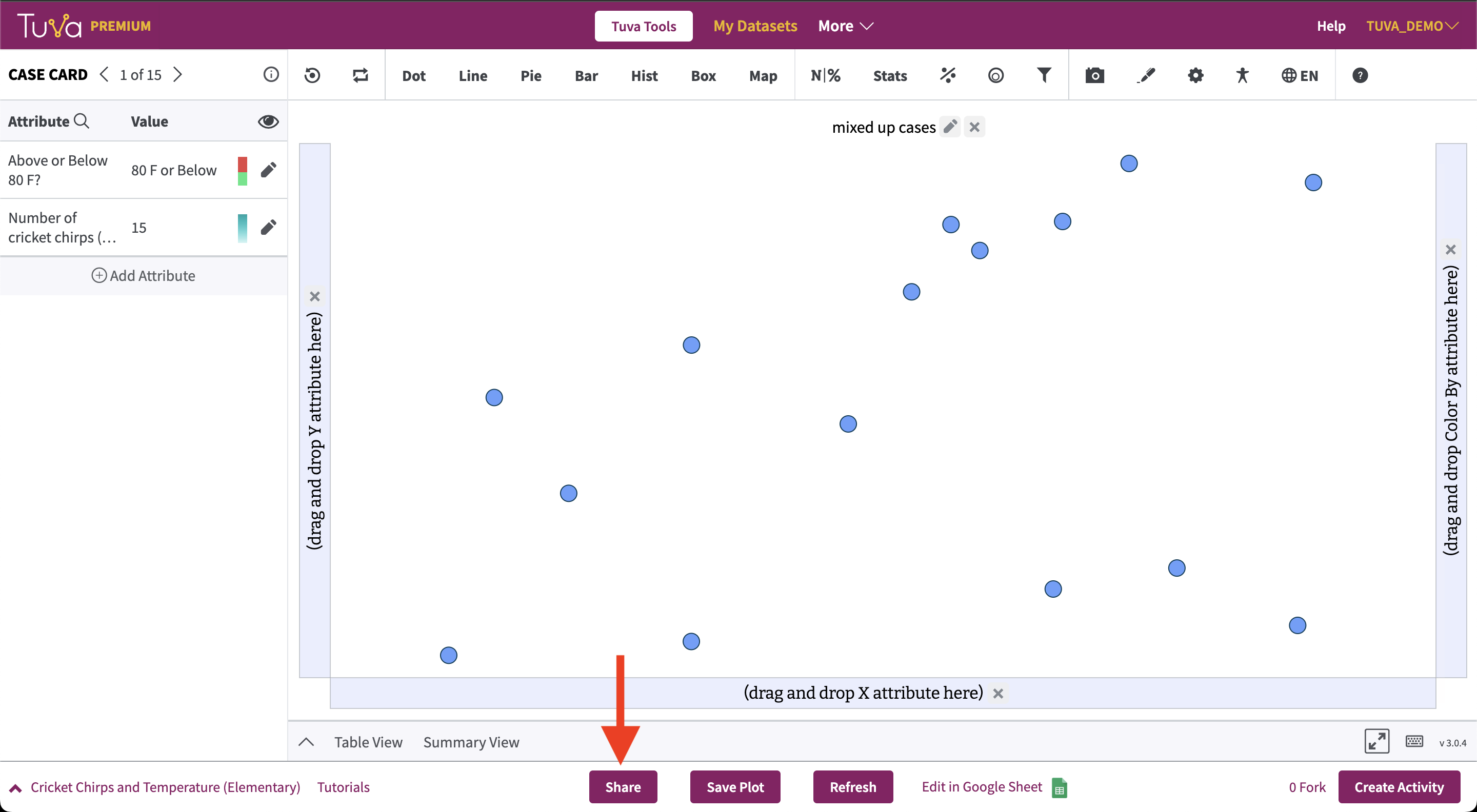
The other place to look is on the dataset’s page in the footer. Look for the Share button.
-
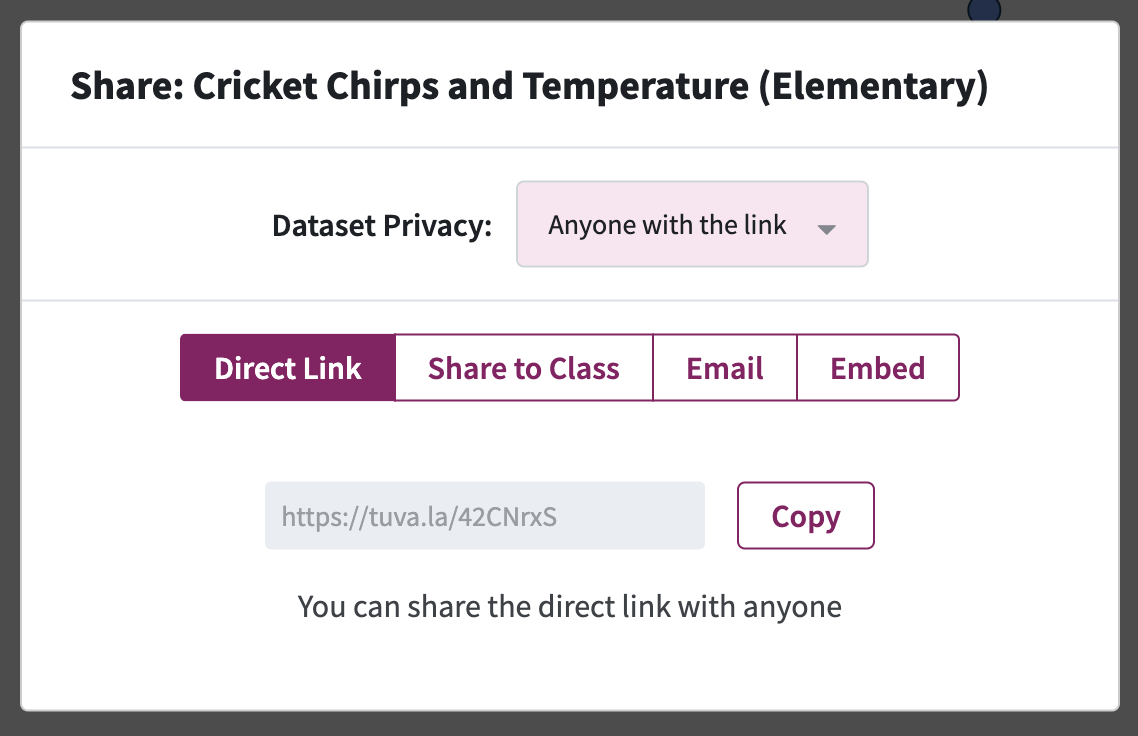
Click on the Share button from either location to reveal the Share Dataset Pop-up.
-
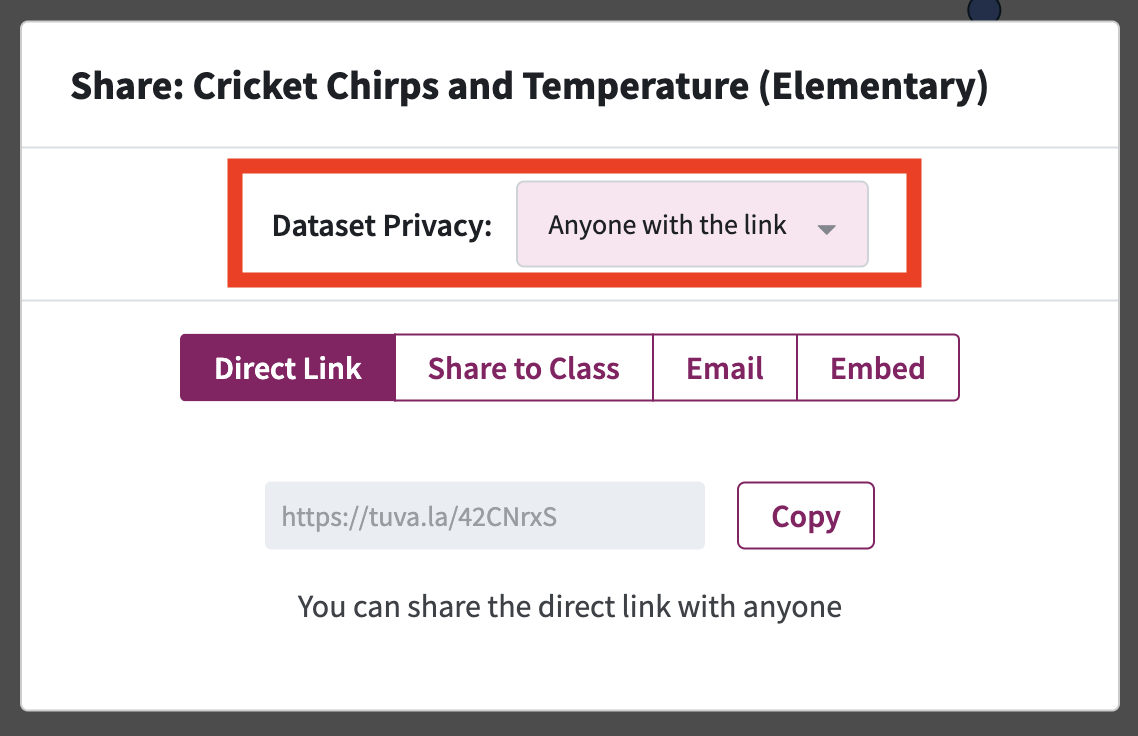
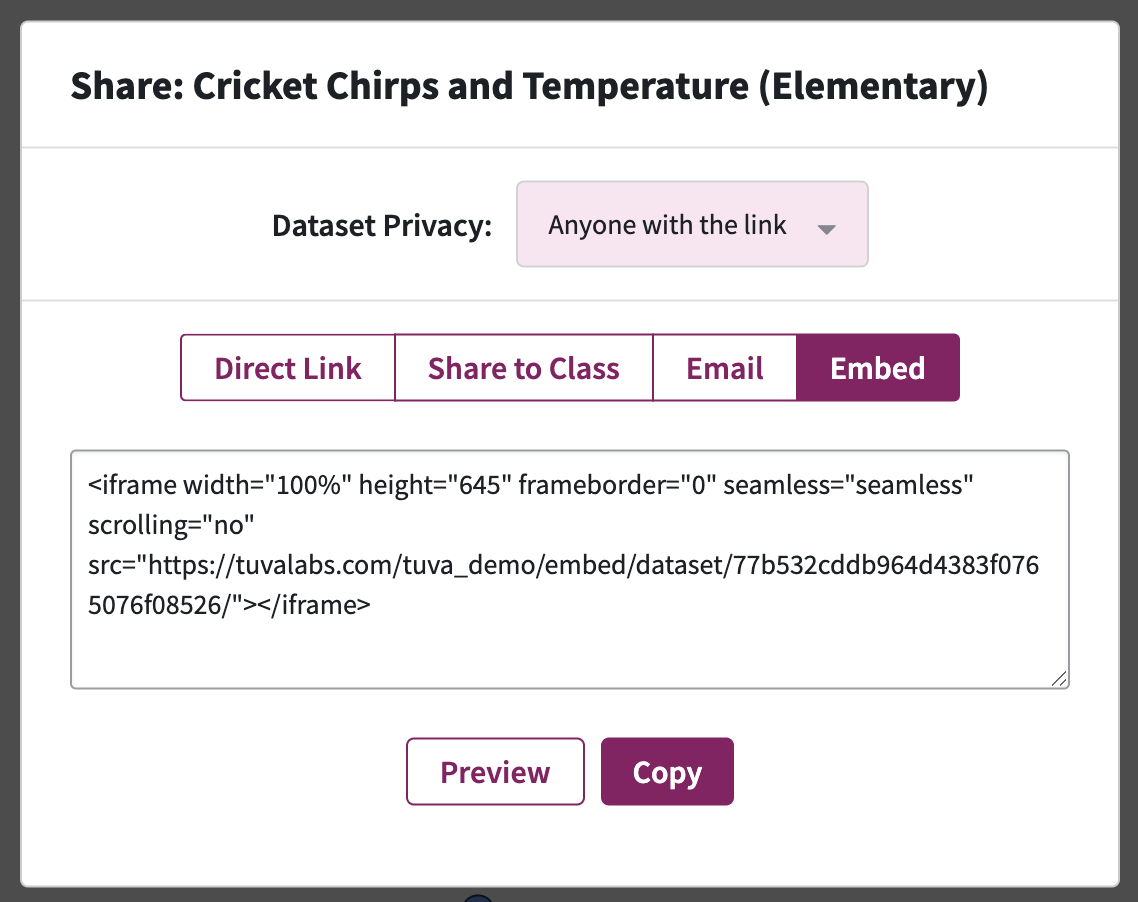
From here, you need to ensure the Dataset Privacy is set to Anyone with the link.
-
Then click Embed to reveal the iFrame HTML code you can use to embed your dataset with the Tuva Tools.
-
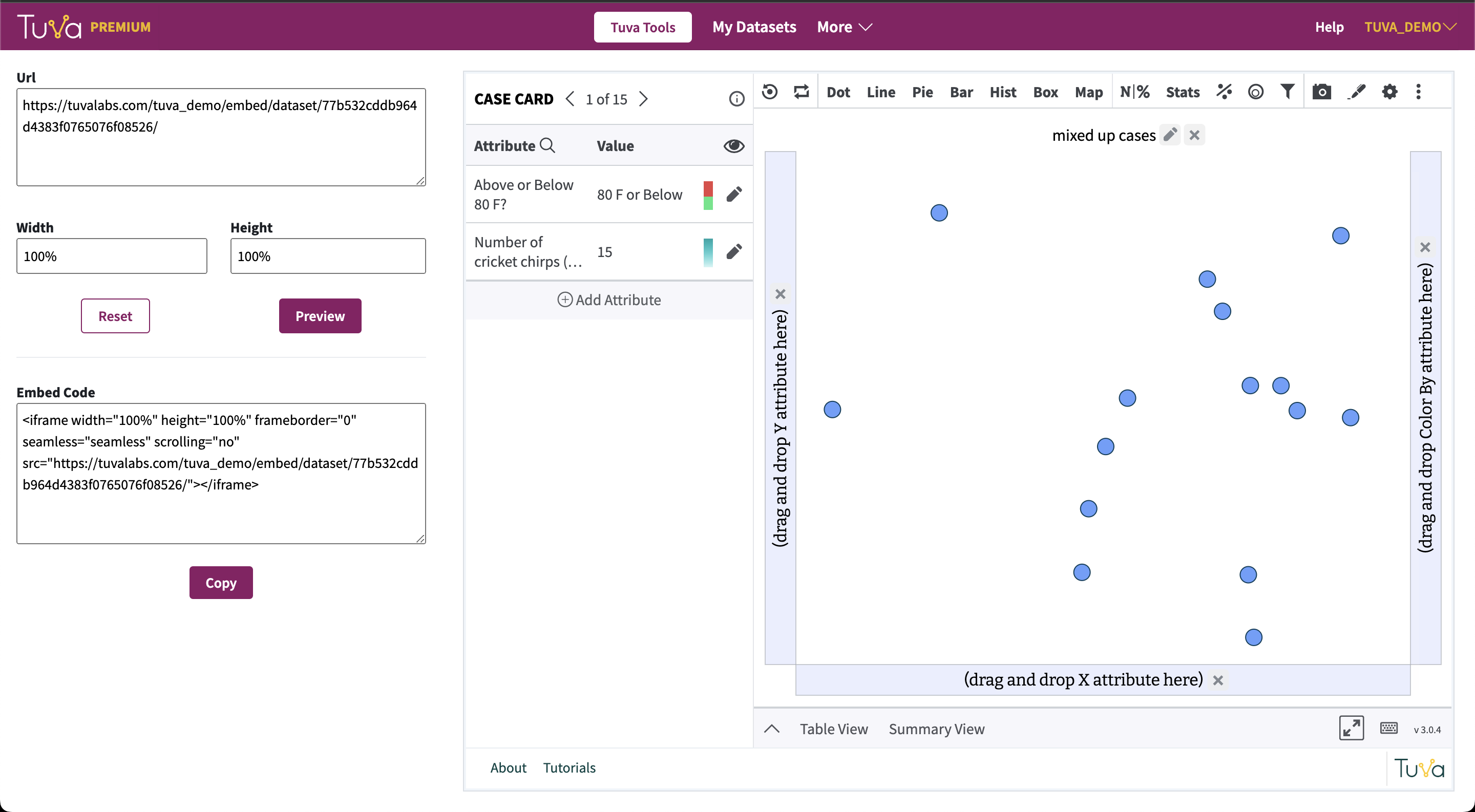
Additionally, if you want to preview how the iFrame will look, you can click on Preview to preview and modify the width and height of the iFrame code.
If you get stuck during this process and need any additional help, please do reach out to support@tuvalabs.com.
Was this page helpful?
This opens the ticket form with your comment and a link to this page, so we can reply to you.
Submit a ticket