
Every class has a short class code. Share it with your students and they can create their own accounts and land in your class without you adding them by hand.
Find your class code
Section titled “Find your class code”-
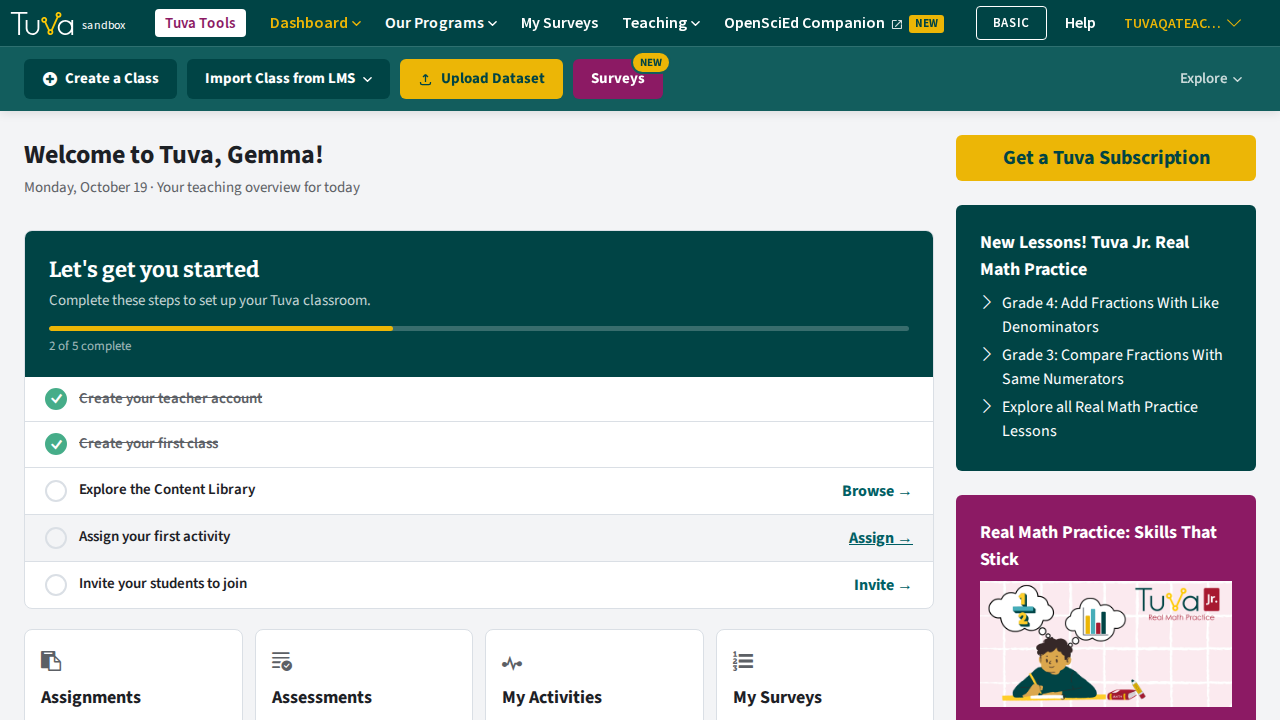
From your dashboard, click the class you want students to join. The dashboard cards do not show class codes — you need to open the class.
-
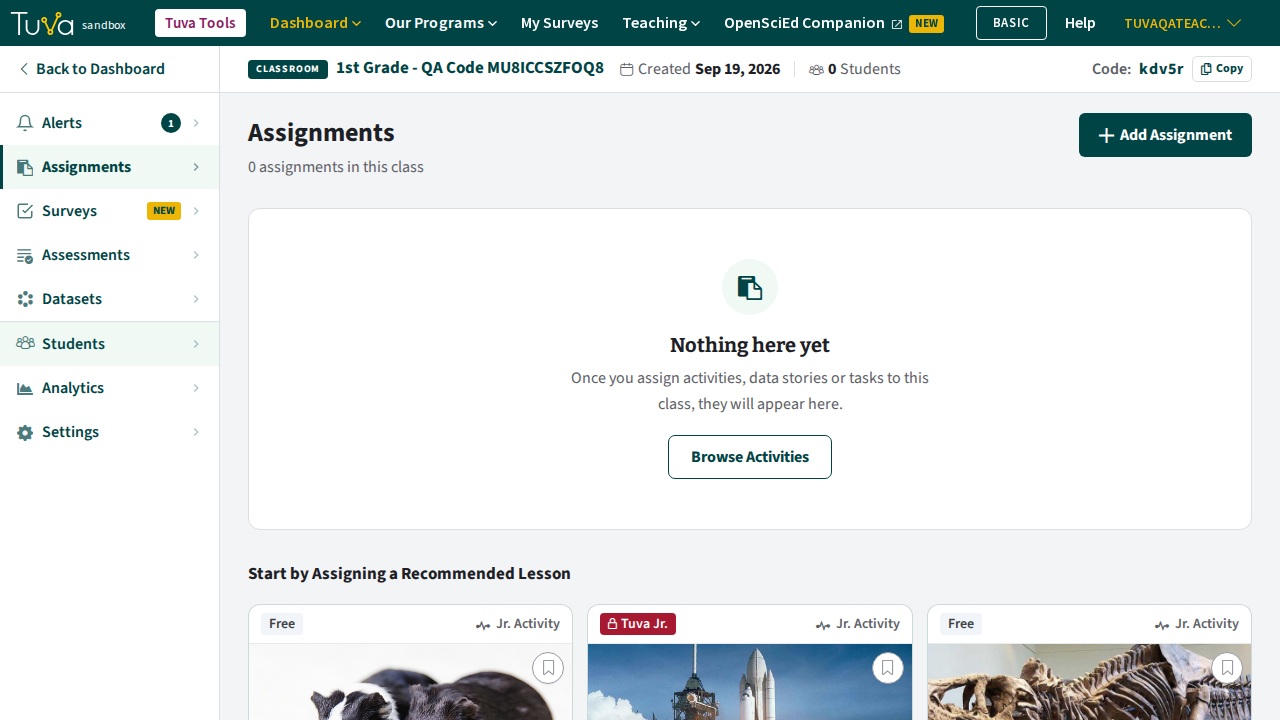
The code is in the top right of the classroom header, labelled Code:, with a Copy button beside it.
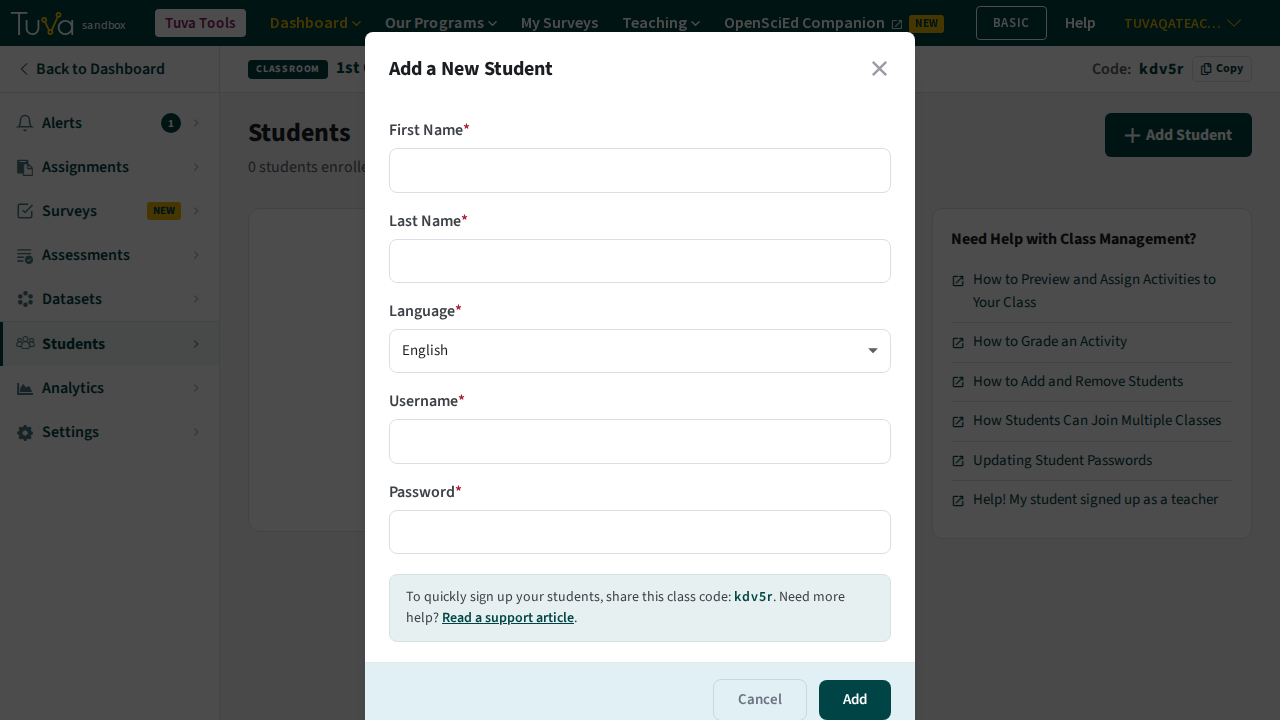
You can also find it in the Add a New Student pop-up on the Students tab, which reads “To quickly sign up your students, share this class code”.
How students join
Section titled “How students join”-
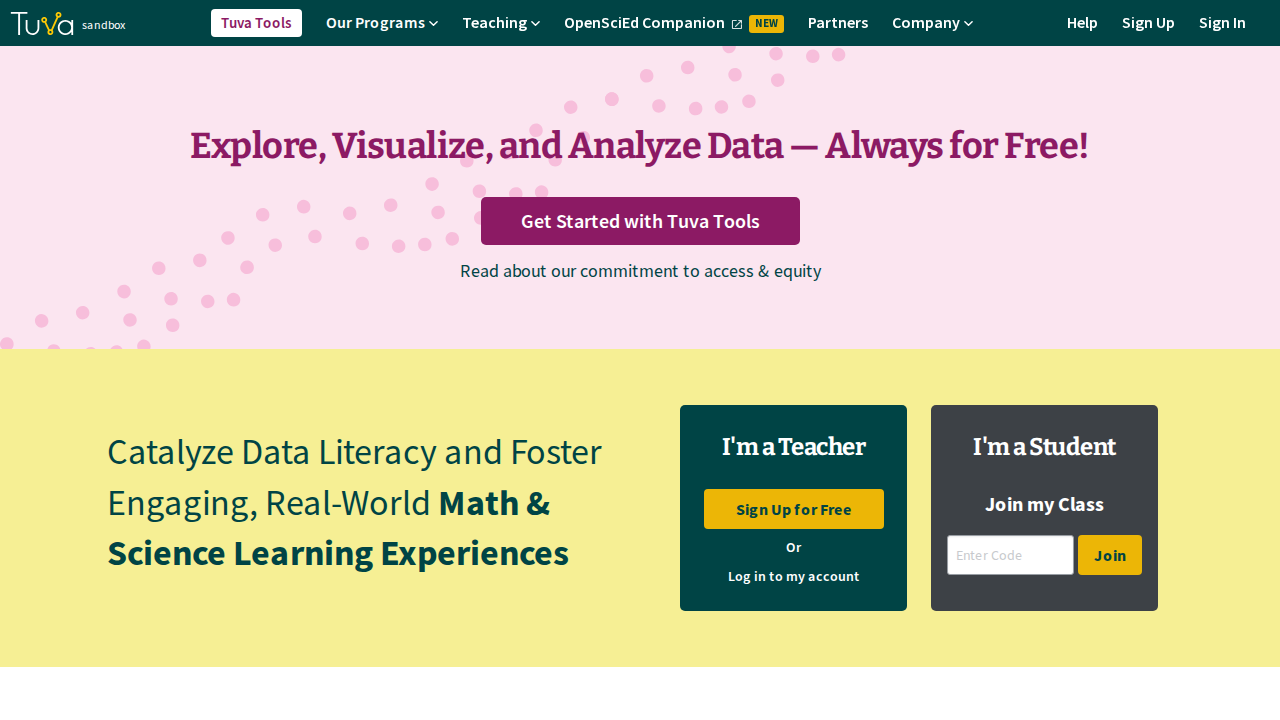
Send your students to tuvalabs.com. They can either enter the class code in the Enter Code box on the homepage, which takes them straight to the join page, or click Sign Up to open the registration pop-up.
-
In the pop-up they choose I’m a student, then enter their name, your class code, and a username and password of their own.
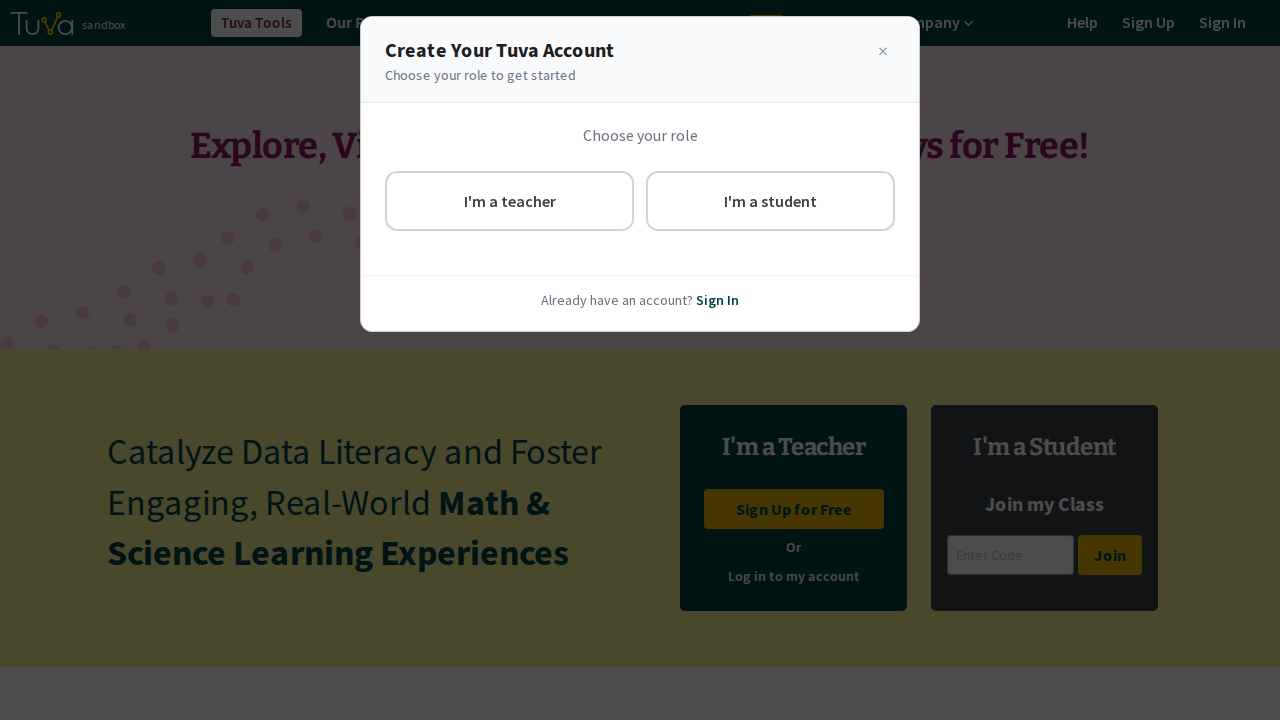
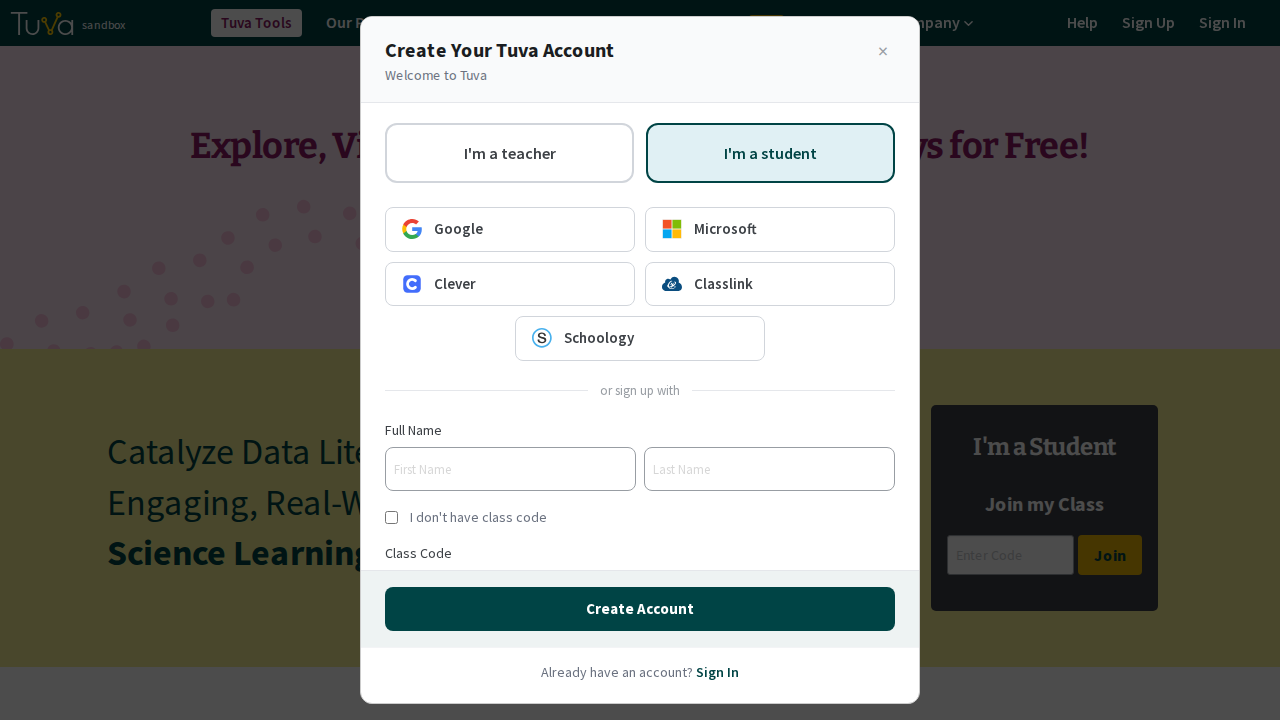
-
They finish by clicking Create Account. They are then ready to do any activities you have assigned to the class, and they appear on your roster.
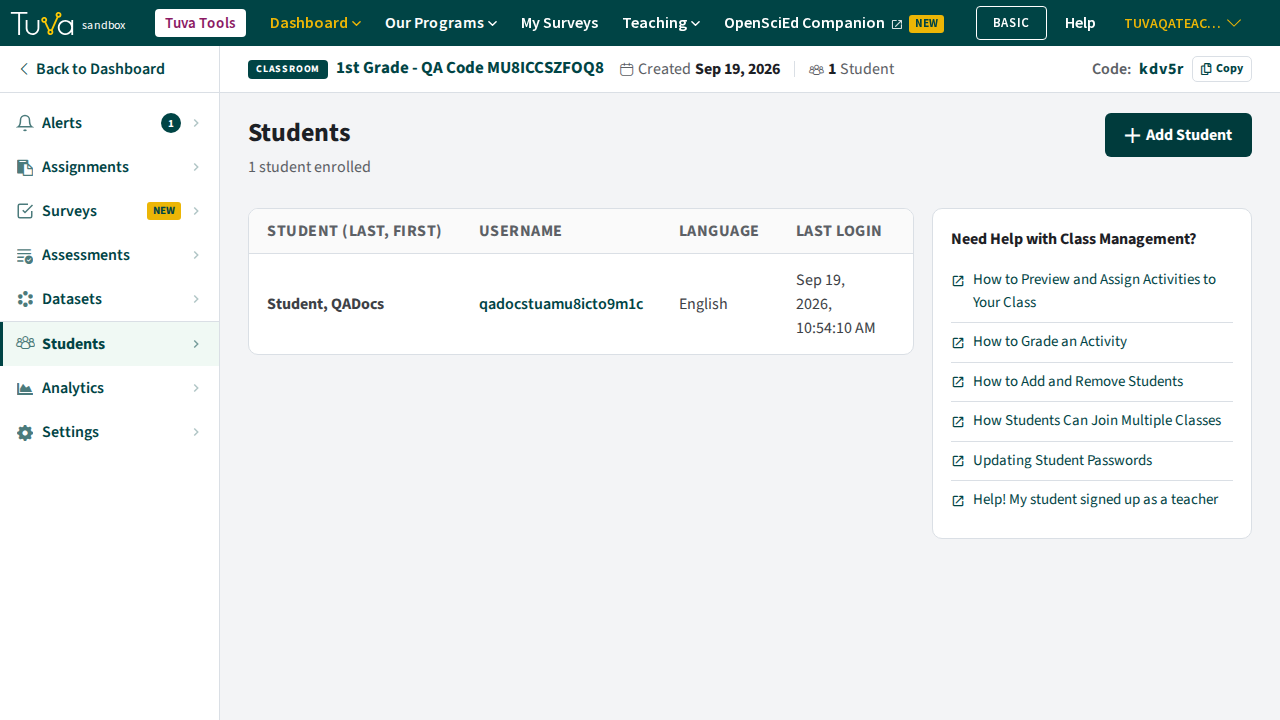
Signing up with Google
Section titled “Signing up with Google”A student signing up with a Google account enters the class code on a Let’s Find Your Classroom screen that follows, rather than in the registration form.
Joining later
Section titled “Joining later”A student who is already signed in can join another class at any time using Join a Class from their dashboard.
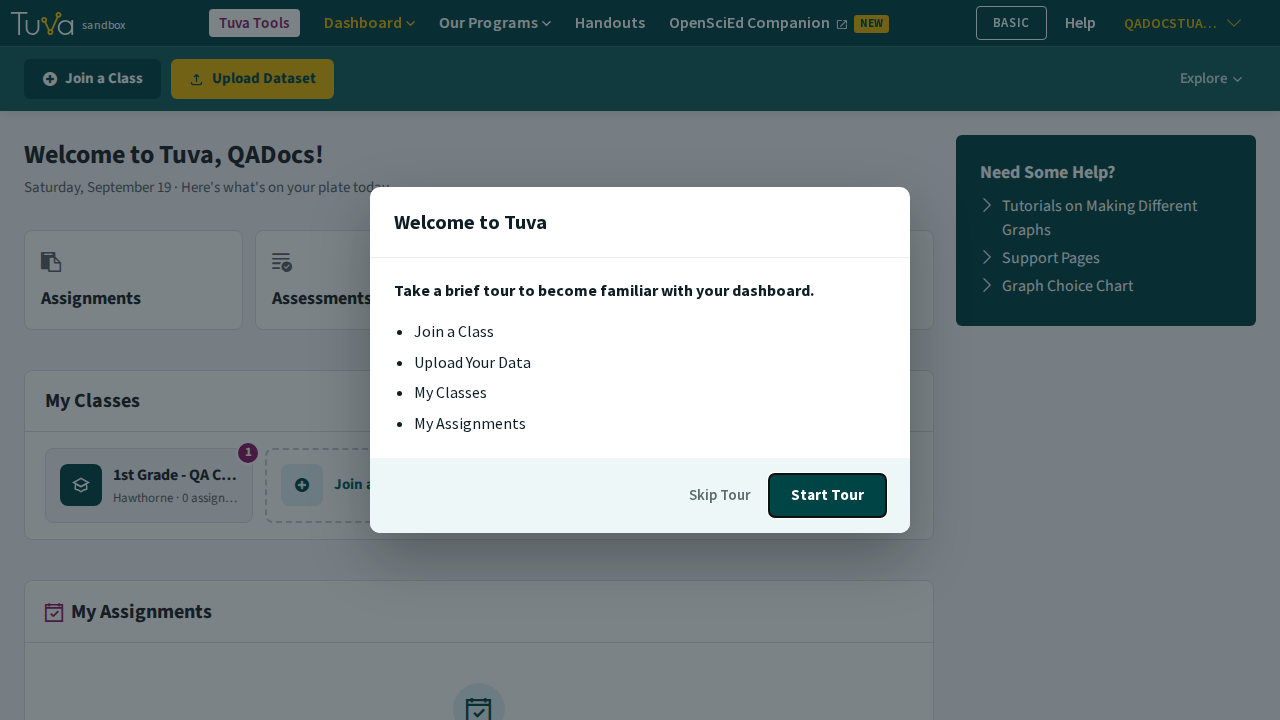
Students can belong to as many Tuva classes as they need — see join multiple classes.
Was this page helpful?
This opens the ticket form with your comment and a link to this page, so we can reply to you.
Submit a ticket