
The steps below highlight from a student perspective how they can sign up and join a class.
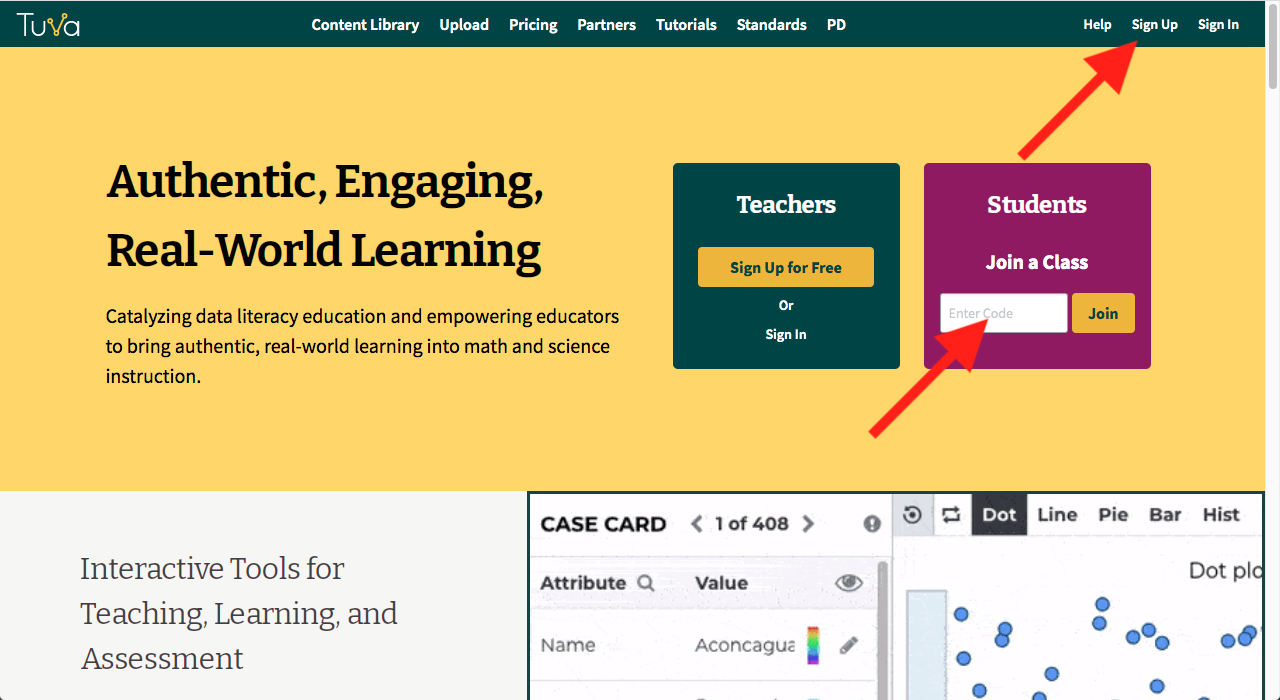
- Your student will need to go to tuvalabs.com and either click Sign Up in the top right corner of the screen or enter the class code directly into the class code box.**
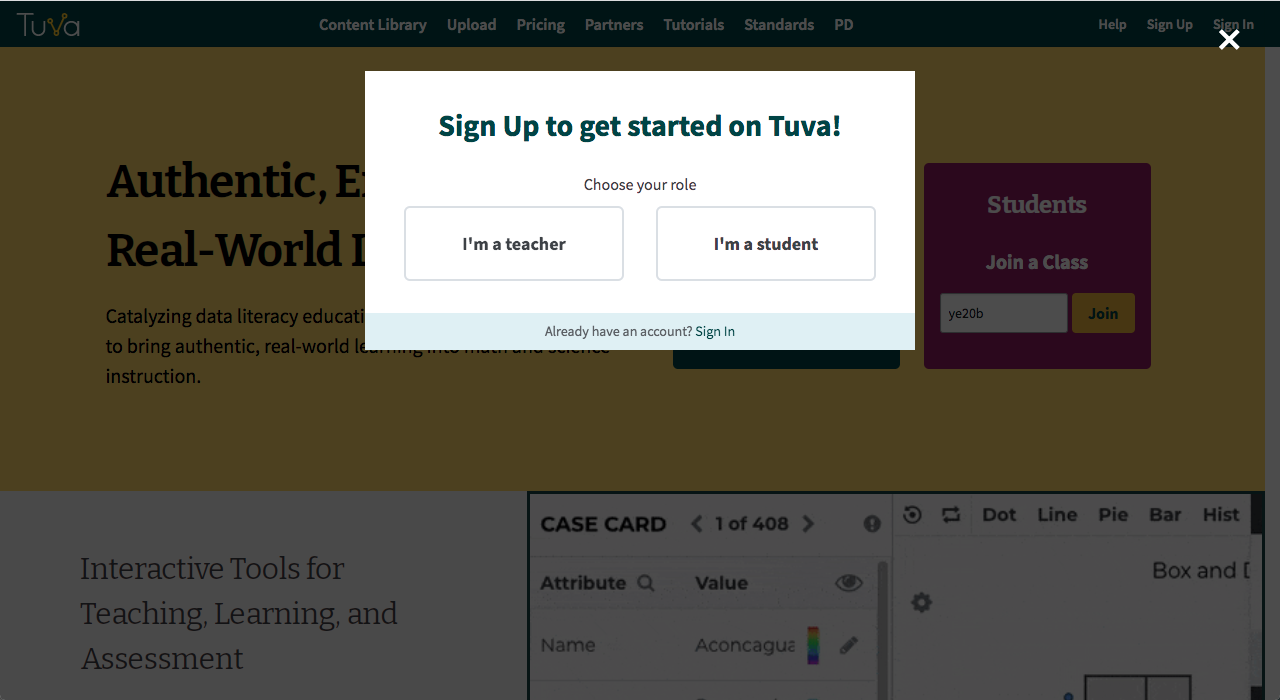
** - If the student clicked Sign Up in the top right of the screen, they will need to click ‘I’m a Student’ in the sign up pop-up.
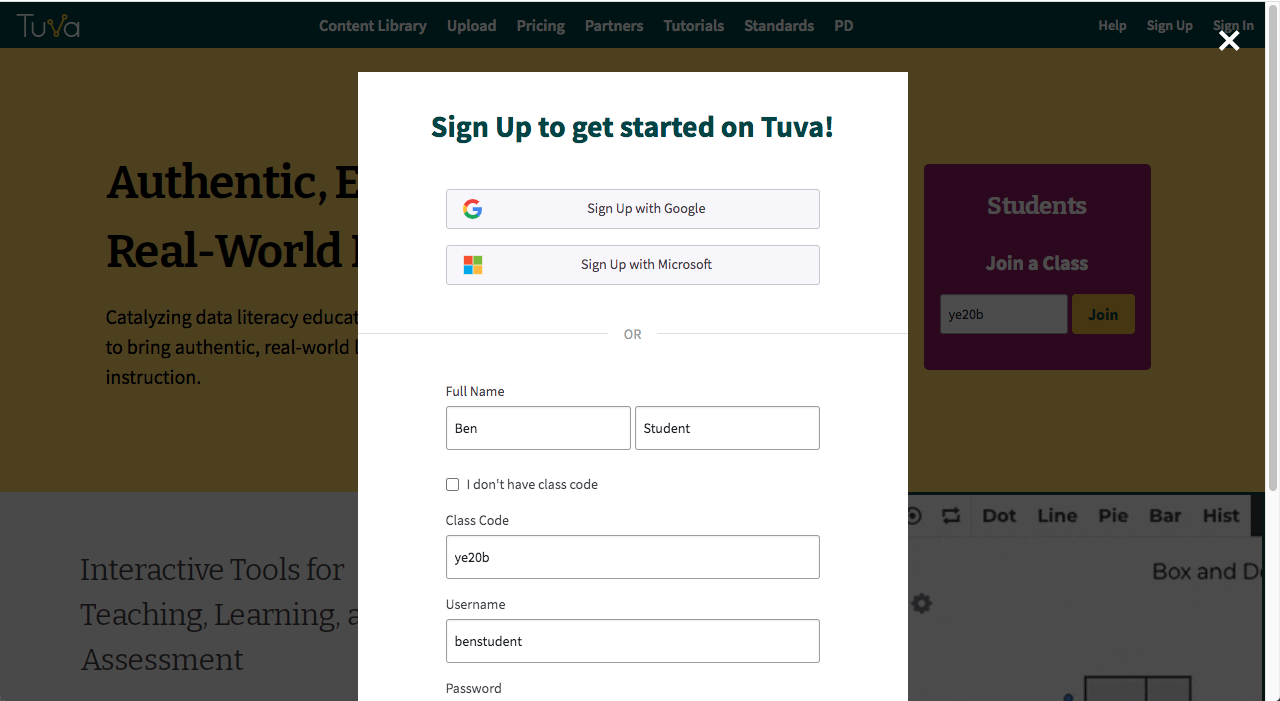
- When your student is signing up, they have to provide their name, class code, and create a username and password. By inputting your class code when your student is creating their Tuva account, they will automatically be added to your class and receive any assignments you’ve already assigned to the class. You can learn more about using the class code to register your students in this article.
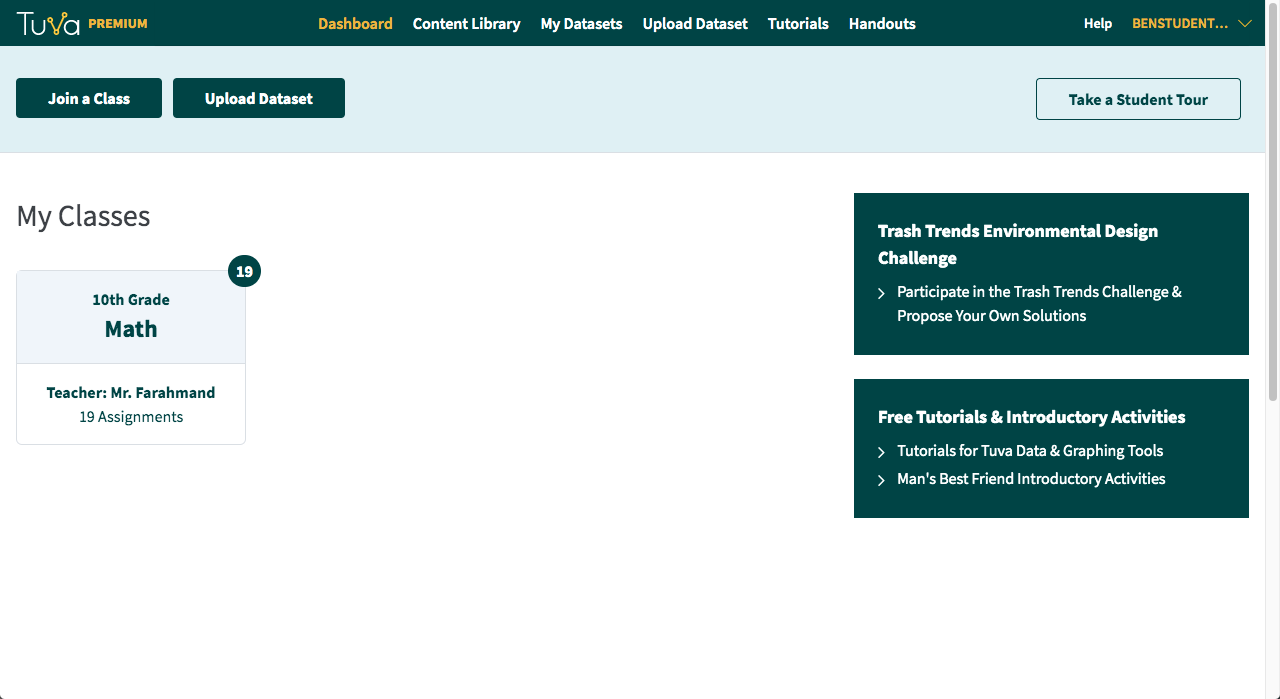
- After clicking sign up, your student will land on the Tuva Dashboard prompting them to take a tour of the interface.
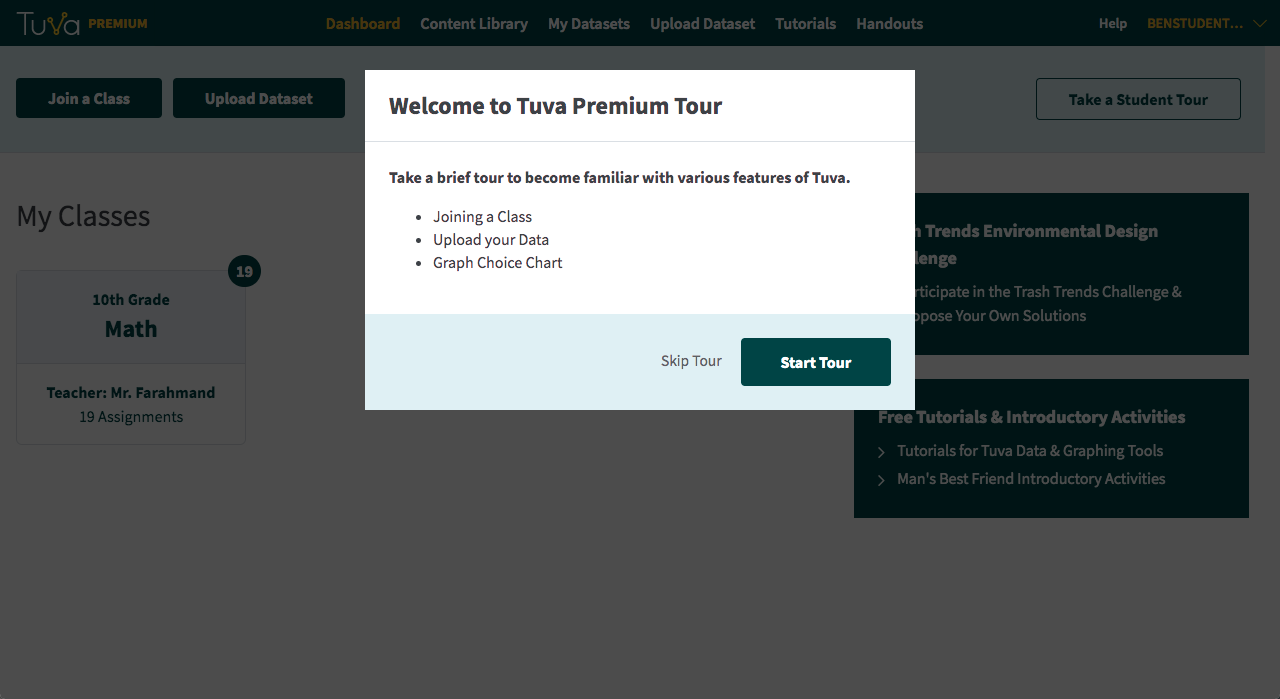
- After they complete or skip the tour, your student will now see your class on their Tuva Dashboard.
Was this page helpful?
This opens the ticket form with your comment and a link to this page, so we can reply to you.
Submit a ticket