
Forking a dataset makes a duplicate of that dataset into your own repository. If someone has shared a dataset with you and you want to save any analysis you’ve performed, you’ll need fork their dataset before you can save any plots you’ve made.
Follow the steps below to see how to fork a dataset.
Once someone shares a dataset with you from their own personal dataset collection, you will have access to the button “Fork & Edit.”
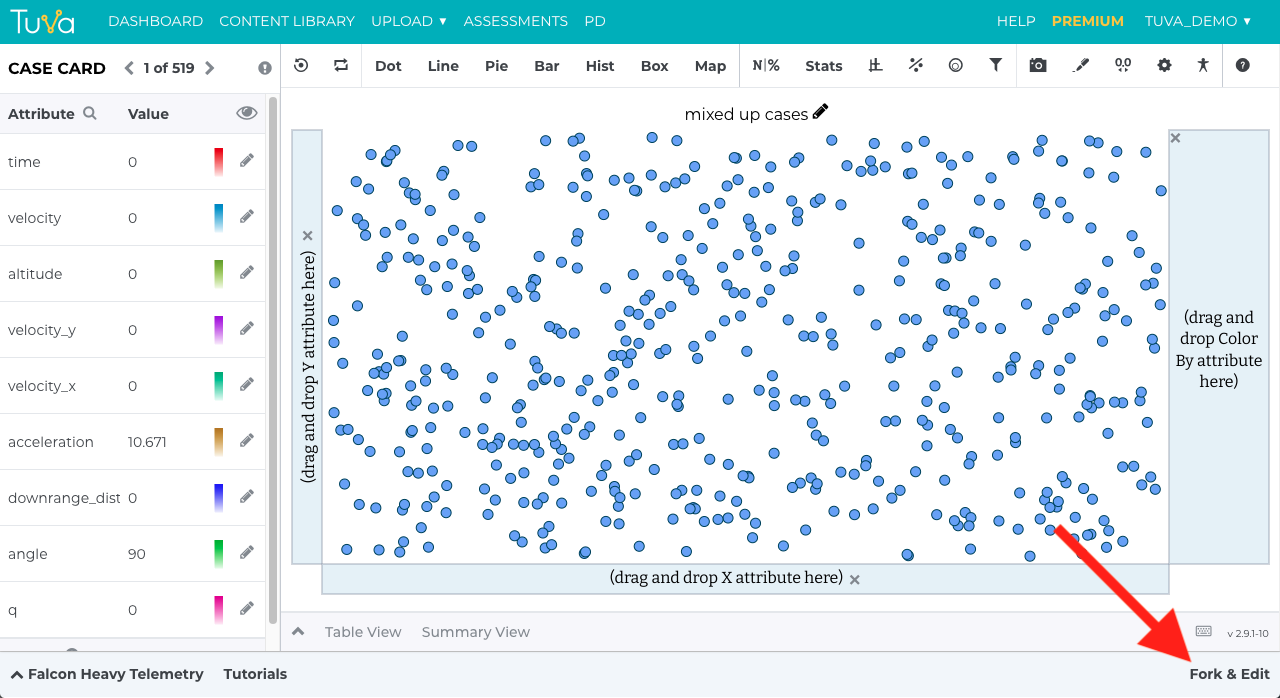
To make the copy, click “Fork & Edit” and then confirm you do indeed want to fork the dataset.
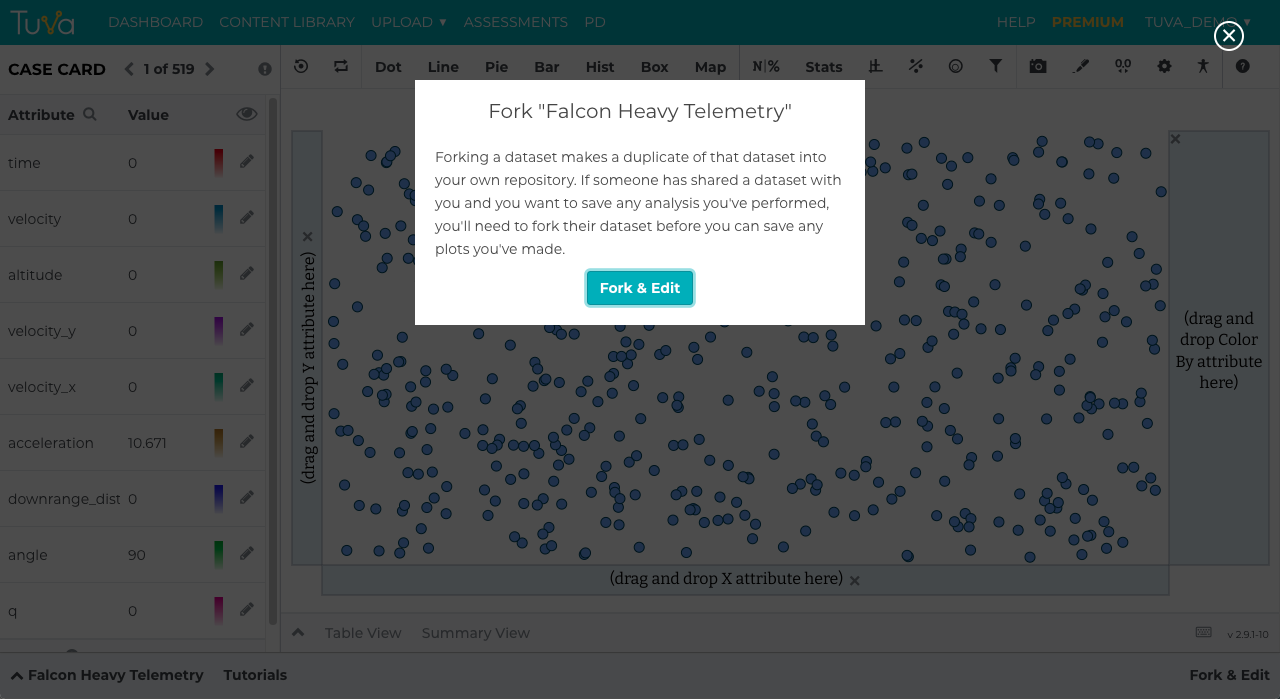
After confirming you want to Fork & Edit, a copy of the other person’s dataset will be made into your personal dataset collection and will be available under My Datasets.
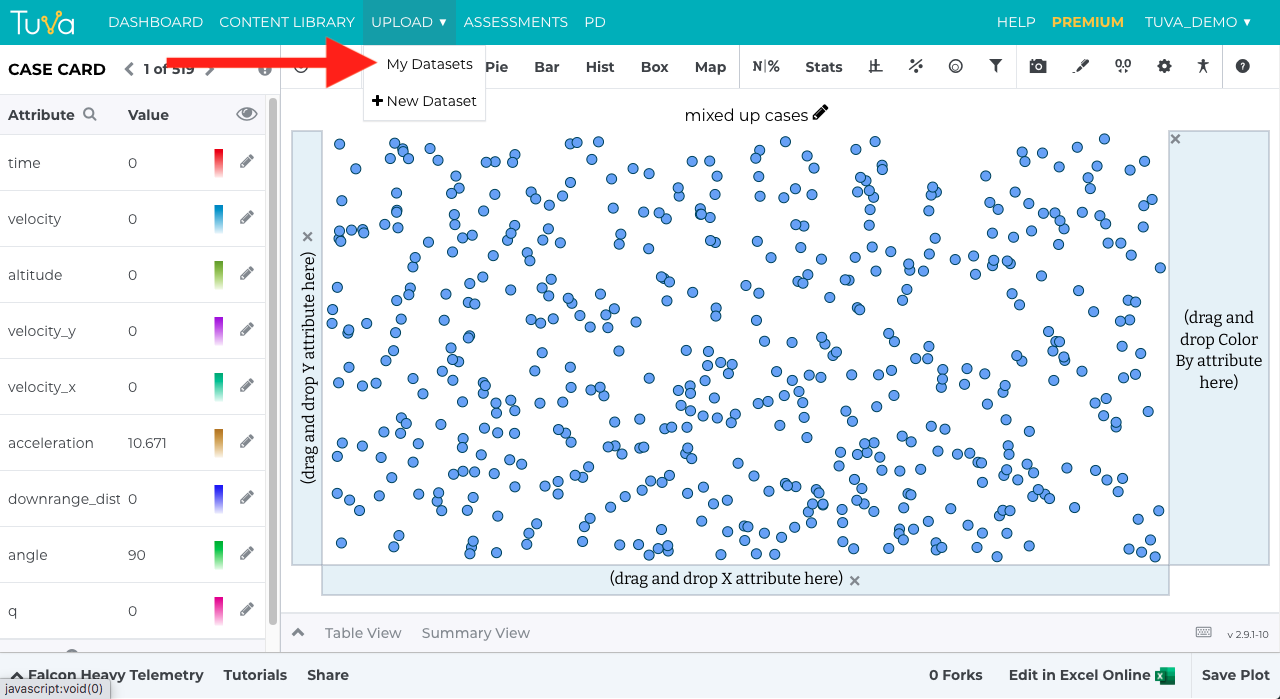
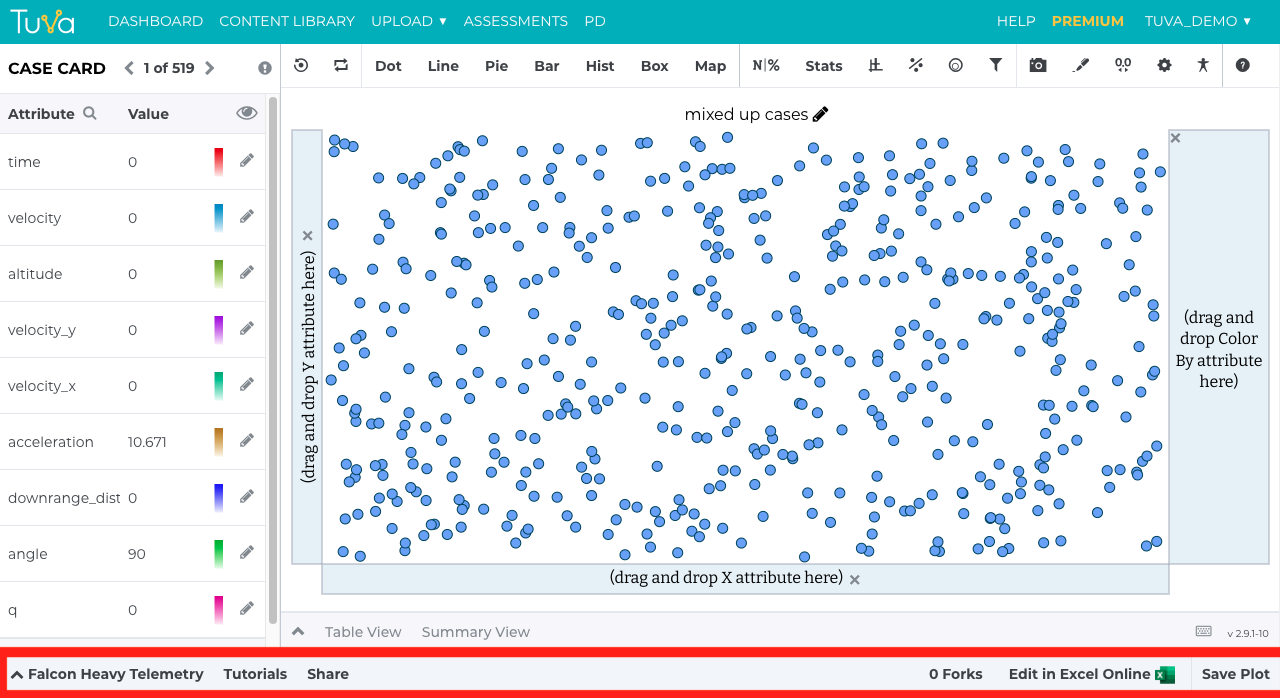
In the screenshot below, notice the footer has changed from the first screenshot shown above. This means a copy of the dataset has been made and it can now be modified by you.
Was this page helpful?
This opens the ticket form with your comment and a link to this page, so we can reply to you.
Submit a ticket