
If you’re choosing to upload your own data into Tuva from Google Drive, please remember to allow cookies. If cookies aren’t enabled, the Google Drive file picker won’t open.
To know whether cookies are enabled or not, you will see a small icon in the URL bar that looks like an eye that’s crossed out.
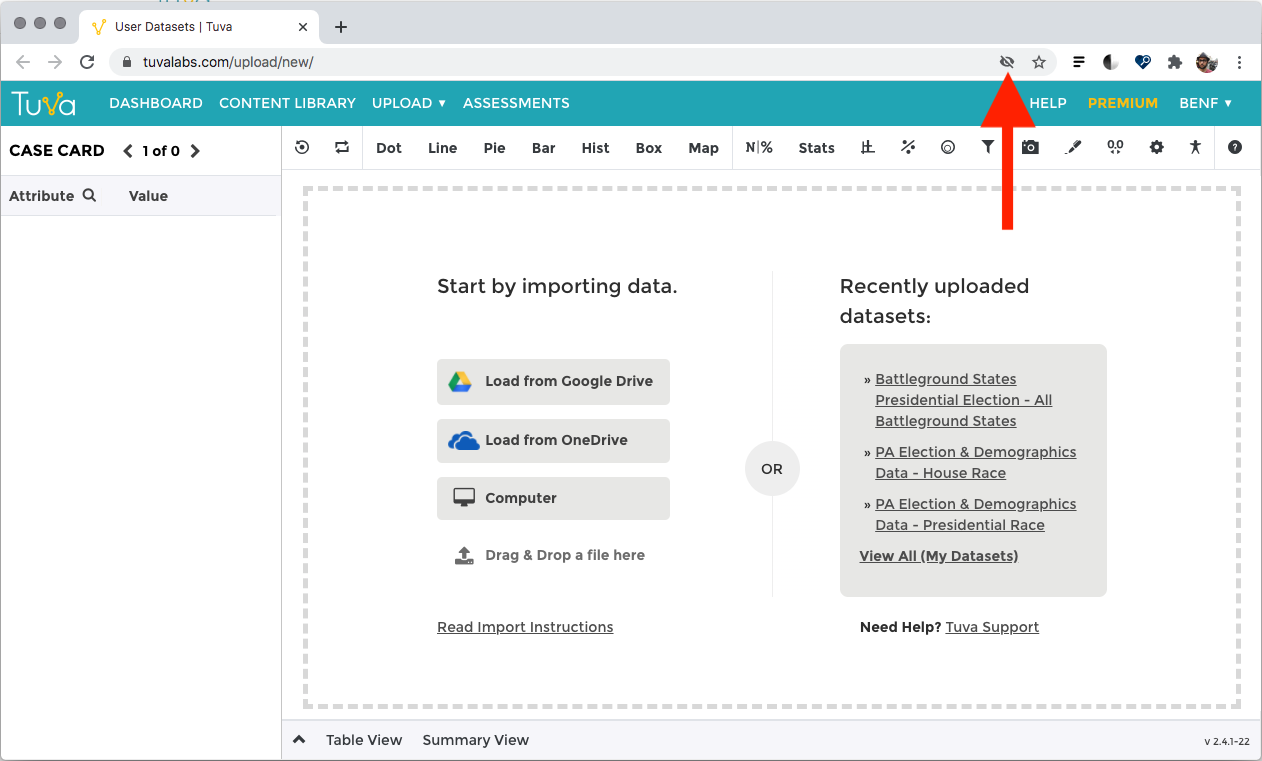
To allow cookies, click on the icon shown in the above screenshot, and then you’ll see the form shown in the below screenshot. You will need to click on the link “Site not working?”
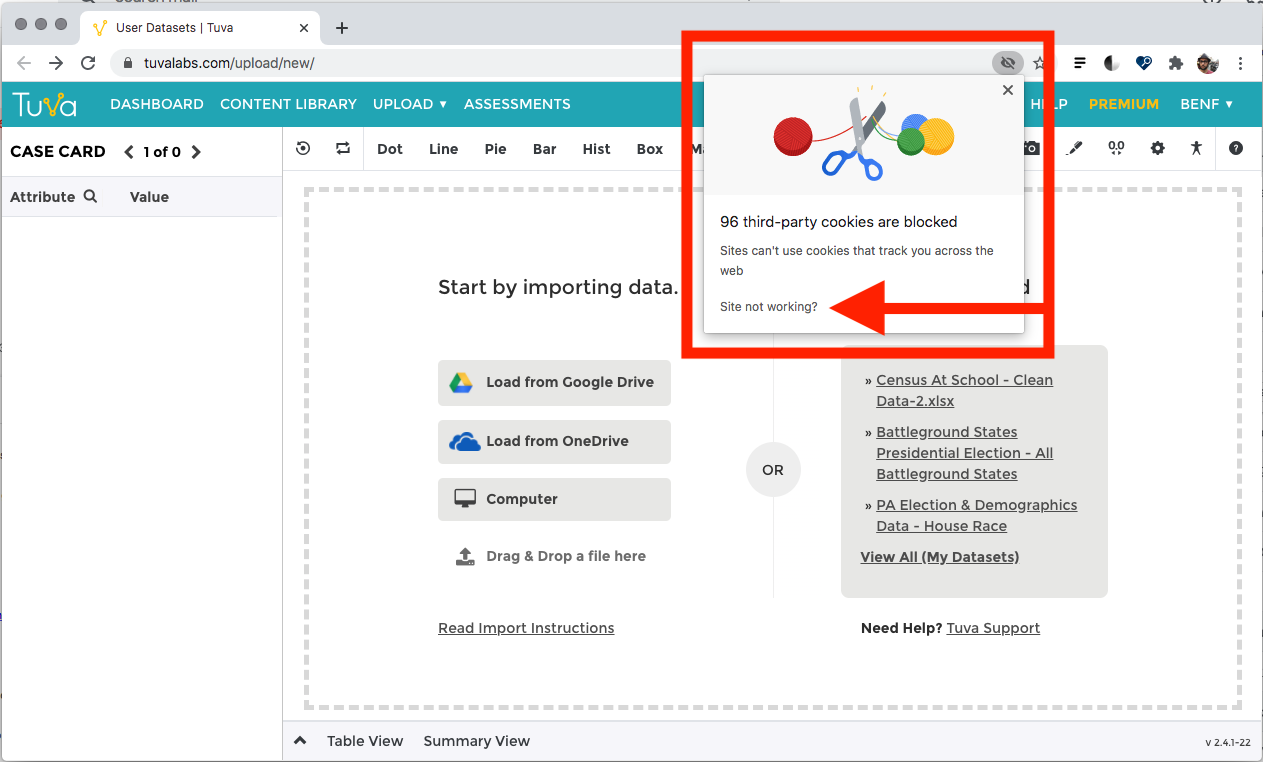
Then you will see the following form appear, which will require you to click on “Allow Cookies.”
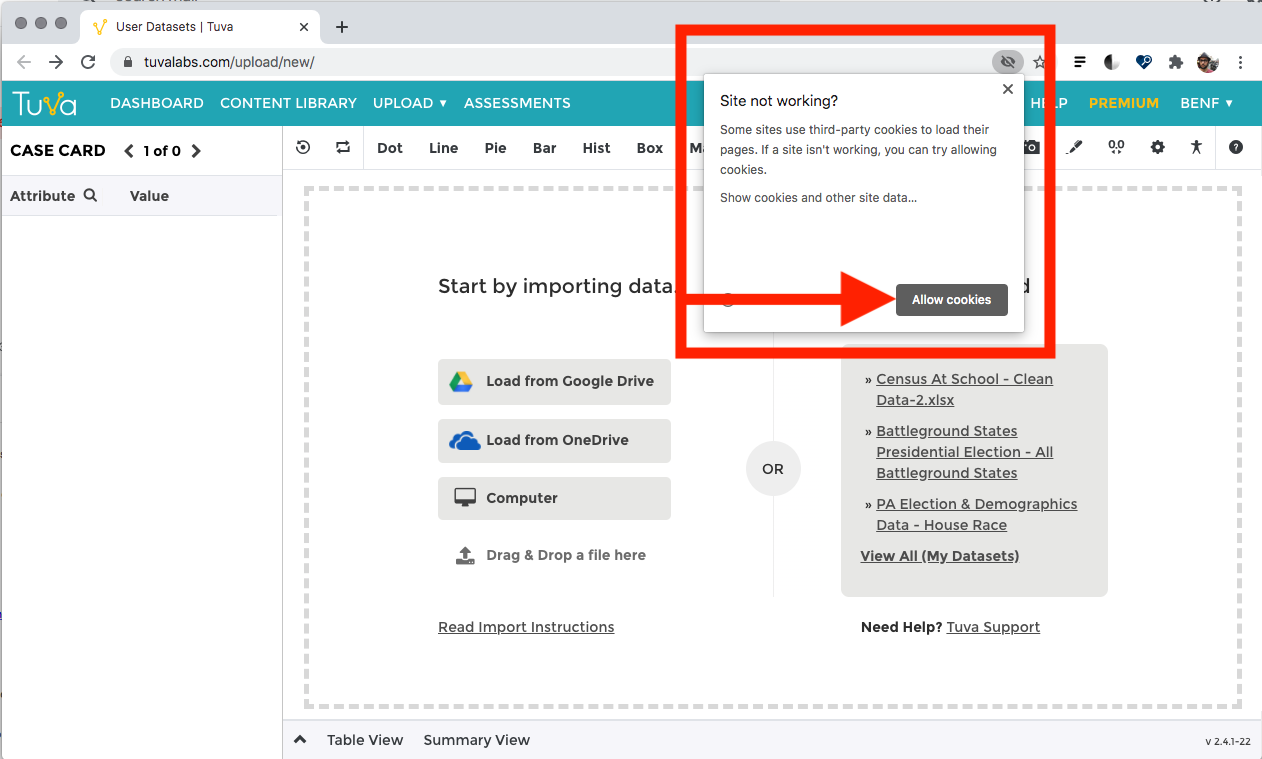
After you click “Allow Cookies” the eye icon will remove the slash and reflect that cookies are now being accepted.
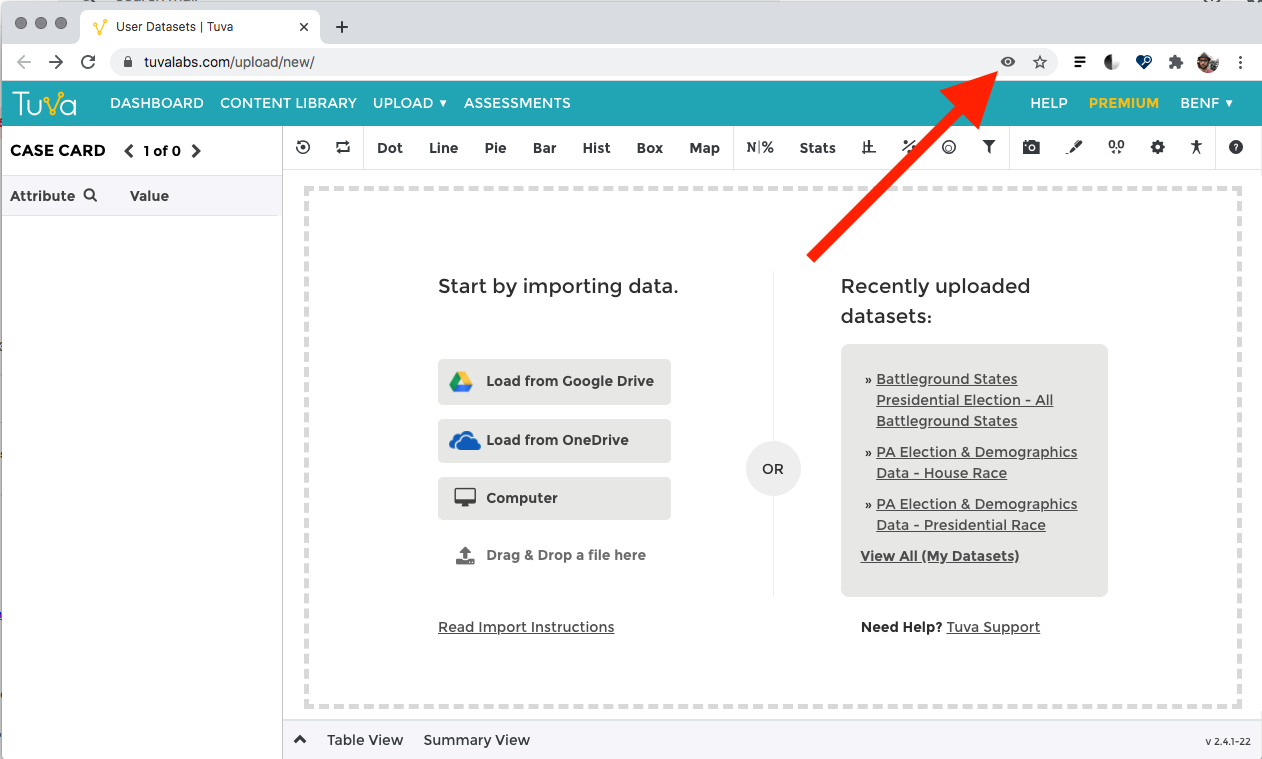
Now you will be able to click on “Load from Google Drive” and have the Google Drive file appear for you to select the file you want to upload.
Was this page helpful?
This opens the ticket form with your comment and a link to this page, so we can reply to you.
Submit a ticket