
-
If you’re not already logged in to Tuva and on your Dashboard, please sign in and go to your Tuva Dashboard.
-
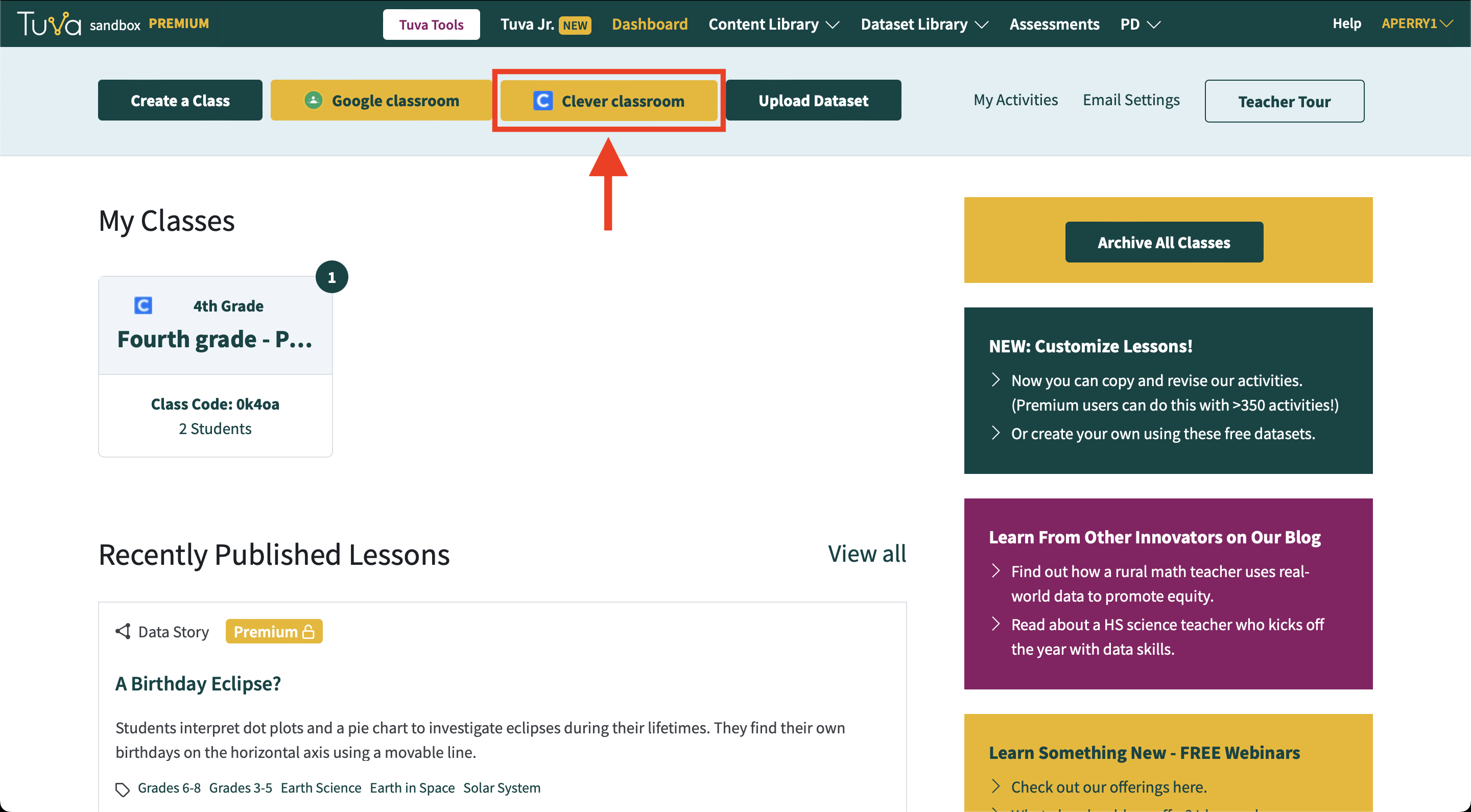
Click on the button called ‘Clever Classroom.’
-
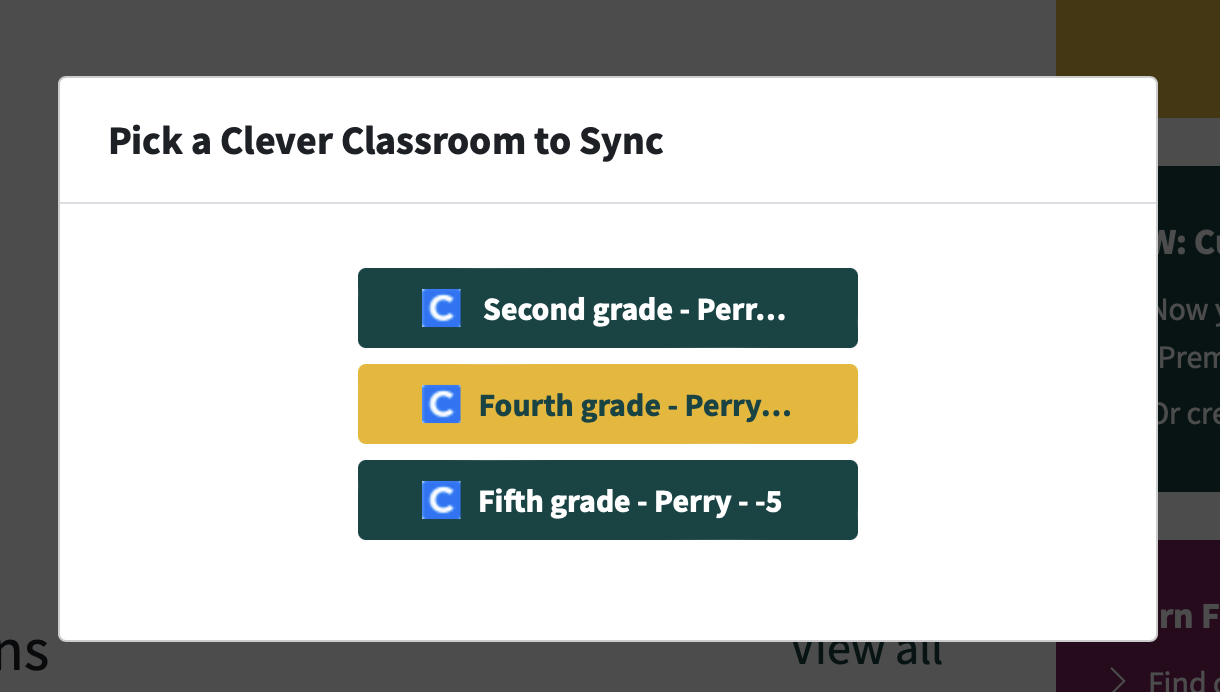
A popup will appear letting you pick the Clever Classroom you want to import.
-
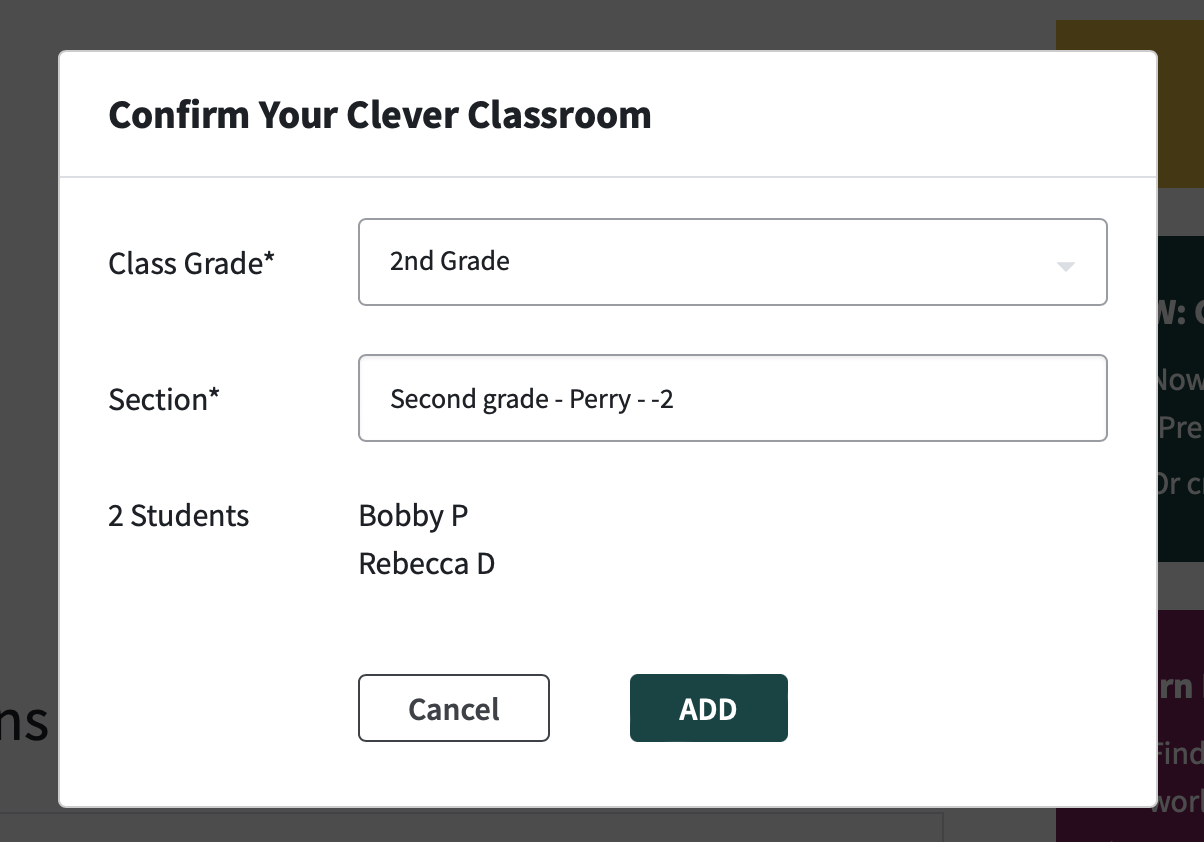
After selecting a specific class, the popup will update with new information. The popup will show you a list of students you’re about to import and also give you the option to modify the name of the class. You’ll need to let Tuva know the grade level for your class. Finally, click add to import the class.
-
The Clever Class will now appear on your dashboard with a small Clever icon letting you know it’s been imported from Clever. And when your students click the Tuva application within Clever or sign in to Tuva using Clever’s single sign on feature, they will see your class on Tuva and all assignments you’ve given to your class.
Was this page helpful?
This opens the ticket form with your comment and a link to this page, so we can reply to you.
Submit a ticket