
-
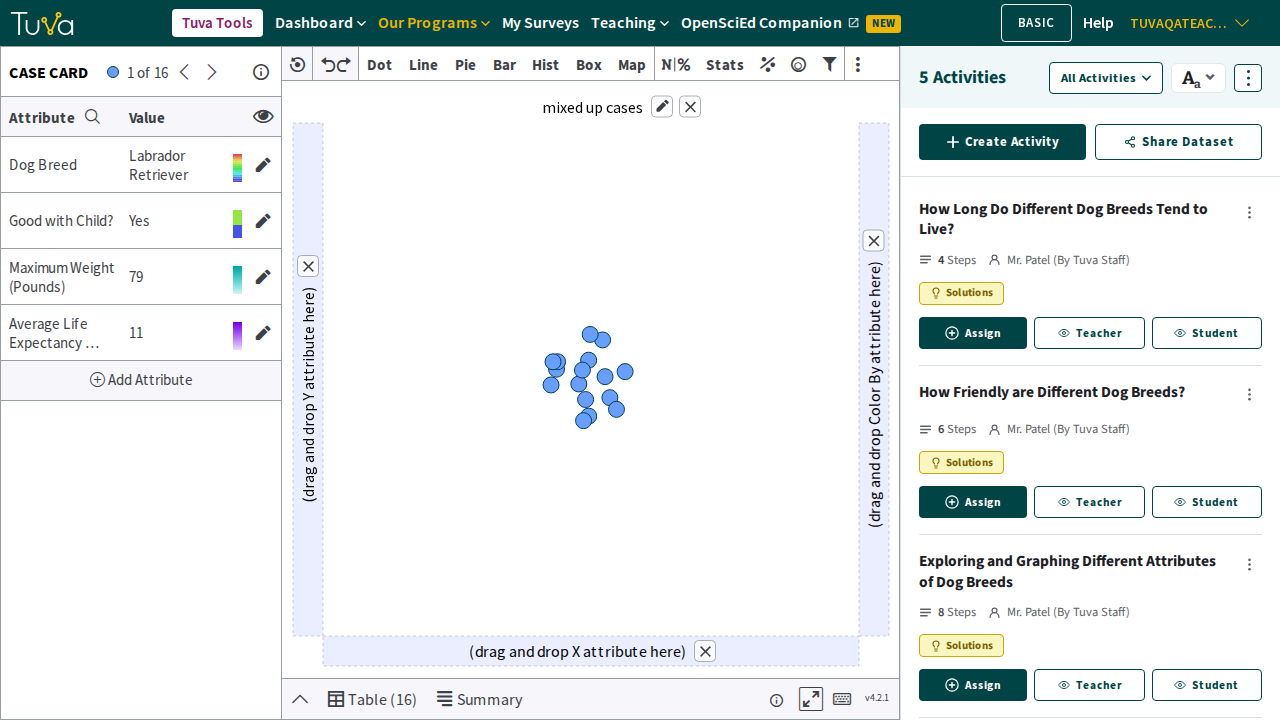
Open a dataset that has activities built on it — for example, How Long Do Different Dog Breeds Tend to Live? on the Man’s Best Friend dataset. On the right side of the screen, the Activities panel lists every activity for the dataset, each with its own Assign, Teacher, and Student buttons.
-
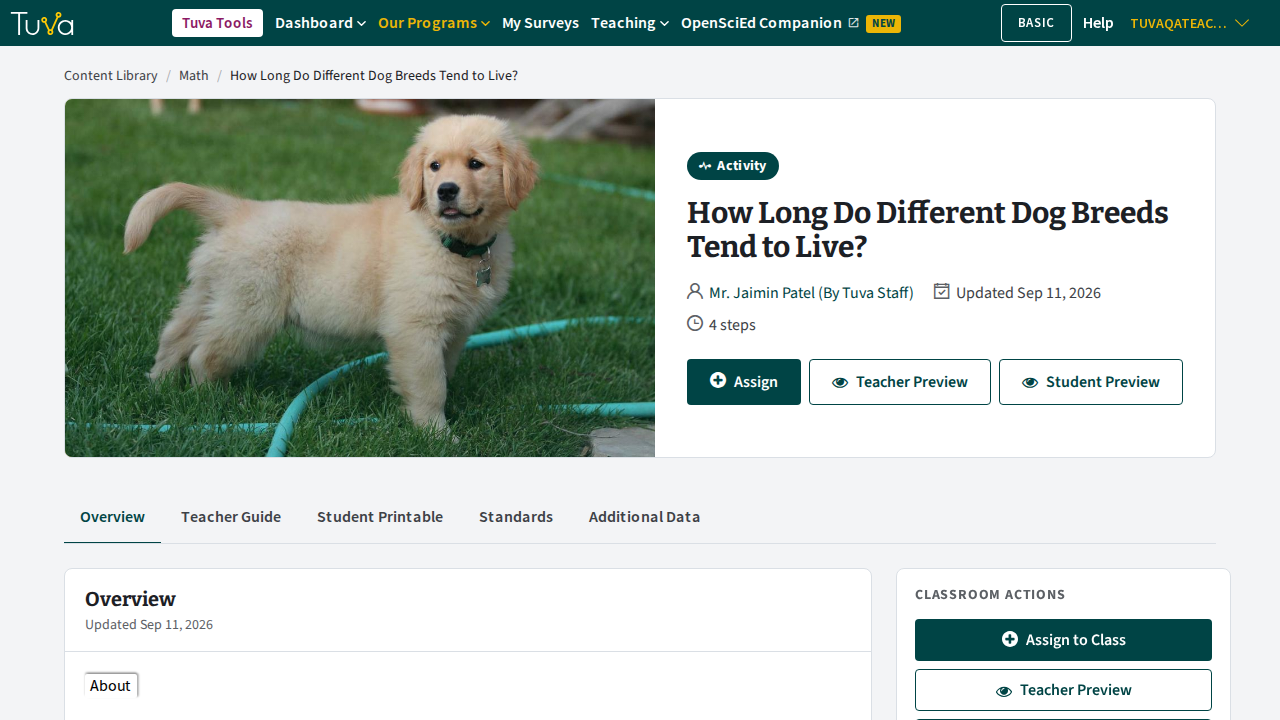
Click an activity’s title to preview it. The activity opens on its own page — Overview, Teacher Guide, Student Printable, Standards, and Additional Data tabs, with Assign, Teacher Preview, and Student Preview buttons at the top. It’s a full page, not a pop-up.
-
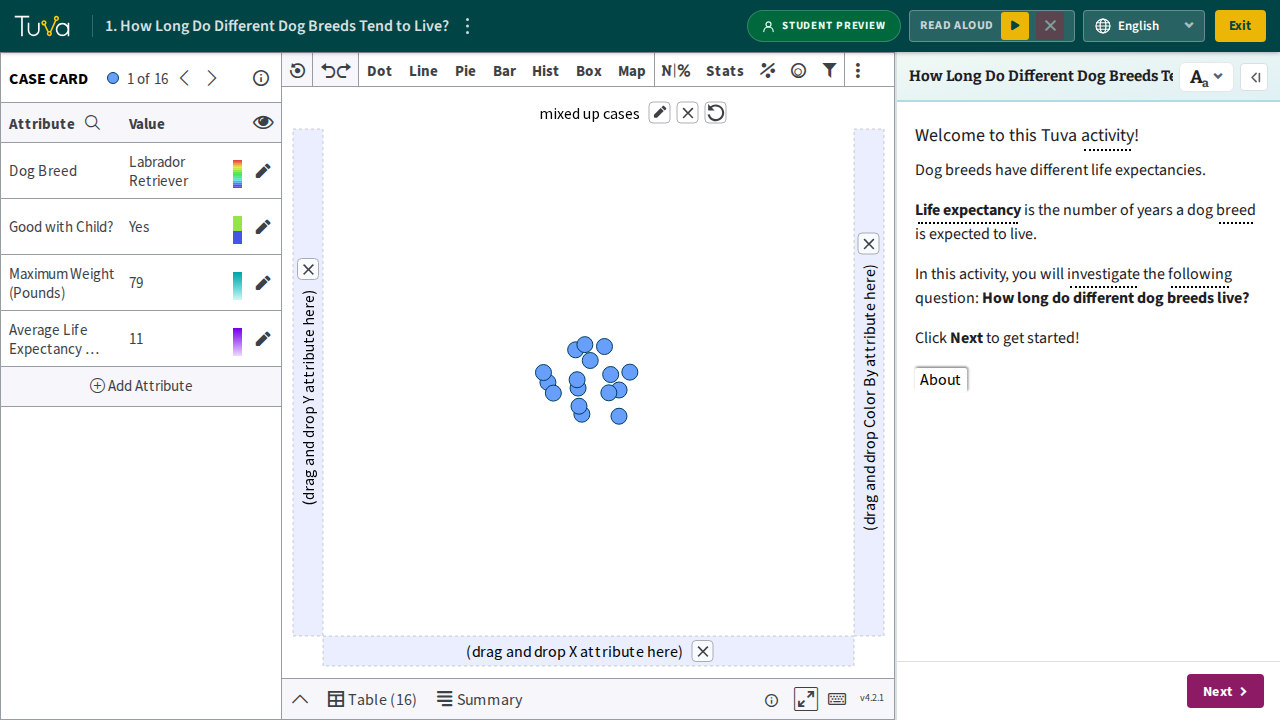
Click Student Preview to work through the activity as a student would see it.
-
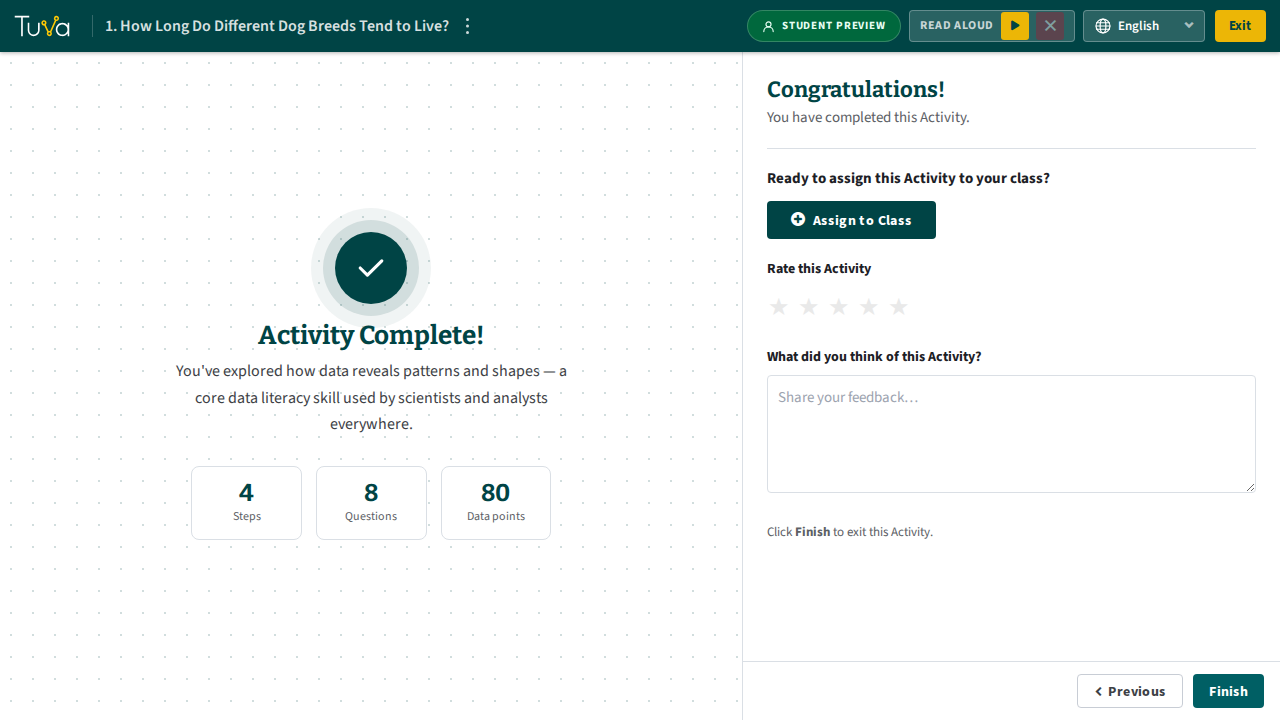
Finish the preview and click Finish on the completion screen to return to the activity page. The Teacher Preview / Student Preview buttons don’t change label after a preview — they stay the same whether or not you’ve completed one.
-
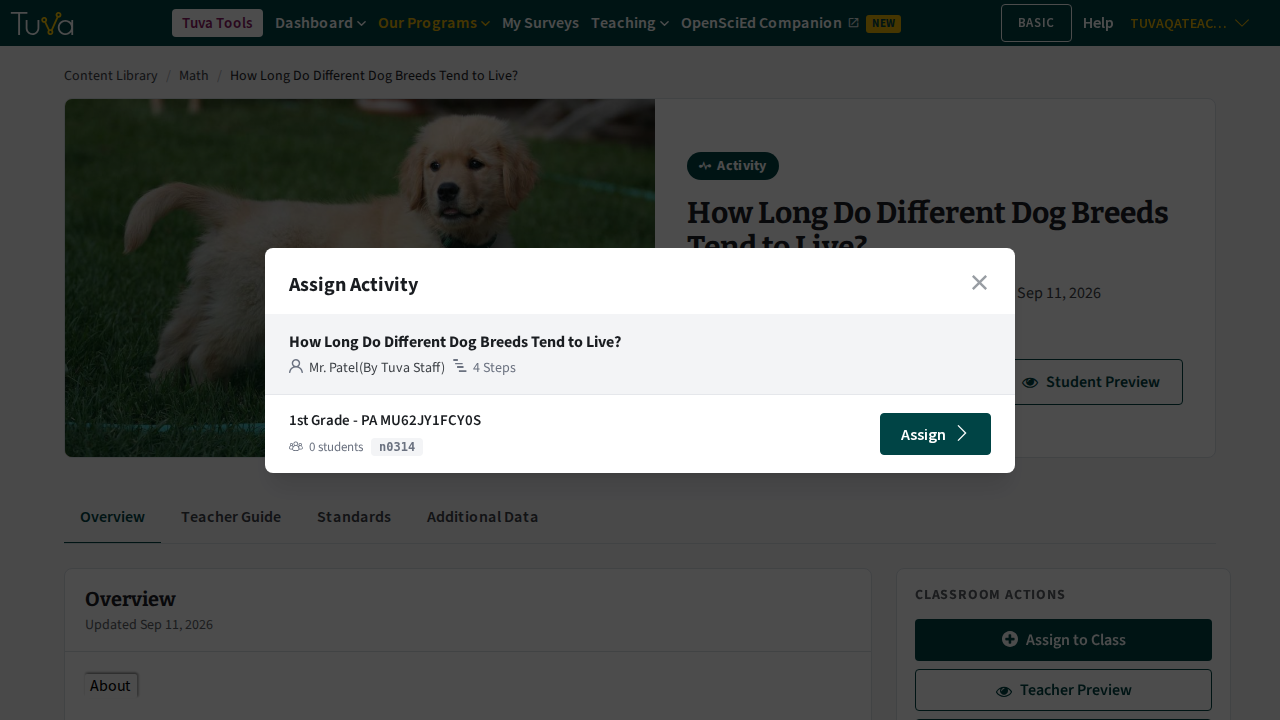
Click Assign to open a pop-up listing your classes. Find the class you want and click its Assign button.
-
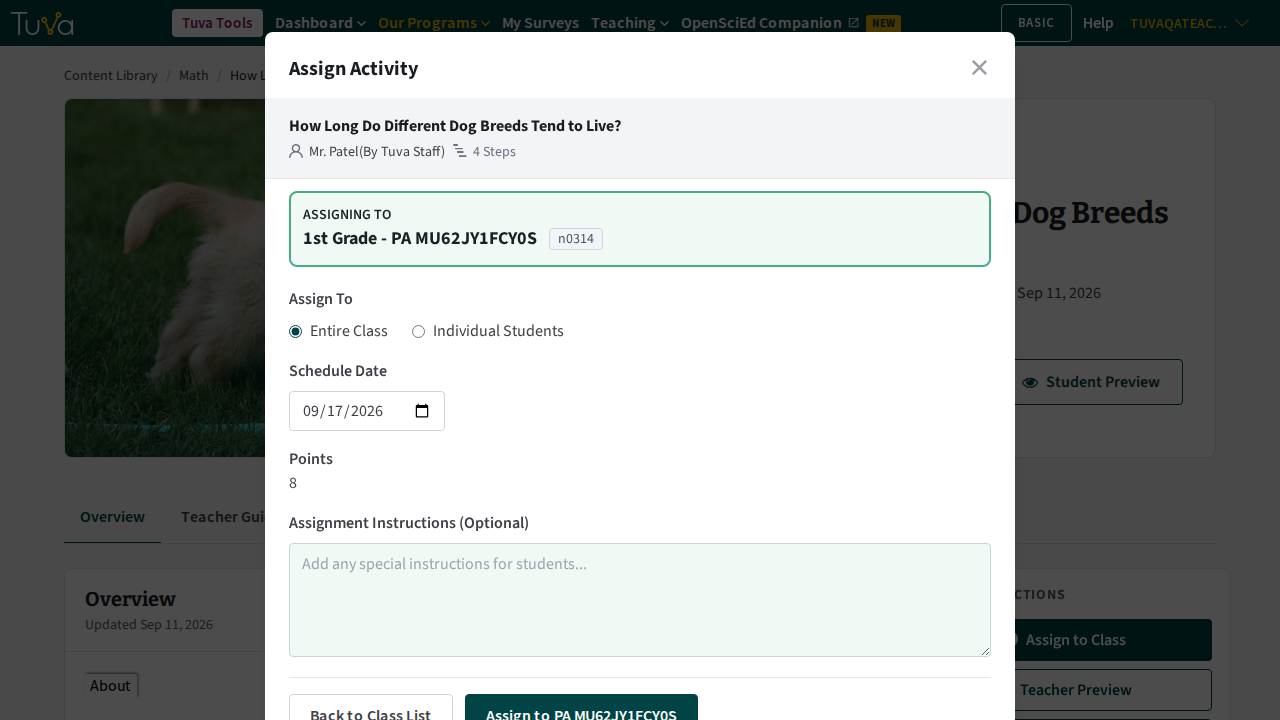
Choose whether to assign to the Entire Class or Individual Students, and optionally set a Schedule Date, adjust Points, and add Assignment Instructions. Click Assign to [Class Name] to finish.
-
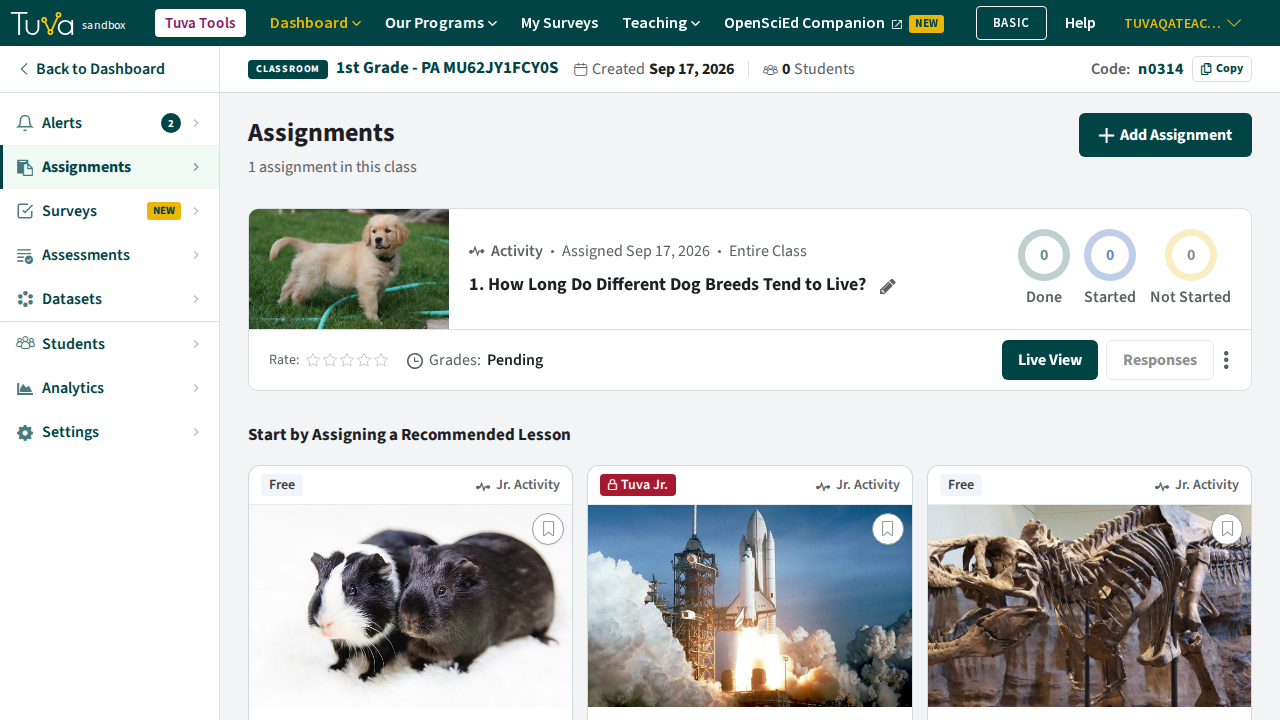
The activity now appears in that class’s Assignments tab.
Students see the activity on their dashboard under that class the next time they sign in. Once they have worked through it, grade their responses.
Was this page helpful?
This opens the ticket form with your comment and a link to this page, so we can reply to you.
Submit a ticket