
This article will explain step-by-step how to remove Tuva’s access from your Google Account.
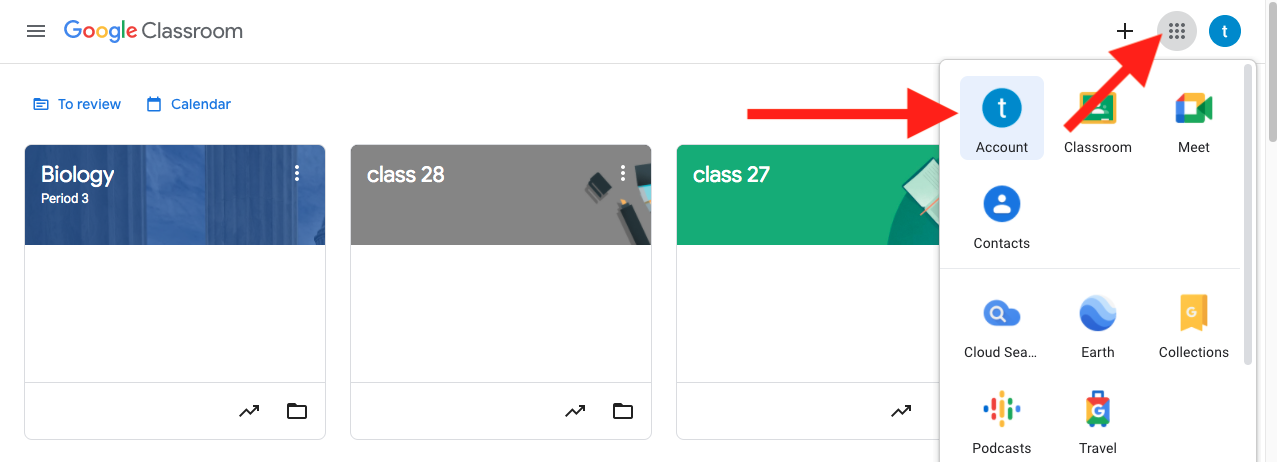
- From your Google Classroom dashboard click on your profile in the top right and then click on account. Note: This dropdown menu in the top right is accessible from a variety of Google pages, not just Google Classroom.
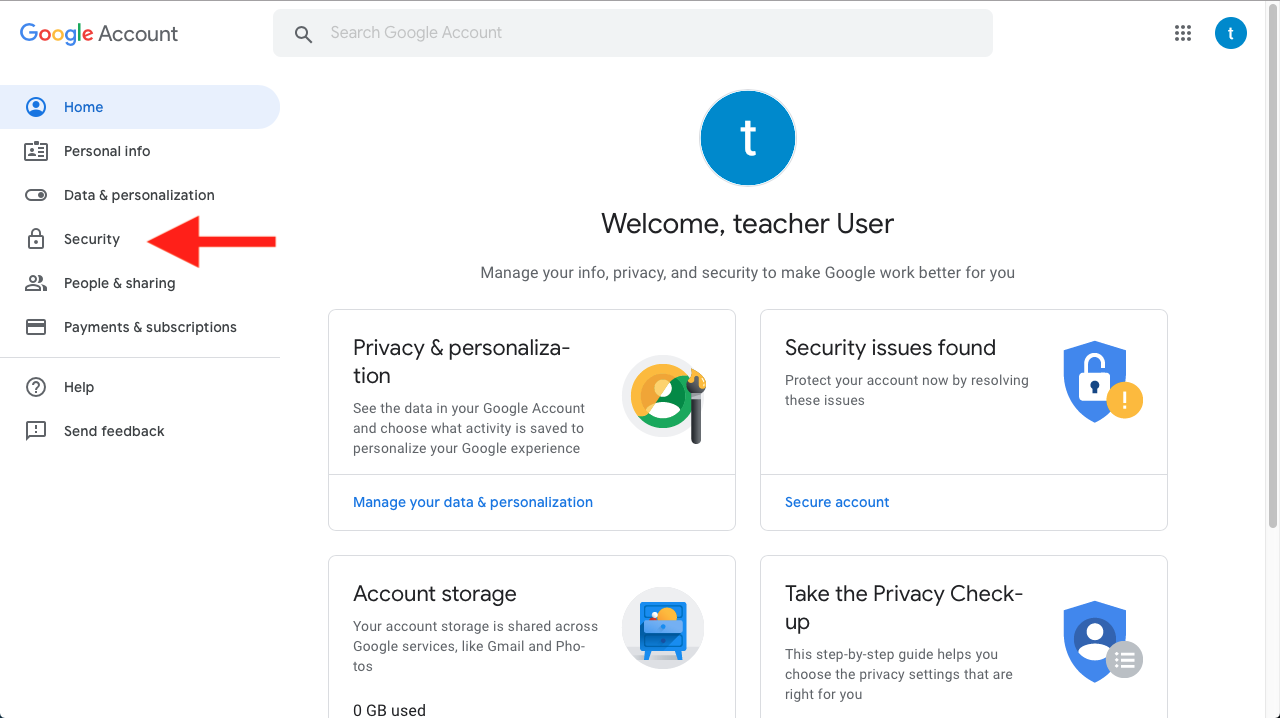
- Once you’re viewing your profile, click the security option in the left navigation panel.
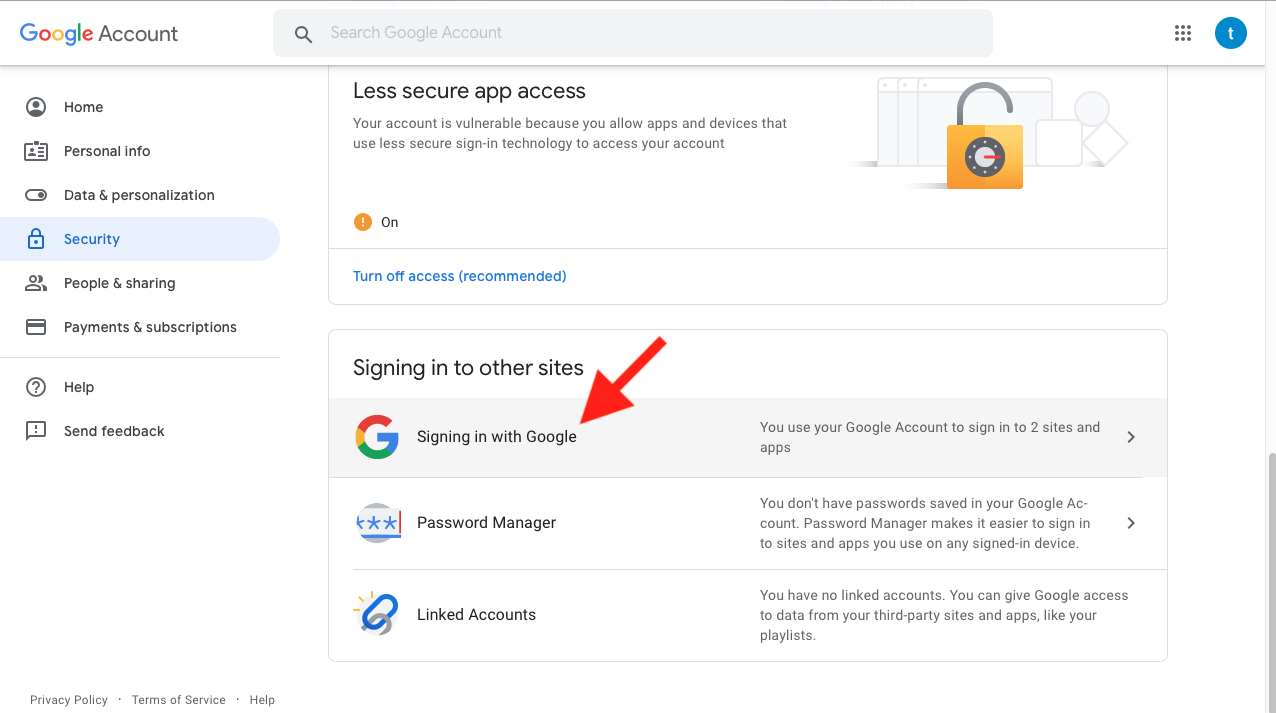
- Once you’re on the security page, scroll to the bottom of the page and click “Signing in with Google.”
- Now you can see all the apps that you’ve given permission to access your account.
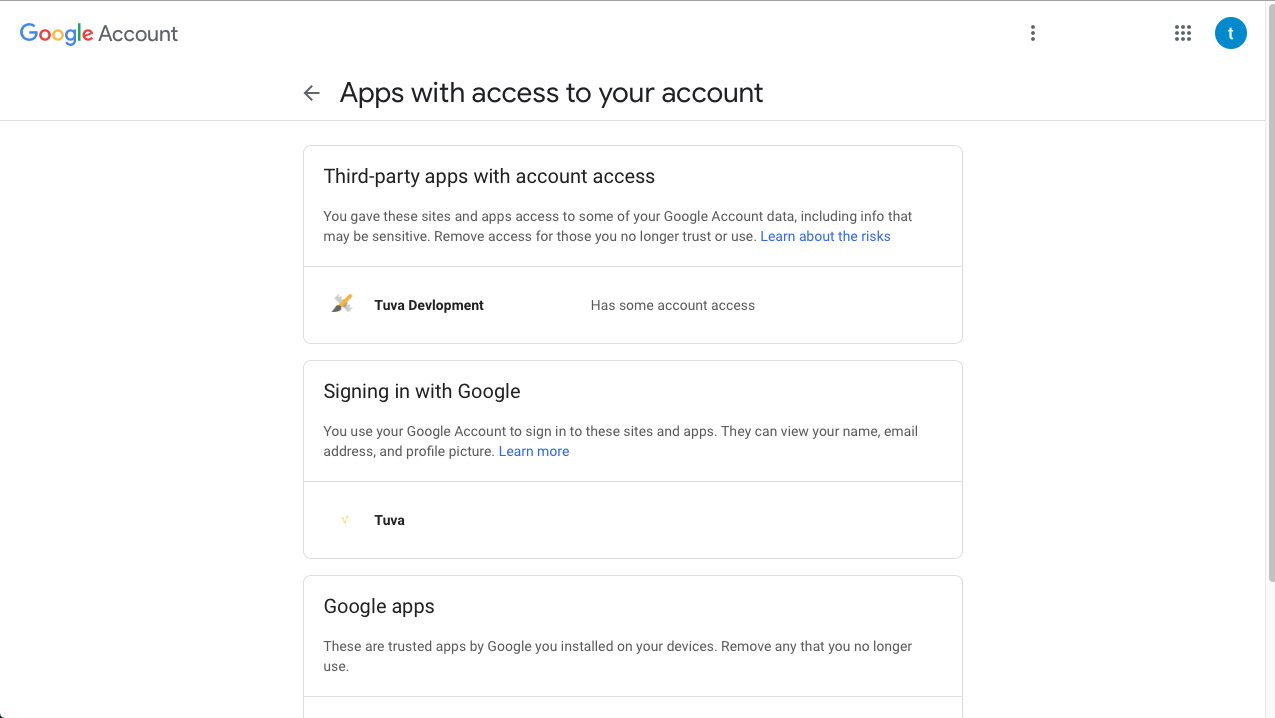
- On this page, you’ll need to find Tuva and click it to see further options and information. This will show you the option to Remove Access.
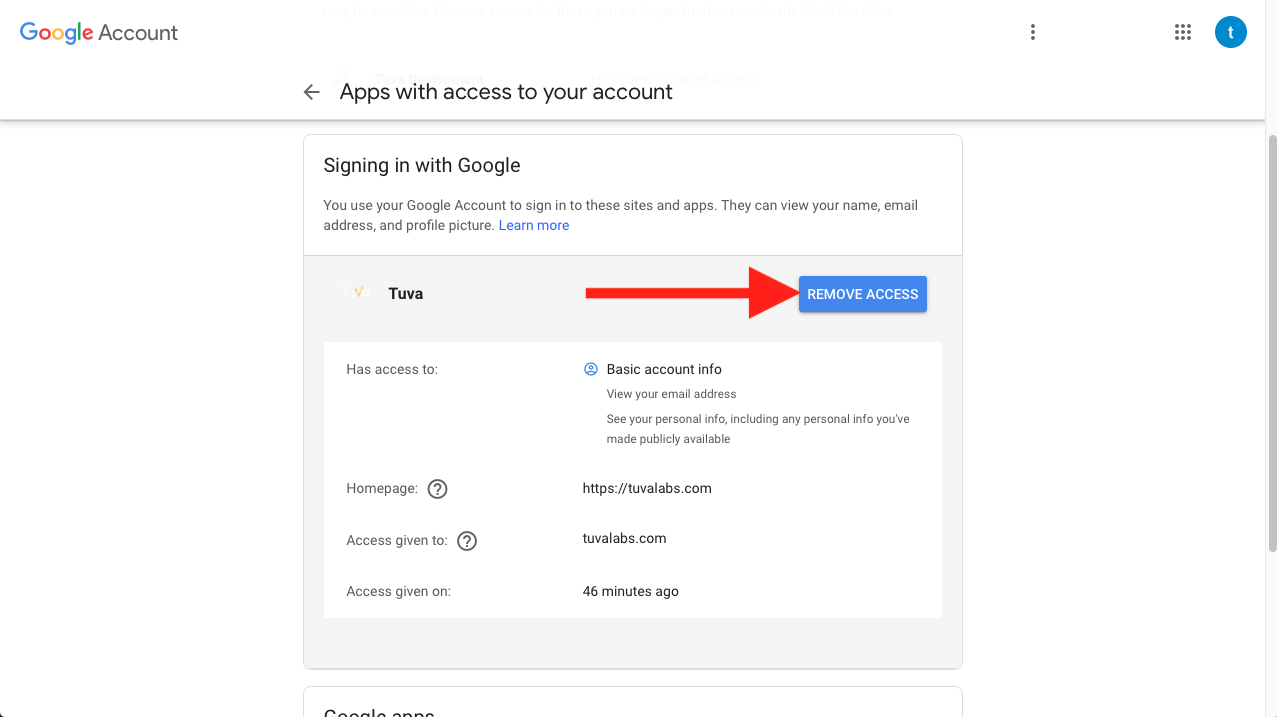
- Once you click remove access, you will also need to confirm your decision.
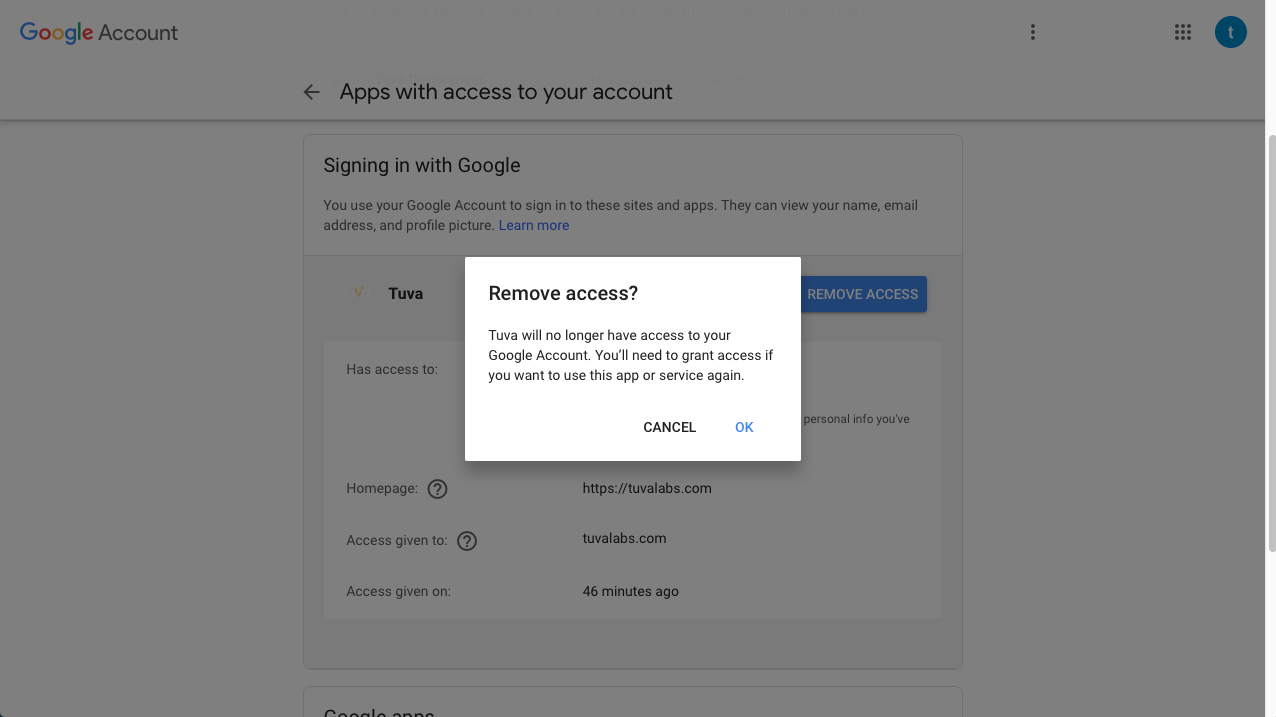
If at a later date you decide to use Tuva with your Google Account, you’ll need to grant access to Tuva again. You can do this by either by signing into Tuva with your Google Account or by importing your Google Classroom. Doing either of these actions will prompt Google to present you with a screen allowing you to confirm you do indeed want to give Tuva access.
Was this page helpful?
This opens the ticket form with your comment and a link to this page, so we can reply to you.
Submit a ticket