
Accessing the Edit Attribute Menu
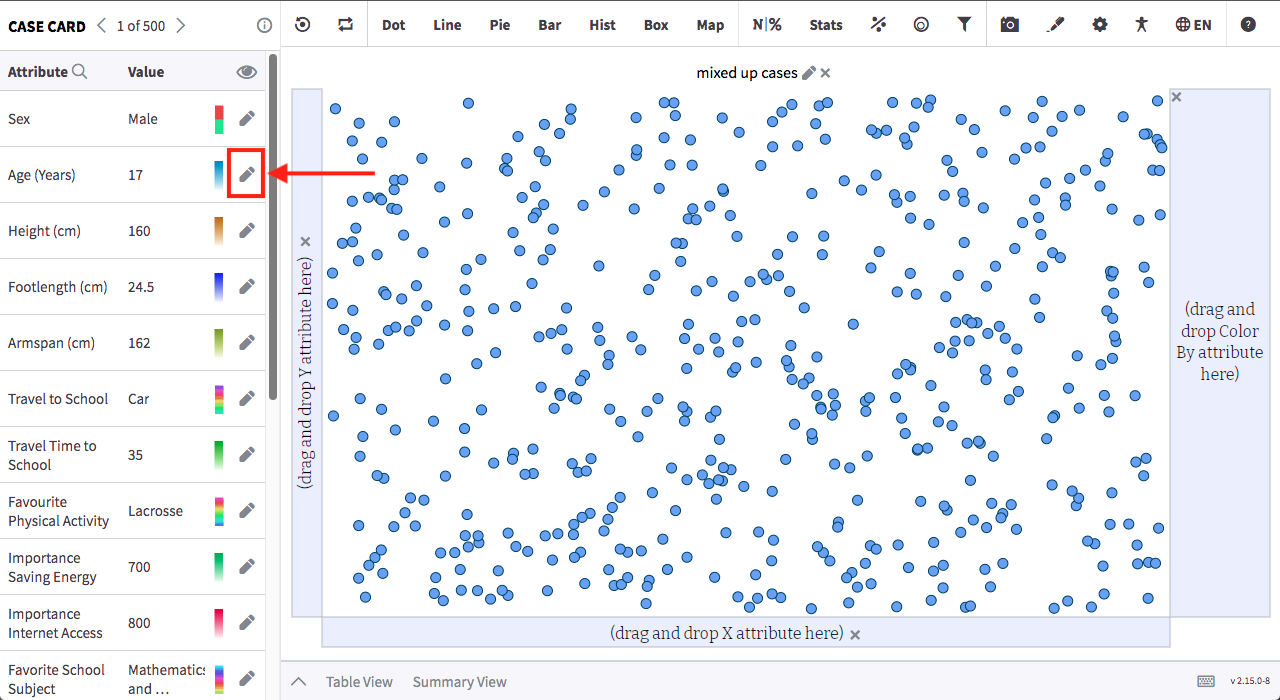
Tuva allows you to edit attributes to meet your goals for the data set. This article will describe the ways in which you can edit a numerical attribute. To access the Edit Attribute Menu, click the pencil icon next to the desired attribute.
Changing the Attribute Name and Description
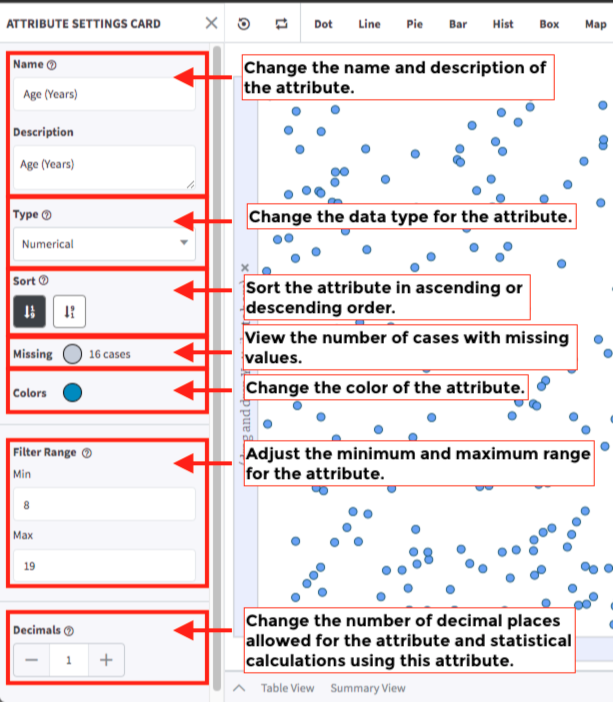
Section titled “Changing the Attribute Name and Description”Changing the name or description of the attribute may be helpful if you want to change the labels on the axes of the graphs you are creating. You can also add a description to help distinguish attributes.
Updating Data Type
Section titled “Updating Data Type”Tuva offers several different formats for numerical attributes in addition to regular numerical formatting. These other formats include date-time, date, time, duration, month, year, month-year, year-month, day of week, and extracted number. During your data analysis, if you want to update a numerical attribute’s formatting, you may follow the steps below.
- Click on the “Type” dropdown menu to see the different attribute types you may choose from.
- Click the format from the dropdown menu. The plotting area will update to reflect any changes you’ve made.
- You may return to the case card by clicking the “X” at the top of the attribute settings panel.
Data Types and Examples
Section titled “Data Types and Examples”-
Date Time: date with a timestamp - i.e. 12/31/1969 7:00 PM
-
Date: date with no time - i.e. 12/31/1969
-
Time: time with no date - i.e. 04:28:01 PM
-
Duration: a length of time without AM or PM in the format of hour : minute : seconds - i.e. 00:00:08 or 23:51:08
-
Month: name of month, no year - i.e. June, July, August
-
Year: 4 digit year - i.e. 1984
-
Month Year: month and year with no days - i.e. Jan-2019
-
Year Month: year and month with no days - i.e. 2019-01
-
Day Of Week: day of week only - i.e. Monday, Tuesday, Wednesday
-
Extracted Number: extracts a single number from a phrase containing a number - i.e. 12 will be extracted from “12 inches”, or 10 will be extracted from “10 months”
-
Numeric Intervals: the case values will be binned together into intervals defined by the user. this data type will treat a numeric attribute as a categorical attribute - i.e. 0-4, 5-9, 10-14
Change Attribute Color
Section titled “Change Attribute Color”In Tuva, all numerical data are assigned a color. When that attribute is single clicked, it colors all data points with a gradient of the assigned color. You may want to change to color for an attribute if you find it is similar to another attribute being plotted.
- Click the colored circle to the right of “Colors”
- Select a new color from the available options
Updating Attribute Range
Section titled “Updating Attribute Range”One method for filtering numerical attributes in Tuva is to adjust the range. This can help narrow the field of data to focus on a specific segment.
- Enter a minimum value for the range in the box under “Filter Range”
- Enter a maximum value for the range in the box under “Filter Range”
Changing Allowed Decimals
Section titled “Changing Allowed Decimals”Tuva allows you to change the number of decimal places used when graphing an attribute. You may change the number of decimal places in the box next to “Decimals”
Was this page helpful?
This opens the ticket form with your comment and a link to this page, so we can reply to you.
Submit a ticket