
We’ll use the Dinosaurs Tuva Dataset as an example.
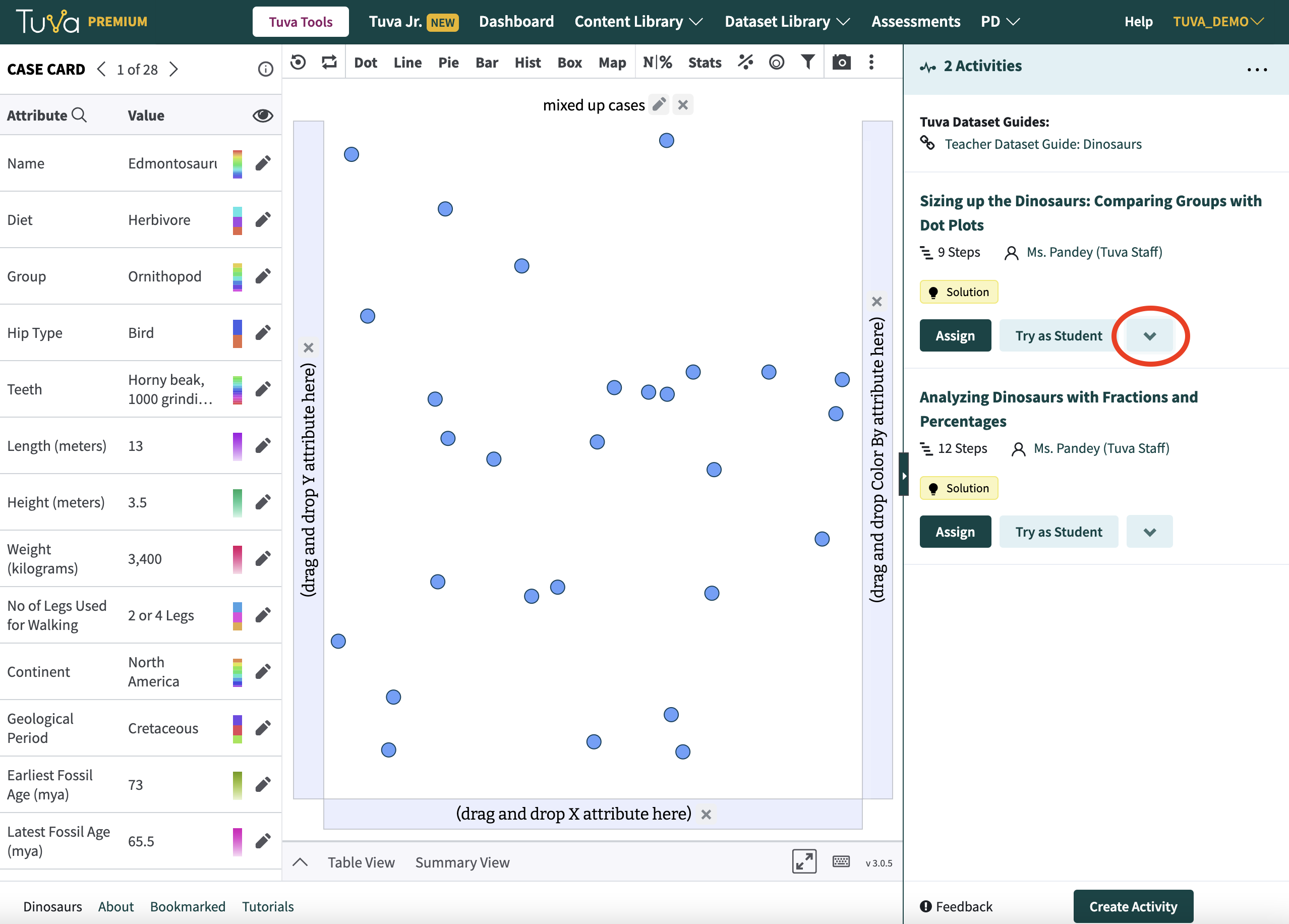
Once you’re on the page viewing the Tuva Dataset, on the right side of the screen you’ll see the activity panel listing all the activities associated with the dataset.
Click on the hamburger button for the activity you want to print, and then click Print Activity.
A new window or tab will appear showing the print preview and your web browser’s print dialogue window should appear allowing you to select your printer.
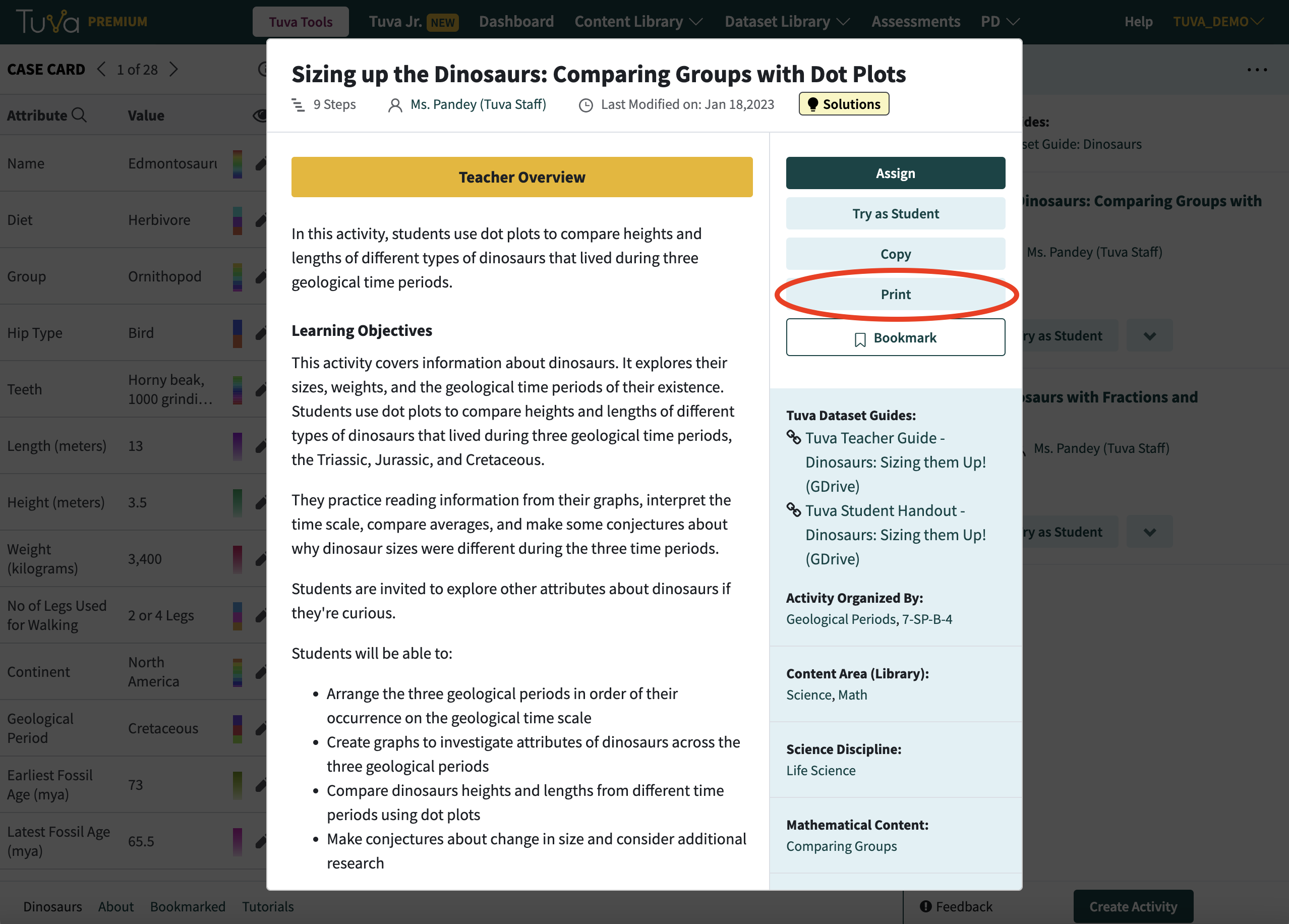
Once you have an activity opened, you can also print directly from the activity preview page.
Was this page helpful?
This opens the ticket form with your comment and a link to this page, so we can reply to you.
Submit a ticket