
To reduce clutter on your dashboard, archive classes from years past. Archiving hides a class from your dashboard and stops it being offered when you assign an activity. Unlike deleting a class, archiving is reversible.
Archive a class
Section titled “Archive a class”-
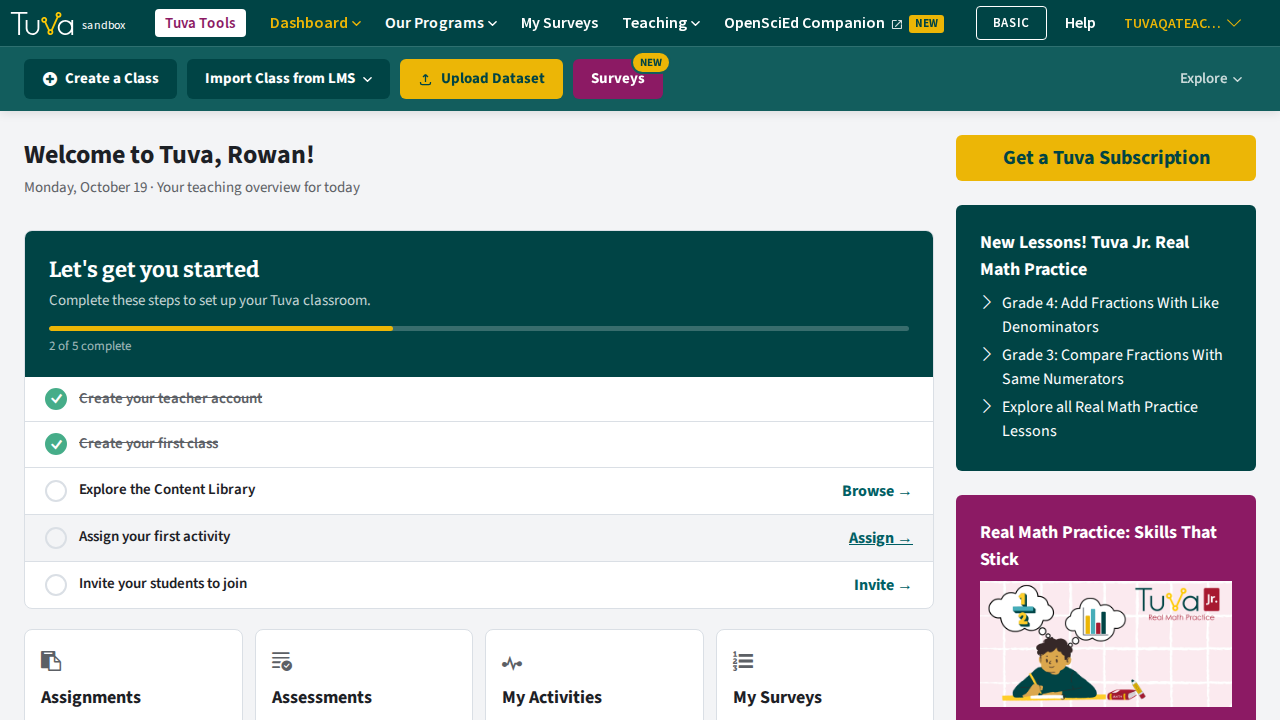
From your dashboard, click the class you want to archive.
-
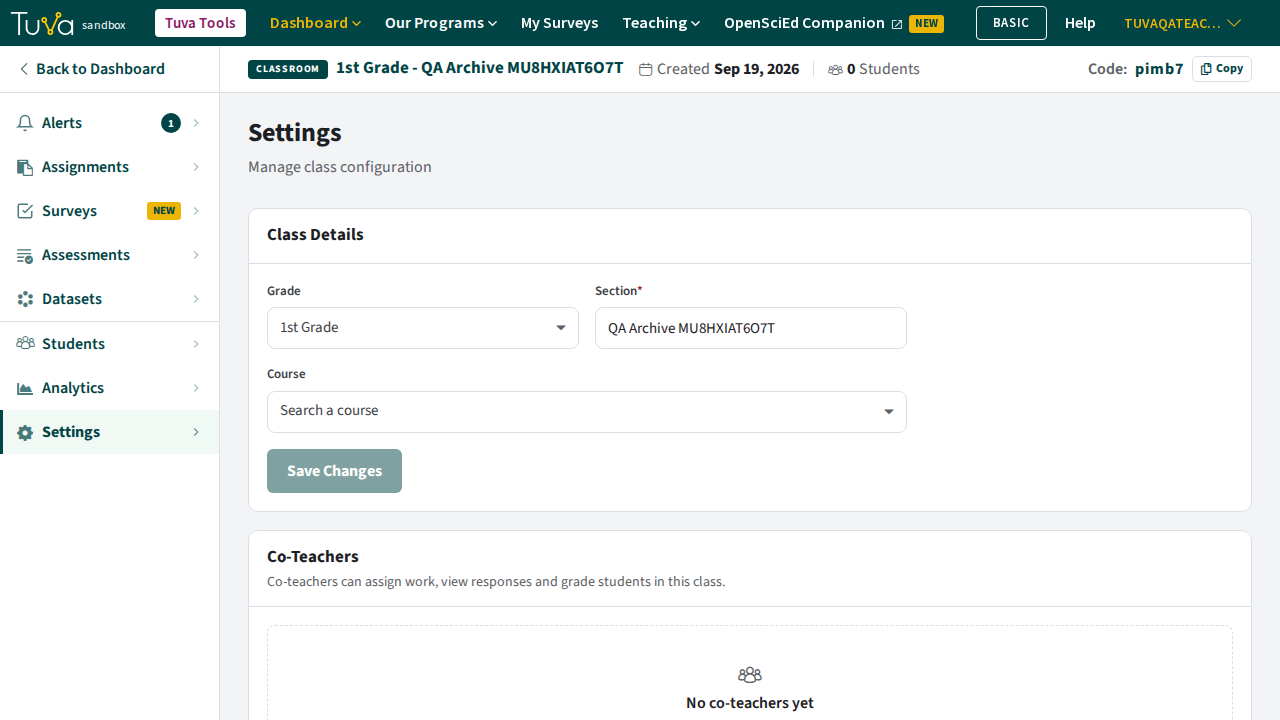
Open the Settings tab on the classroom navigation menu.
-
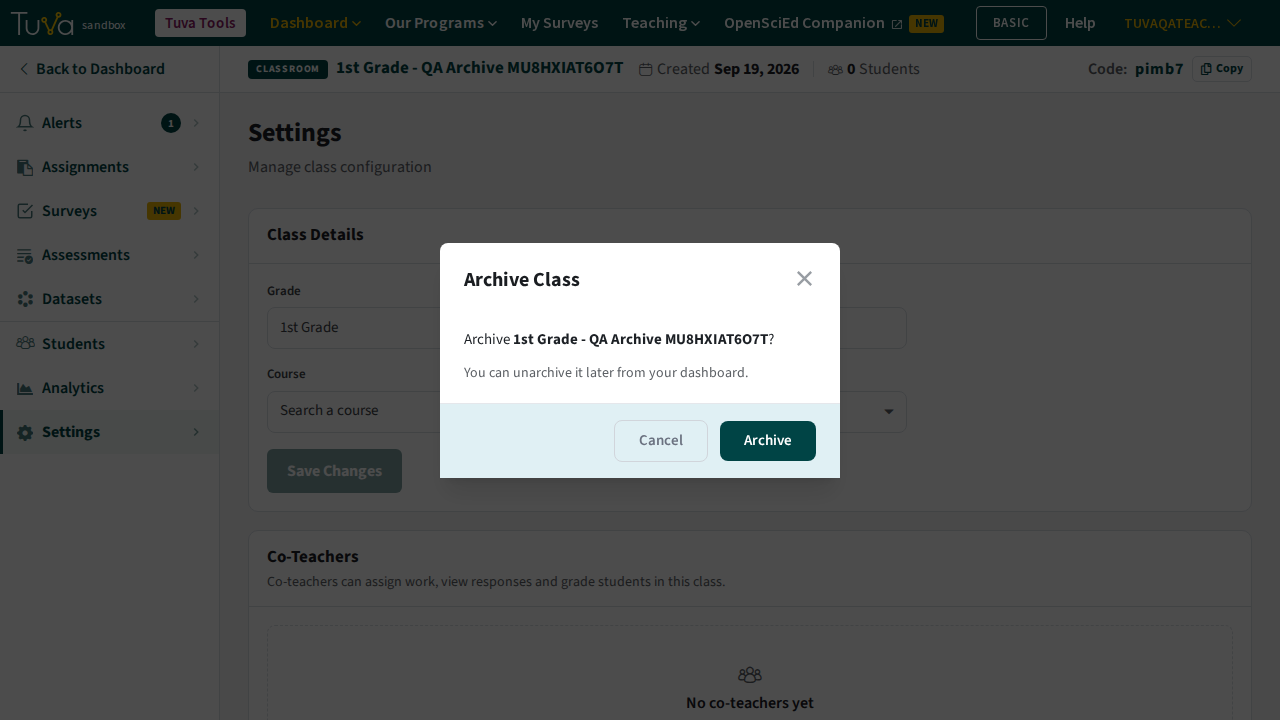
Click Archive Class. A pop-up asks you to confirm.
-
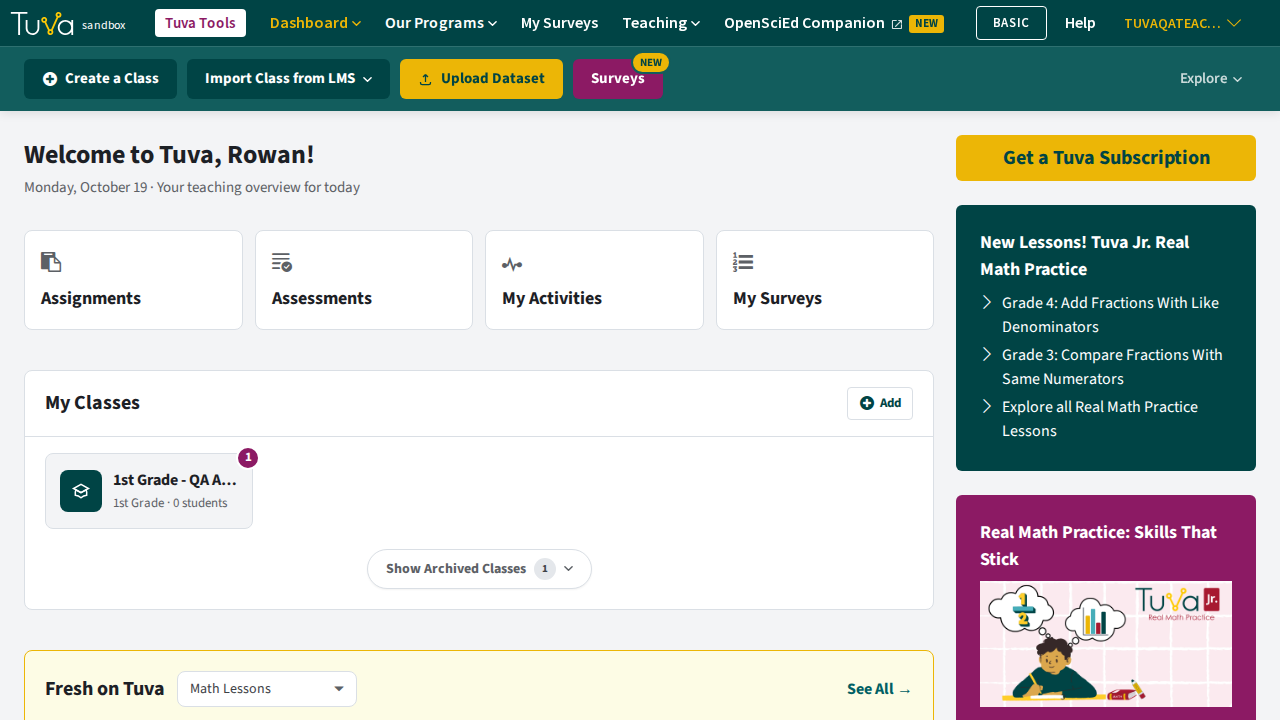
Click Archive in the pop-up.
Restore an archived class
Section titled “Restore an archived class”-
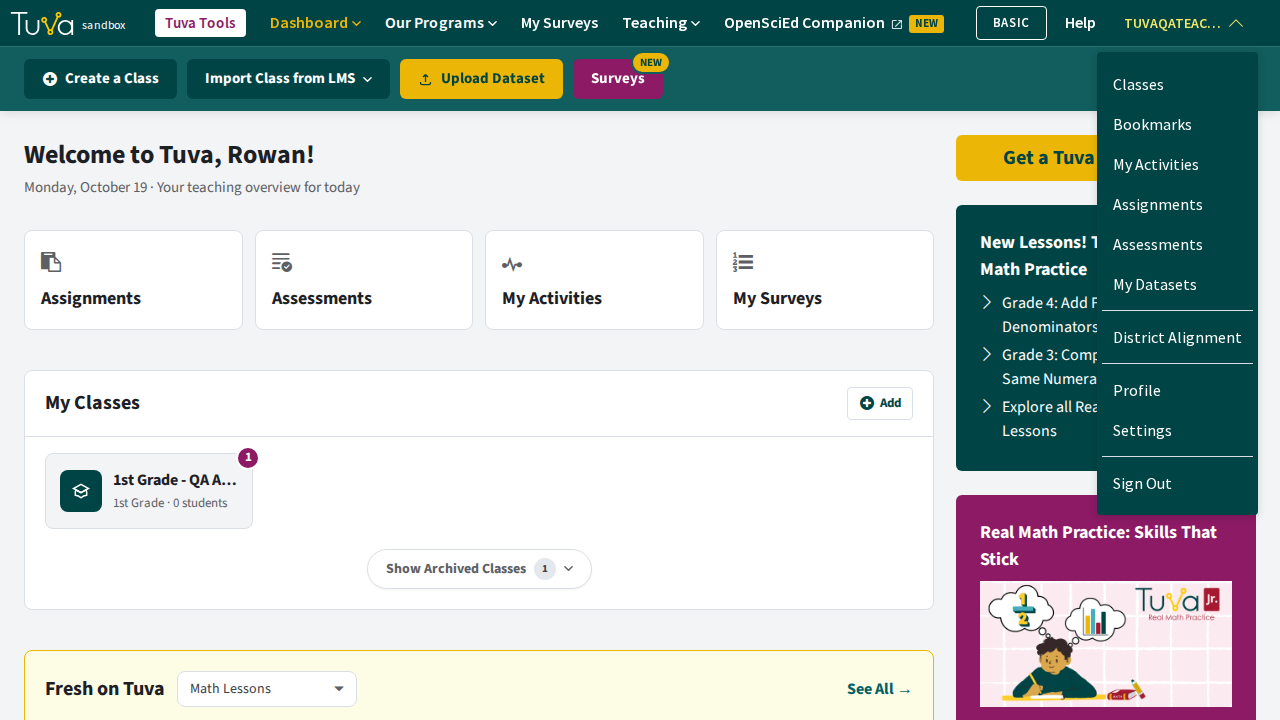
Click your username at the top right of the navigation menu to open the account menu.
-
Click Profile.
-
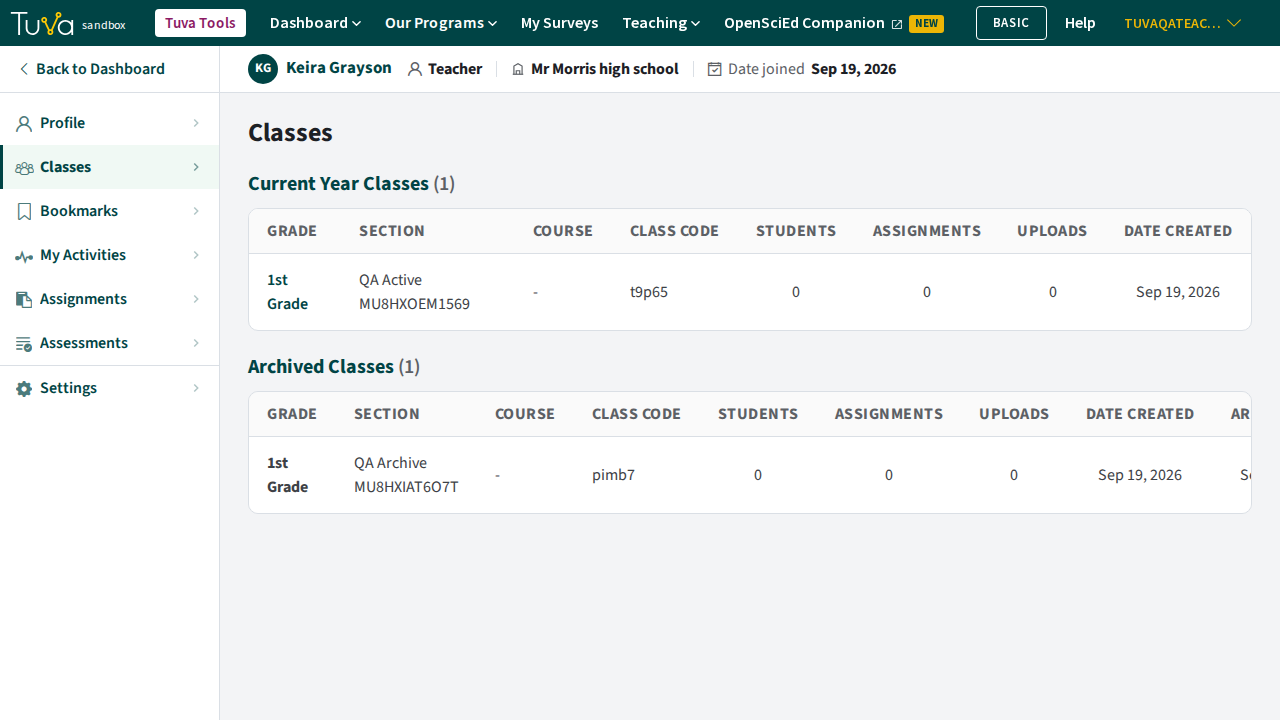
Open the Classes tab. It lists your classes, archived and active.
-
Click Restore on the class you want back, then click Unarchive in the Unarchive Classroom pop-up that follows.
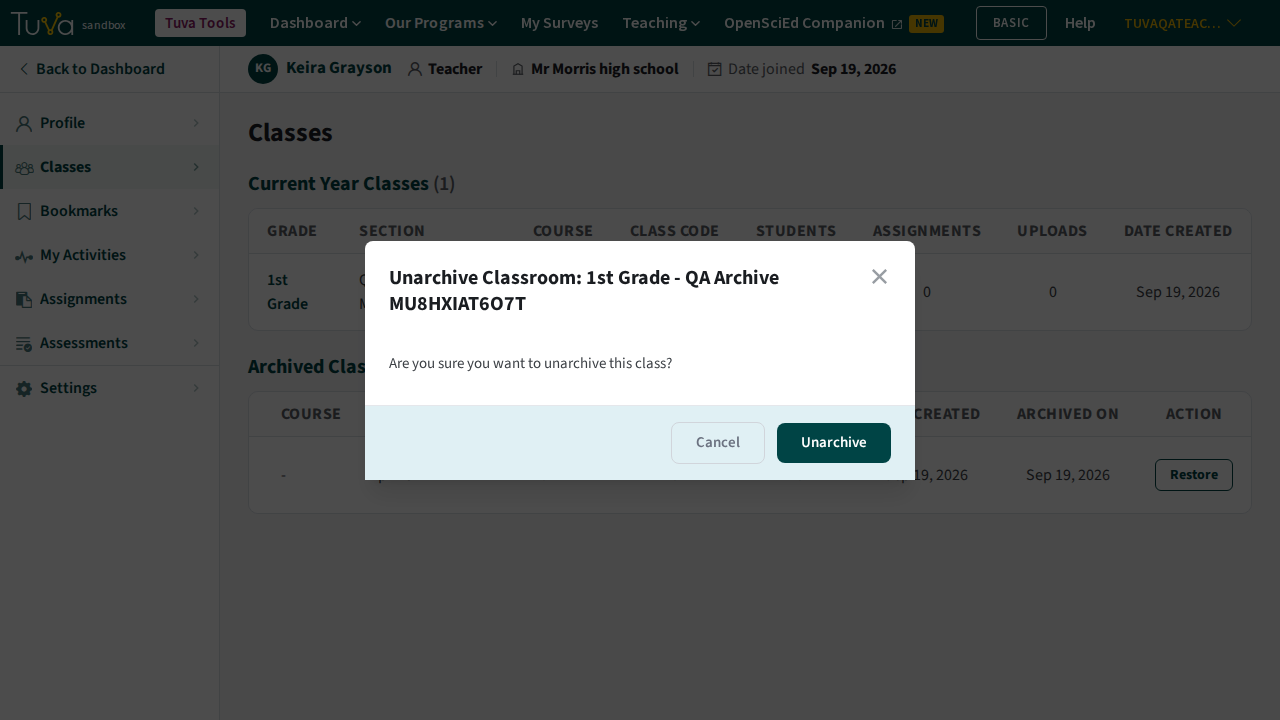
The class reappears on your dashboard and can be assigned to again.
What changes while a class is archived
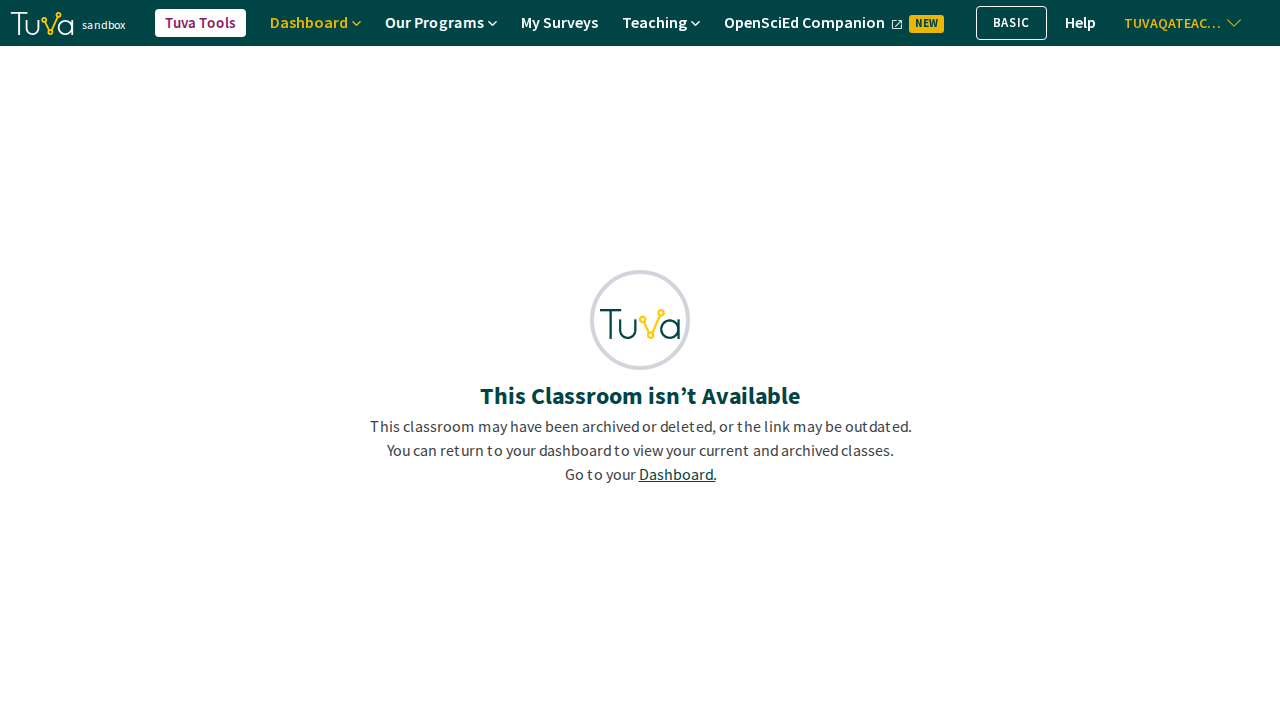
Section titled “What changes while a class is archived”An archived class is not just hidden from your dashboard — its pages cannot be opened at all. Following a link to an archived class shows This Classroom isn’t Available, so none of its tabs are reachable, including Settings. That means an archived class cannot be deleted until you restore it.
Was this page helpful?
This opens the ticket form with your comment and a link to this page, so we can reply to you.
Submit a ticket