
There are two ways your students can join multiple classes:
-
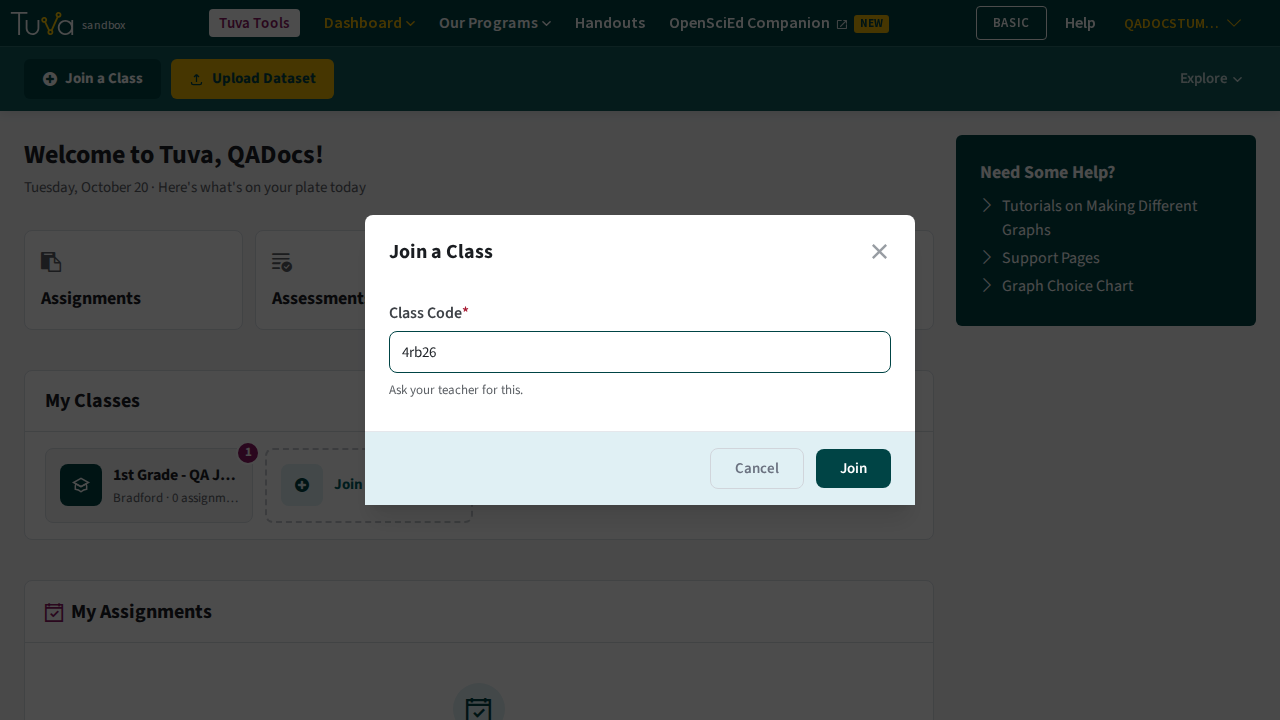
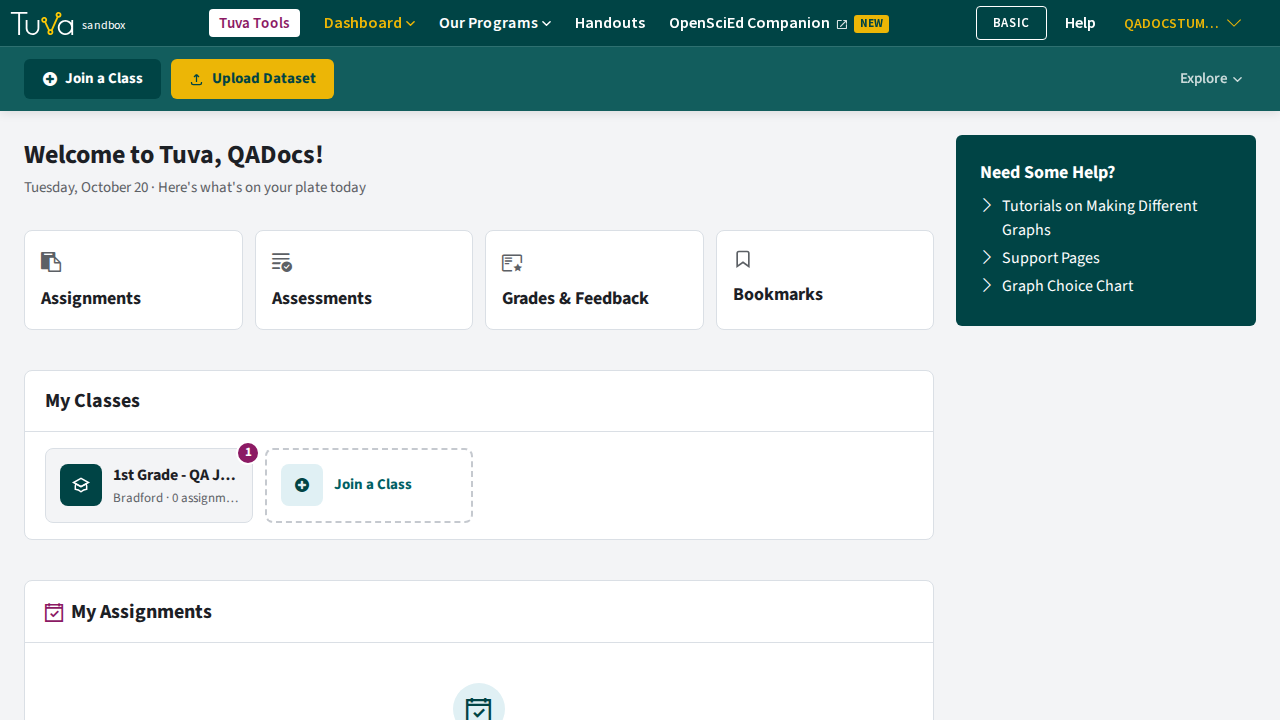
Once your students are on their dashboard, they can click “Join a Class” near the top left of the their dashboard. Inputting the class code for the class they’re trying to join will automatically add them to the class.
-
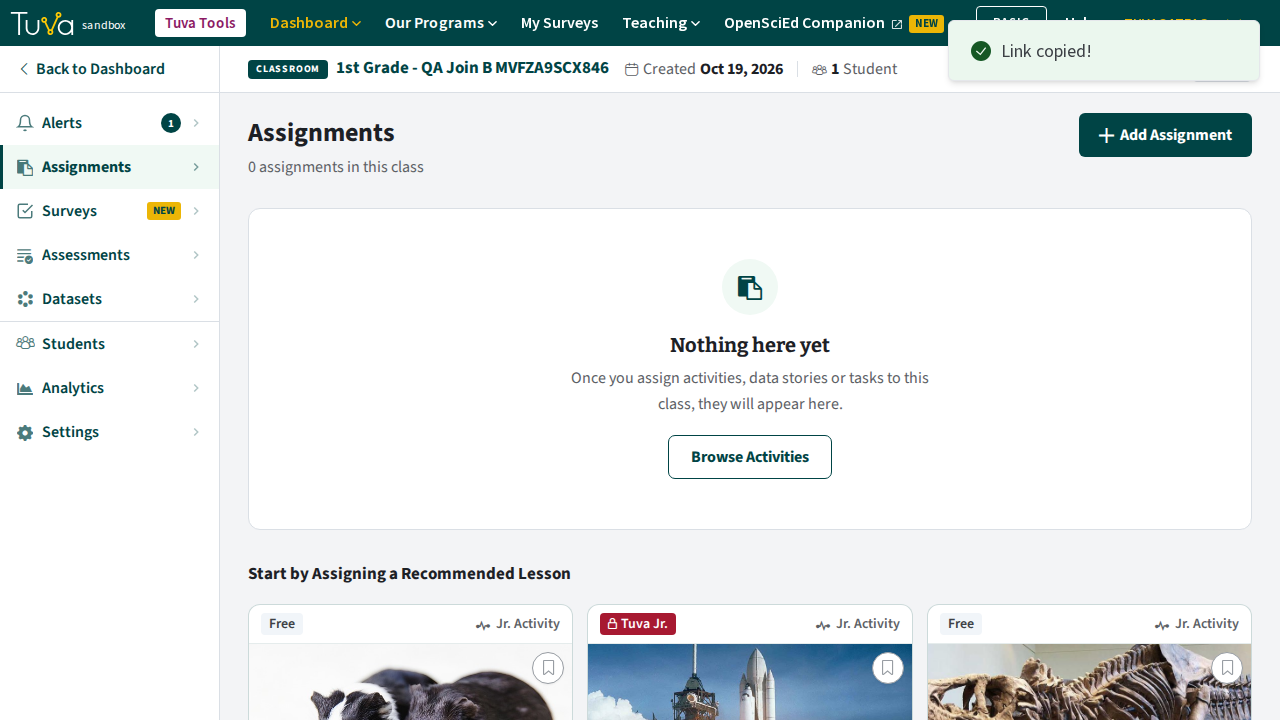
If you have a Learning Management System (LMS), you may share a ‘join’ URL that allows students to directly join your class. To get the ‘join’ URL, go to the classroom you want your students to join. In the top right of the classroom, next to the class code, click “Copy.” Tuva shows “Link copied!” and the link on your clipboard looks like tuvalabs.com/join/ followed by your class code. Paste this URL into your LMS, and your students will be able to directly join your classroom without having to input any class code.
-
When assigning activities to students, ensure your student start and access the activity via their classroom.
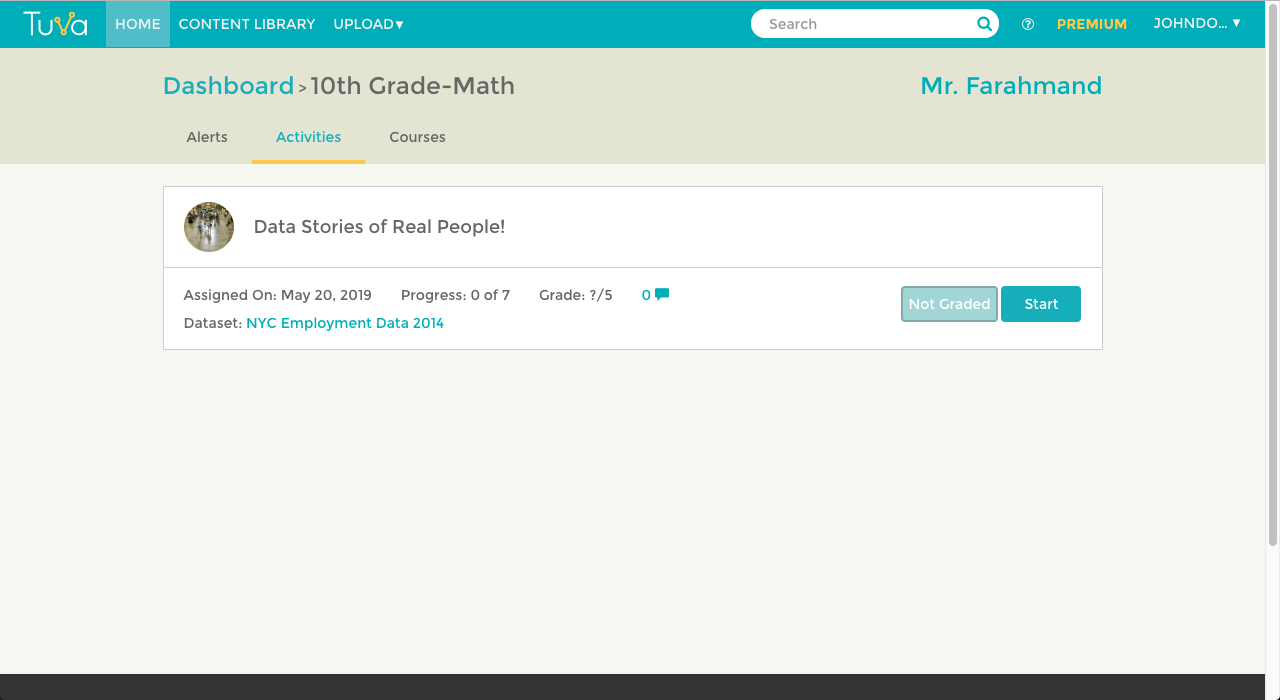
Ensure they don’t search for the activity in the top navigation bar or go to the Content Library to find the activity.
Was this page helpful?
This opens the ticket form with your comment and a link to this page, so we can reply to you.
Submit a ticket